How to record your Mac screen with internal audio
You record your screen, play it back, and the picture is perfect but the sound is gone. The video you were showing is silent, the call has no other side, and in my case the click sounds I'd spent weeks making were missing.
That last one is why I care. Clacky plays sounds when you click, and early users kept sending me silent recordings of it. So I went through every way a Mac can record its own sound, the free ones first. Here's what works today, depending on your macOS version.

Justinas, maker of Clacky
8 min read
The short answer
How do I record my Mac screen with internal audio?
On macOS 27 or later, press Shift-Command-5, open Options, tick Include System Audio, then record. On macOS 15 or 26, Apple’s tools record only a microphone, so use OBS (free, the macOS Screen Capture source), route sound through BlackHole, or an app that records Mac audio, like Clacky.
Why your Mac screen recording has no sound
Your Mac mixes every app’s sound into one stream, and a recorder has to ask for that stream specifically.
Everything your Mac plays, from music to a video call to a notification, goes into one mix that macOS sends to your speakers or headphones. People call it internal audio, system audio or desktop audio. It's the same thing.
A screen recorder can get sound from two places:
- The microphone. It hears your voice and the room. If your speakers are loud it may catch some of the Mac's sound through the air, but quietly and with echo. With headphones on, it catches none.
- System audio. A clean copy of the mix, exactly as the Mac plays it. That's what you want for a tutorial, a game clip or a demo with sound.
For years Apple's own recorders only offered the first one. That's the whole reason this question exists. Since macOS 13, apps can ask macOS for system audio directly (Apple calls the framework ScreenCaptureKit), so most good recorders do it now. Apple's own Screenshot toolbar caught up later, in macOS 27.
So the fix depends on two things: which macOS you have (Apple menu → About This Mac) and whether you also want your voice in it.
On macOS 27: the Screenshot toolbar records system audio
The built-in way, free and already on your Mac. One tick in Options does it.
If your Mac runs macOS 27, you don't need anything else. As of October 2026, Apple's guide to recording the screen describes it like this:
- Press Shift-Command-5 to open the Screenshot toolbar.
- Click Record Entire Screen or Record Selected Portion.
- Click Options and choose Include System Audio. You can pick a microphone in the same menu if you want your voice too.
- Click Record. To stop, click the stop button in the menu bar.
The video lands on your desktop as a .mov file unless you picked another place in Options.
On macOS 15 Sequoia and macOS 26 Tahoe, the same Options menu only lists microphones, and QuickTime Player's screen recording has only a microphone option too. If that's your Mac, skip to the next section.
Turn Show Mouse Clicks off in Options if another app already draws something at your pointer, or you'll get two circles on every click.
On macOS 13 to 26: OBS records Mac audio for free
OBS Studio looks like a tool for streamers, but its Mac source is the simplest free fix on older macOS.
OBS Studio is free and open source, and it's what I'd use on macOS 13 to 26 if I didn't want to install anything clever.
- Download it from obsproject.com and open it.
- Under Sources, click + and add macOS Screen Capture. Pick your display. On macOS 13 or later this source records the Mac's audio along with the screen.
- macOS asks for Screen & System Audio Recording permission. Allow it in System Settings, then reopen OBS.
- Play something and watch the audio meter in the Audio Mixer move. If it moves, the sound will be in the file.
- Click Start Recording, then Stop Recording. File → Show Recordings opens the folder.
OBS 30 and later also has a macOS Audio Capture source, which can record one app's sound only. That's handy when you want a browser video in the recording but not your notifications.
The catch is the learning curve. OBS has scenes, sources, encoders and a lot of settings, and the first run takes ten minutes of poking around. Once set up, it's reliable.
The QuickTime workaround: BlackHole and a Multi-Output Device
The old trick still works with QuickTime, but it changes how your Mac’s sound is routed until you switch it back.
Before apps could ask for system audio, everyone used a virtual audio device. It still works, and it's the way to get Mac sound into QuickTime or any app that only lets you pick a microphone.
- Install BlackHole, a free, open-source virtual audio driver. The 2-channel version is enough.
- Open Audio MIDI Setup (in Applications → Utilities). Click + at the bottom left and choose Create Multi-Output Device.
- Tick your speakers or headphones and BlackHole 2ch. Put your speakers first so they're the clock source.
- In System Settings → Sound → Output, pick the Multi-Output Device. You still hear everything.
- In QuickTime (File → New Screen Recording) or the Screenshot toolbar, open Options and pick BlackHole 2ch as the microphone.
Two things trip people up. While the Multi-Output Device is selected, the volume keys stop working, because macOS gives it no volume control. And if you forget to switch the output back afterwards, you'll wonder why your volume keys are broken tomorrow. I'd only use this if OBS isn't an option.
One switch: Mac Audio in Clacky’s recorder
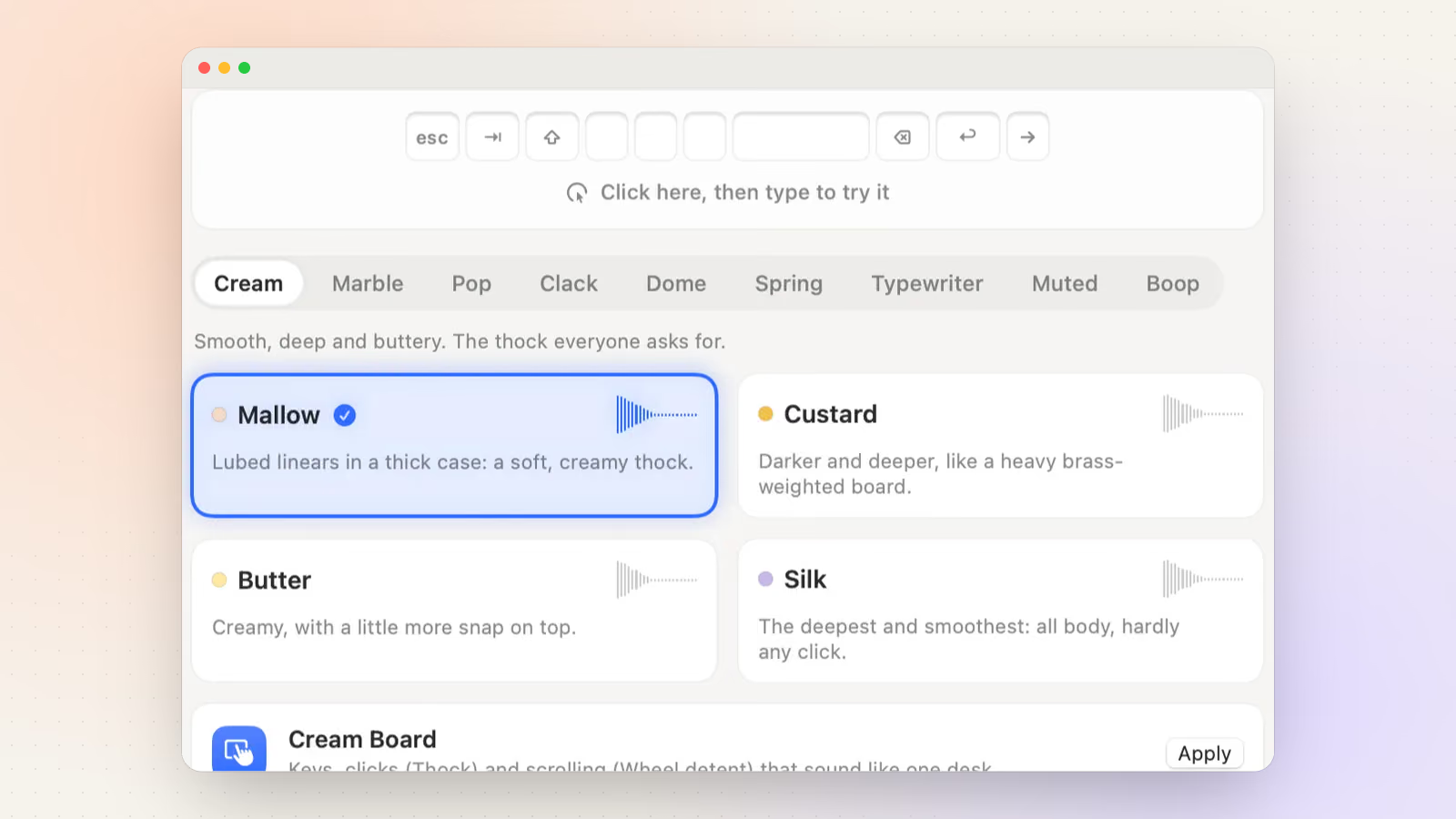
The app I make has a recorder with system audio on by default, because I needed my click sounds in the video.

I built a screen recorder into Clacky for exactly this problem. Clacky plays click, keyboard and scroll sounds, and people wanted to show them off in videos, but Apple's recorder dropped them.
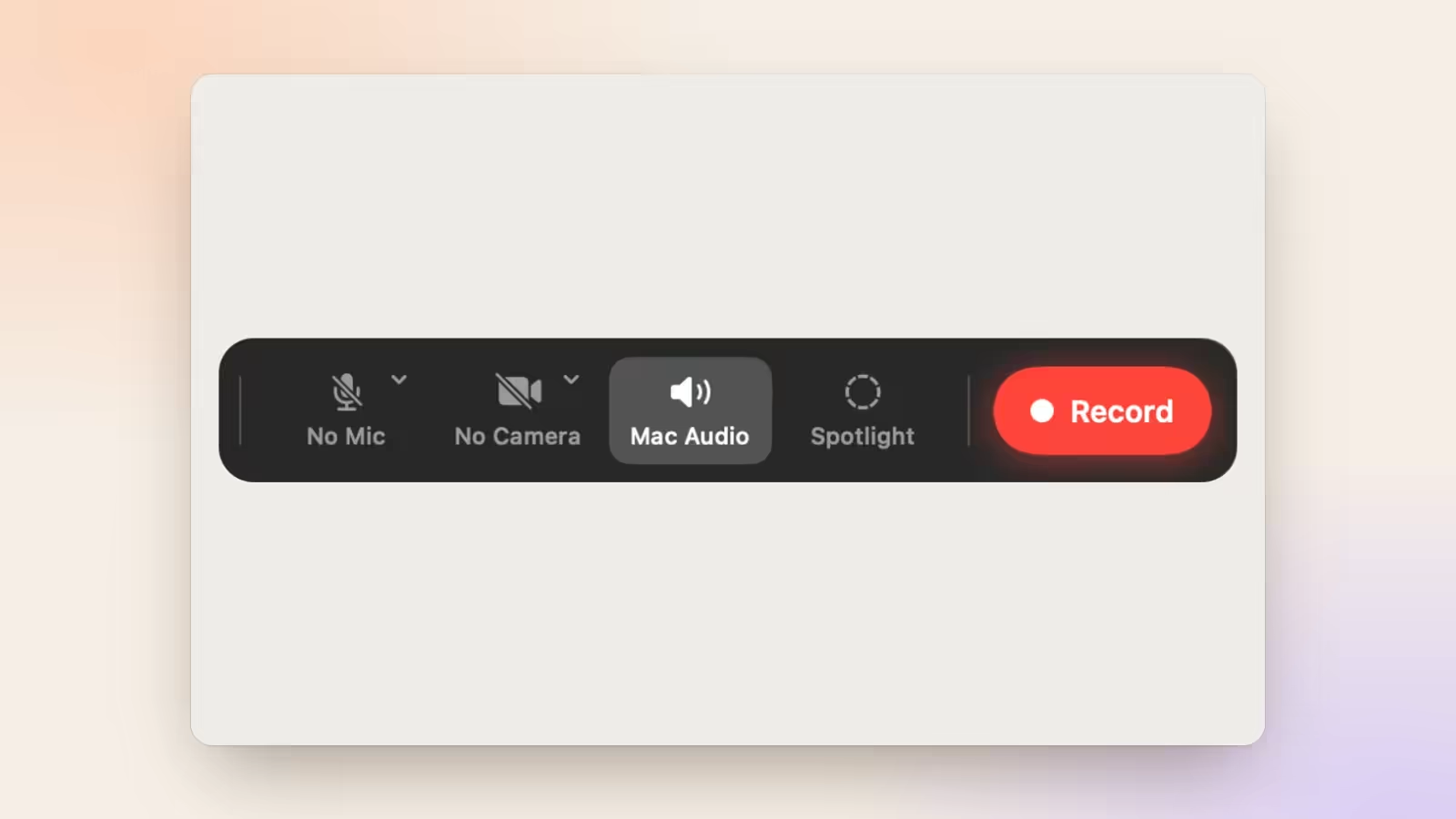
Choose Record Screen… in Clacky's menu, pick Full Screen, Window or Area, and record. Mac Audio is on by default, so the video has everything your Mac plays, Clacky's own clicks included. If the track comes out silent when it shouldn't, the preview tells you straight away instead of letting you find out later. You can add a microphone and a camera bubble from the same bar.
It needs macOS 15 or later. Recordings are saved to ~/Movies/Clacky as .mov files and you can export MOV, MP4 or GIF. Nothing is uploaded.
Sound barely changes the file size. A minute of stereo AAC audio at 128 kbps is under 1 MB, while the picture was 2.5 to 67 MB a minute in my own measurements. Try your own length and screen:
Try it: drag the slider
300 MB
4 minutes, 1080p, 30 fps, HEVC
An estimate, the same one Clacky’s Studio export shows. A quiet screen often records several times smaller.
Clacky is $4.99 once for one Mac, with a 3-day free trial in the app. If you only need audio in a recording now and then, the free options above do the job.
Record your voice and Mac sound together, without echo
The one mistake that ruins most tutorials: the microphone hears the speakers.

Whatever you record with, the trick for voice plus system audio is the same: wear headphones. If the Mac's sound comes out of the speakers, the microphone records it a second time, a few milliseconds late, and the video sounds like it was made in a bathroom.
Then do a 10-second test before the real take:
- Start recording with both system audio and your microphone on.
- Say a sentence, then play a sound on the Mac. You can use the click pads below; they play Clacky's real click sounds in your browser.
- Stop, play the file back, and check you can hear both, at similar volumes.
Try it: tap a pad to hear it
Clacky’s own sound engine, playing in your browser. Turn your sound on.
If your voice is too quiet next to the Mac's sound, turn the Mac's volume down a little rather than shouting. If your voice is missing, check the microphone with the free mic test at the bottom of this page. And if you're recording a call, ask the other people first. In many places it's the law, and it's polite everywhere.
Record your Mac screen with internal audio
- Check your macOS version. Apple menu → About This Mac. macOS 27 or later can do it built in; macOS 13 to 26 needs another app.
- On macOS 27: use the Screenshot toolbar. Press Shift-Command-5, pick a record button, open Options, choose Include System Audio, then Record.
- On macOS 13 to 26: use OBS. In OBS Studio, add a macOS Screen Capture source, allow Screen & System Audio Recording, then Start Recording.
- Add your voice with headphones on. Pick a microphone too, and wear headphones so the microphone doesn’t record the speakers.
- Test 10 seconds first. Talk, play a sound, stop, and play the file back before the real take.
Test your microphone before you record
Open it on its own pageA free mic test: see the level move as you talk and play yourself back, so you know your voice will be in the recording. Nothing you say leaves the page.
The tool loads here as you scroll. You can also open it on its own page.
Nothing you do in it is uploaded or saved.
Questions
Can QuickTime record internal audio on a Mac?
Not by itself. QuickTime’s screen recording offers a microphone only. Pick a virtual device like BlackHole as the microphone and send the Mac’s sound to it with a Multi-Output Device, or use the Screenshot toolbar on macOS 27, which has Include System Audio.
Why is my Mac screen recording silent?
Most likely the recorder used only the microphone, or no audio at all. On macOS 15 and 26, Apple’s Screenshot toolbar and QuickTime can’t record the Mac’s own sound. Use an app that captures system audio, or upgrade to macOS 27.
Can I record the sound of just one app?
Yes, with OBS 30 or later: the macOS Audio Capture source can record one application’s audio instead of the whole Mac. That keeps notifications and other apps out of the recording.
Is it legal to record a video call?
It depends on where you and the other people are. Many places require everyone’s consent. The safe habit is to ask at the start of the call, and most call apps show a recording notice when you use their own recorder.
Does recording system audio make the file much bigger?
Barely. Stereo AAC audio at 128 kbps is under 1 MB a minute. In my tests the screen video was 2.5 to 67 MB a minute, so the picture is what makes a recording big.
Written by Justinas Rolando
I make Clacky and build it in public. I write about what I learn making a small Mac app. More about me on the about page, and a free newsletter at justinasrolando.com.