 MacPip
Answer
Why does Clacky need Input Monitoring?
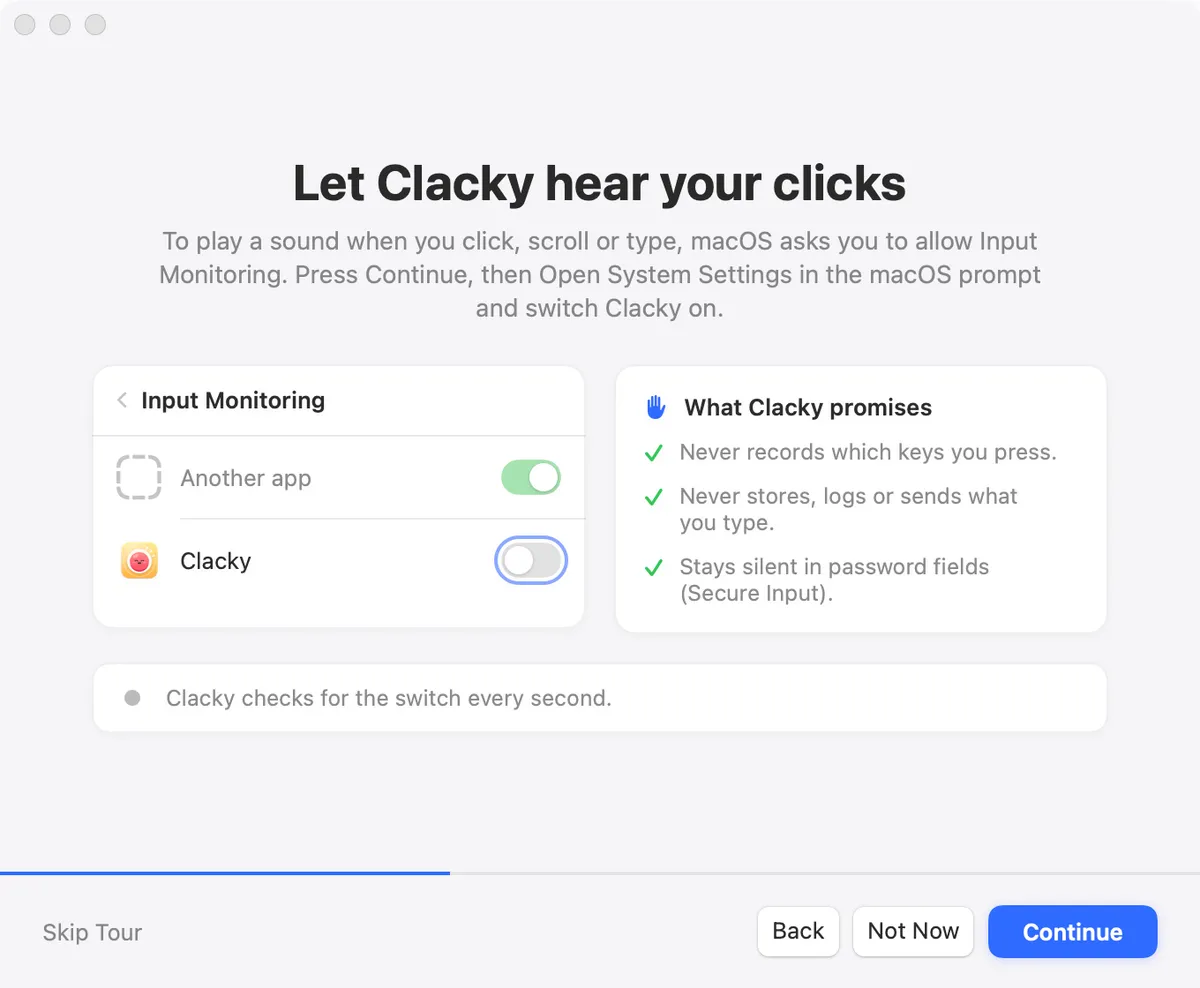
Clacky needs Input Monitoring because it is the macOS permission that lets an app notice clicks, scrolls and key presses in other apps, which Clacky needs to play a sound for each one and draw the click ripple.
Keyboard sounds listen for key down/up only. Clacky never records, stores or sends which keys you type, and respects Secure Input. macOS words its prompt as an app that would like to receive keystrokes from any application, which sounds bigger than what Clacky does with it.
What the permission lets Clacky do
Input Monitoring is the permission macOS uses for listen-only event taps, for the mouse and the keyboard alike. Clacky’s tap is listen-only: it can notice a click or a key going down, but it can’t change, delay or block it. Without it, keyboard sounds stay silent, and on some macOS versions an app hears only clicks inside its own window.
Key presses are only asked for while keyboard sounds are on. With keyboard sounds off, the part of Clacky that plays sounds asks macOS for no key events at all, only mouse buttons and scrolling.
What happens to a key press
Every key press takes the same short path, and nothing is kept at the end of it.
- macOS hands Clacky the key event, which carries a physical key position (a key code), never a letter.
- Clacky sorts it into a kind: an ordinary key, space, return, delete, tab, escape, an arrow, a function key or a modifier. Ordinary keys also get a rough column (left, middle or right).
- The kind picks the sound, and the column nudges its pitch and its place in stereo.
- The key code is dropped. Nothing maps it to a character, and nothing about it is logged, saved or sent.
- Typing stats on your Mac only add one to a count: how many keys, and when.
How to turn it on
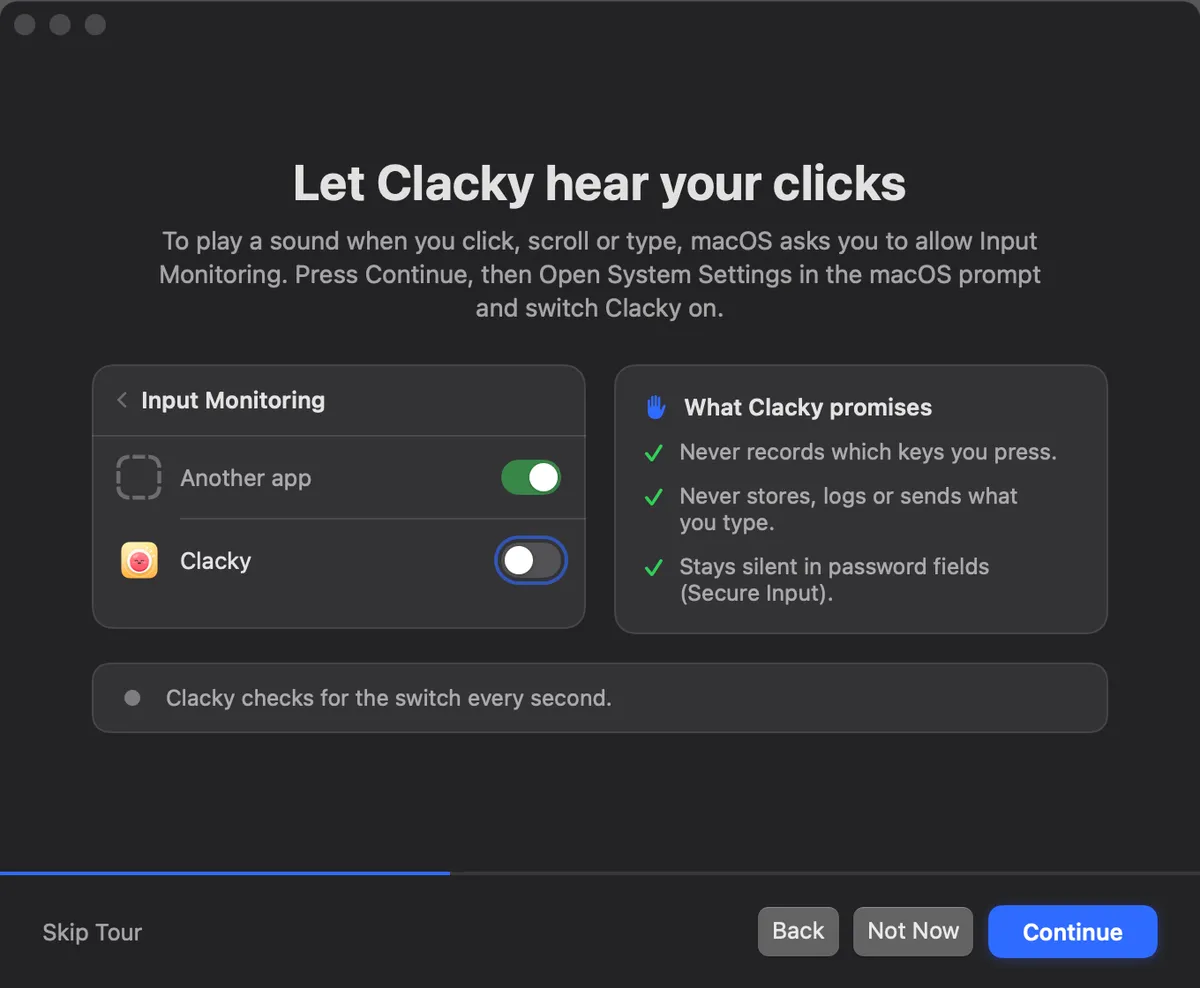
Clacky explains Input Monitoring in its welcome tour before macOS asks.
- Open Clacky. In the welcome tour, read the Input Monitoring screen and press Continue.
- In the macOS prompt, choose Open System Settings.
- In System Settings → Privacy & Security → Input Monitoring, switch Clacky on. Clacky checks for the switch every second, so you don’t need to come back and press anything.
- Click anywhere on your Mac. You should hear a click and see the ripple.
If you say no, or sounds stop later
If you say no, keyboard sounds stay silent. On recent macOS, clicks and scrolls still play. You can change your mind any time in the same System Settings list.
If sounds stop after an update or after moving the app, Clacky may be listed twice. Select each Clacky entry, remove it with the minus button below the list, then open Clacky from Applications and allow it again. More fixes in keyboard sounds not working on Mac.
Input Monitoring and Accessibility
Some keyboard sound apps ask for Accessibility instead. Accessibility lets an app control your computer and other apps. Input Monitoring only lets an app see input. For its sounds and ripple, Clacky asks only for Input Monitoring.
The recorder and screenshots need a different permission, Screen Recording, and ask for it only when you first use them. See why Clacky asks for Screen Recording.
Questions
Is it safe to allow Input Monitoring for Clacky?
Does Clacky work without Input Monitoring?
How do I take Input Monitoring away from Clacky?
Why does a click sound need the same permission as the keyboard?
Facts checked on 5 November 2026.
Related
- Is Clacky safe to install?Yes. Clacky is signed and notarized by Apple, needs one permission for its sounds, and never records, stores or sends which keys you type.
- What is Secure Input?Secure Input is the macOS shield that hides key presses from other apps in password fields, so keyboard sounds pause. How to find the app holding it.
- Why does Clacky ask for Screen Recording?Clacky asks for Screen Recording only when you first use its screen recorder or screenshots. Sounds don’t need it, and nothing is ever uploaded.
- Keyboard sounds not working on Mac? 8 fixesKeyboard sound app silent on your Mac? Check Input Monitoring, Secure Input, the sound output and the app’s own quiet settings. Fixes for any app, Clacky too.
- Mechanical keyboard and click sounds on your MacHow keyboard and click sound apps work on a Mac, what the permission allows, how to check one is safe, the best apps, and fixes when there’s no sound.
- Permissions, explainedEvery permission in one list: why Clacky asks, what happens if you say no, and which of your tools use it right now.
Make something on your Mac today.
3 days free, every feature. Then $4.99 once.