Permissions, explained
Every permission in one list: why Clacky asks, what happens if you say no, and which of your tools use it right now.
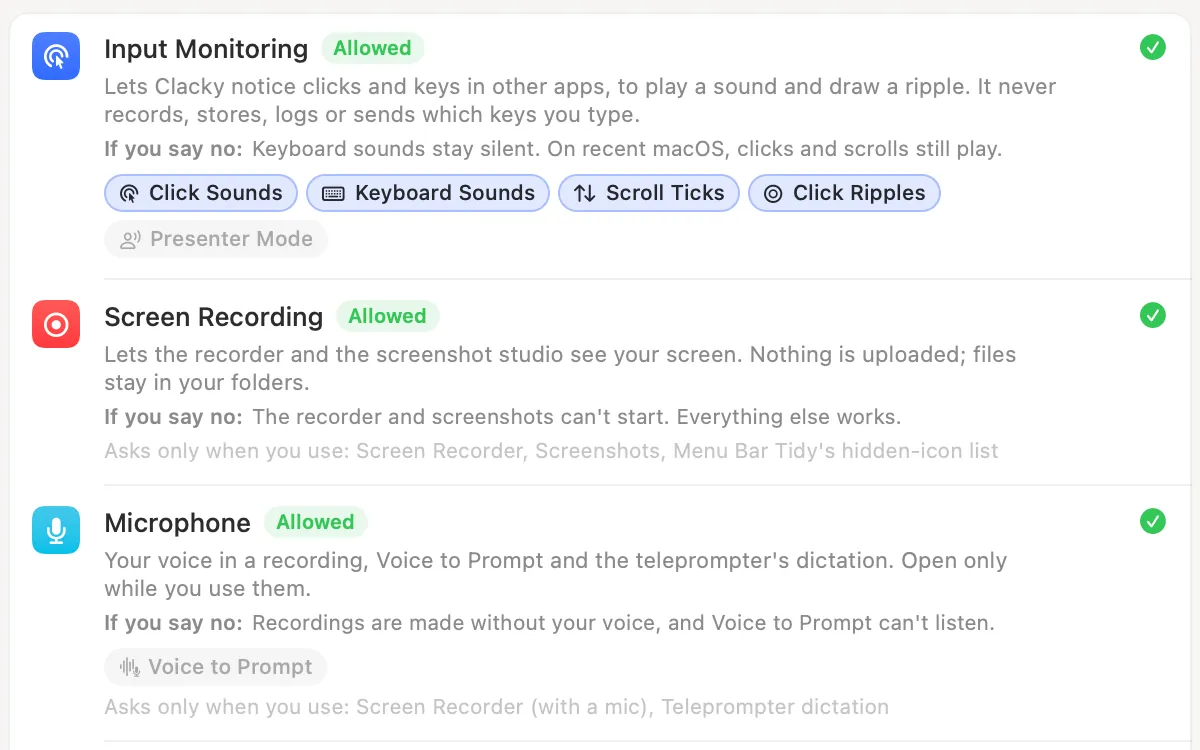
What it is
Clacky asks for a permission only when you first turn on the tool that needs it, never at launch. Privacy & Permissions shows every one in a single list.
Each permission says why Clacky asks, what happens if you say no, and which of your tools use it right now. Turn a tool off and its permission says Not needed now.
The list covers Input Monitoring, Screen Recording, Microphone, Speech Recognition, Accessibility, Camera, Notifications, Automation and System Audio Recording.
How to use it
Open the page
Open Clacky’s Settings and pick Privacy & Permissions in the sidebar.
Check a status
Each permission shows whether it’s allowed, not asked yet, not allowed, or not needed now.
Fix one
Click its button: macOS asks the first time, or Clacky opens the exact System Settings pane.
Tips
- Want Clacky to be just a click-sound app? Sounds Only on the same page turns every other tool off, and Bring My Tools Back puts them back exactly as they were.
Questions
- What if I say no to Input Monitoring?
- Keyboard sounds stay silent. On recent macOS, clicks and scrolls still play.
- What if I say no to Screen Recording?
- The recorder and screenshots can’t start. Everything else works.
Make something on your Mac today.
Seven days free, every feature, cancel anytime.