Command line
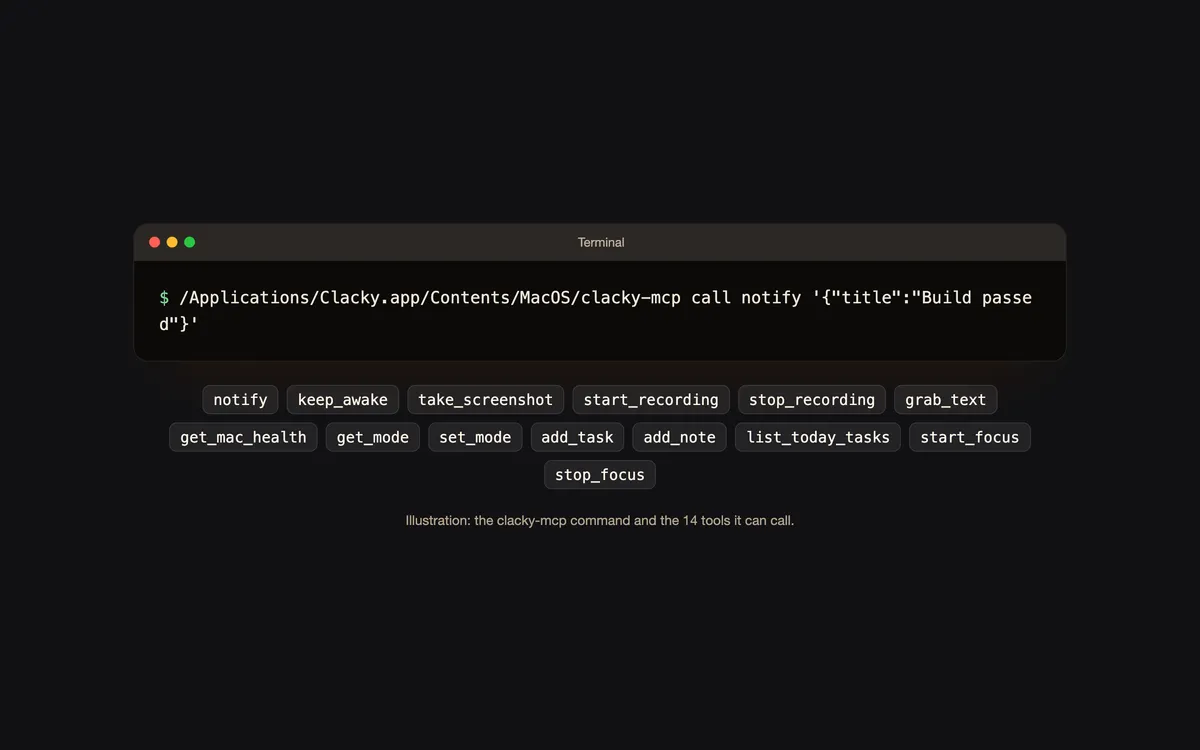
Any agent with a shell, or your own scripts, can call the same 14 tools with the clacky-mcp command. For example:
/Applications/Clacky.app/Contents/MacOS/clacky-mcp call notify '{"title":"Build passed"}'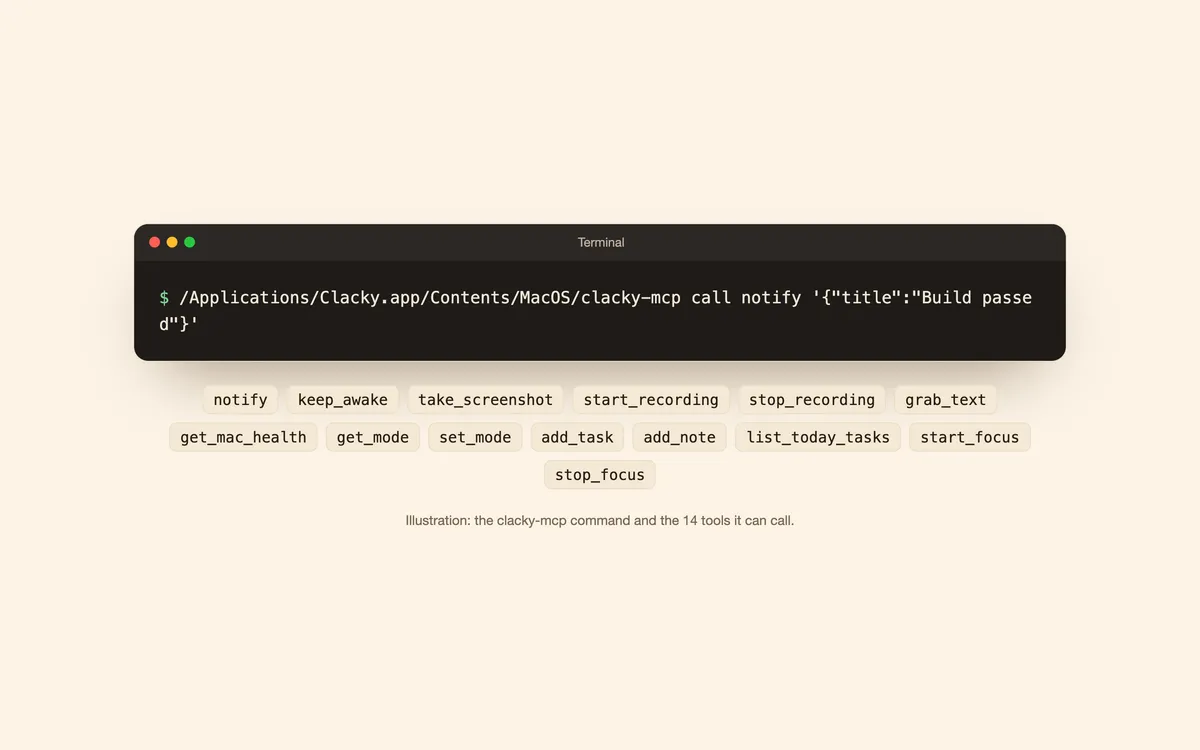
What it is
No MCP in your agent? The clacky-mcp command inside the app runs the same 14 tools from Terminal, so a script or any agent that runs commands can alert you, keep the Mac awake or grab text.
It follows the same switches as Connect AI tools: a tool you turned off stays off here too, and screenshots still ask you first.
How to use it
Turn on AI tools
Turn on Settings → Connect AI tools in Clacky.
See what’s on
Run /Applications/Clacky.app/Contents/MacOS/clacky-mcp list to see the tools you turned on.
Call a tool
Run clacky-mcp call with the tool’s name and its arguments as JSON, like the notify example on this page.
Tips
- clacky-mcp prints the text result. It exits with 1 when Clacky or you said no (the reason is on stderr) and with 2 on bad usage, so scripts can check.
Questions
- Does Clacky need to be running?
- Yes. If Clacky isn’t running or a tool is switched off, the command says so and exits with an error.
- Which tools can I call?
- The same 14 as over MCP: notify, take_screenshot, grab_text, start_recording, stop_recording, get_mac_health, add_note, add_task, list_today_tasks, start_focus, stop_focus, keep_awake, get_mode and set_mode.
Make something on your Mac today.
Seven days free, every feature, cancel anytime.