StudioLive
Spotlight
Dims the screen around the pointer while you record.
What it is
Spotlight dims your screen while you record, except a soft circle that follows the pointer. Viewers look where you point.
It’s part of the video: the dimming is recorded, and your ripples stay bright on top of it.
It only runs while you record with Spotlight on, and reads nothing but where the pointer is.
How to use it
Turn it on
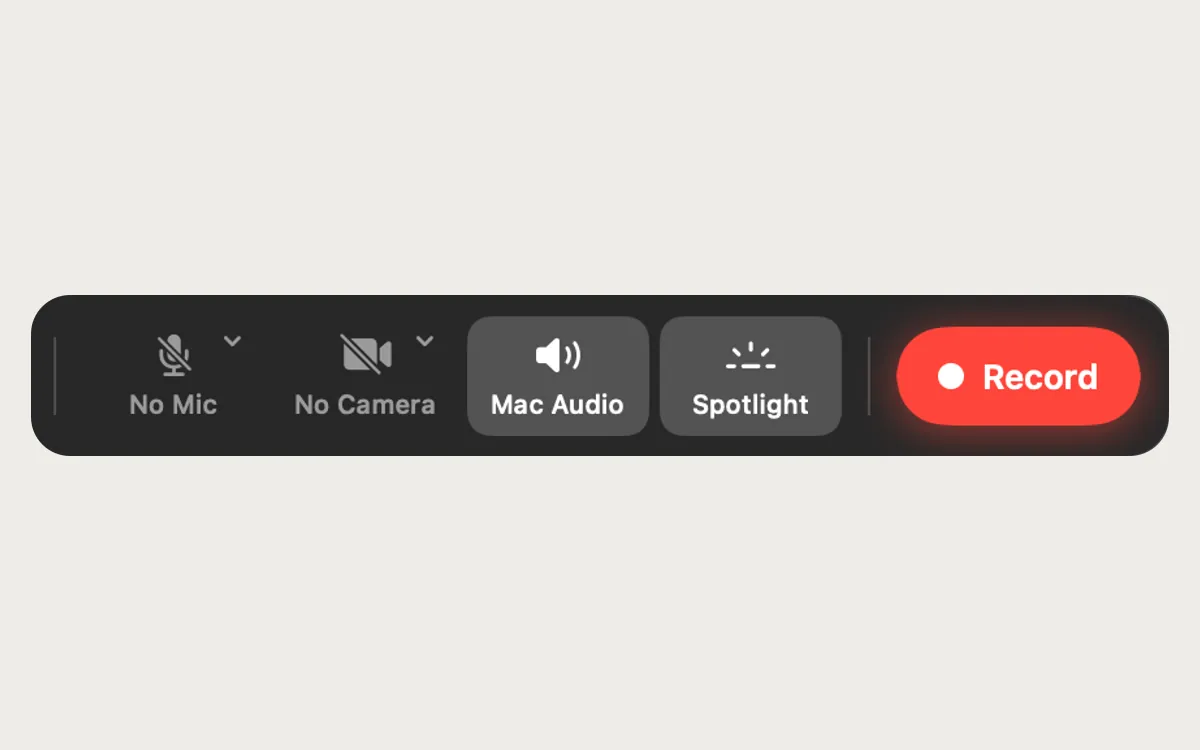
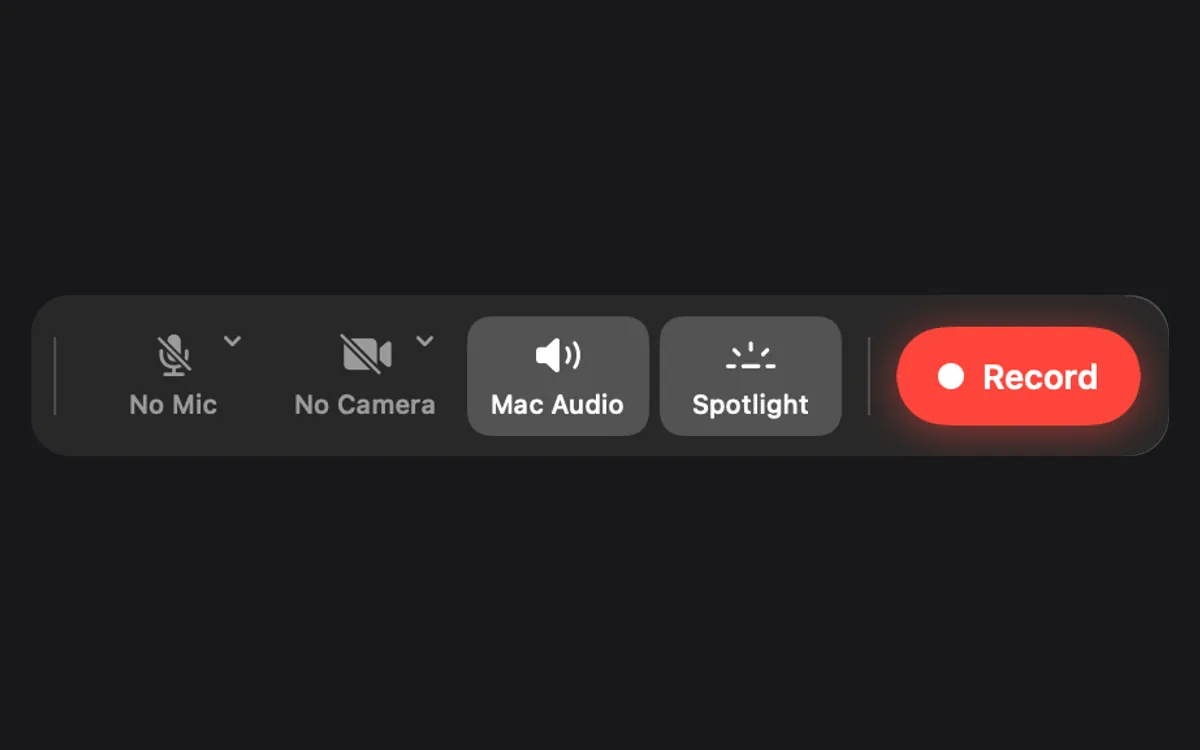
Flip the Spotlight card on in Studio, under More for recording, or turn it on in the recorder bar.
Set how it looks
In Settings → Recorder, pick Spotlight dimming (Light, Medium or Strong) and Spotlight size (Small, Medium or Large).
Record
Start a recording: the rest of the screen dims and the bright circle follows your pointer.
Questions
- Does it dim my screen when I’m not recording?
- No. Spotlight only shows while you record.
- Does it work with other screen recorders?
- Spotlight turns on with Clacky’s own Screen Recorder, which needs macOS 15 or later.
Make something on your Mac today.
Seven days free, every feature, cancel anytime.