Click Ripples
A ripple under the pointer on every click, so anyone watching sees where you clicked.
What it is
Click Ripples draws a ring under the pointer on every click. It shows in screen recordings and screen sharing, so viewers always see where you clicked.
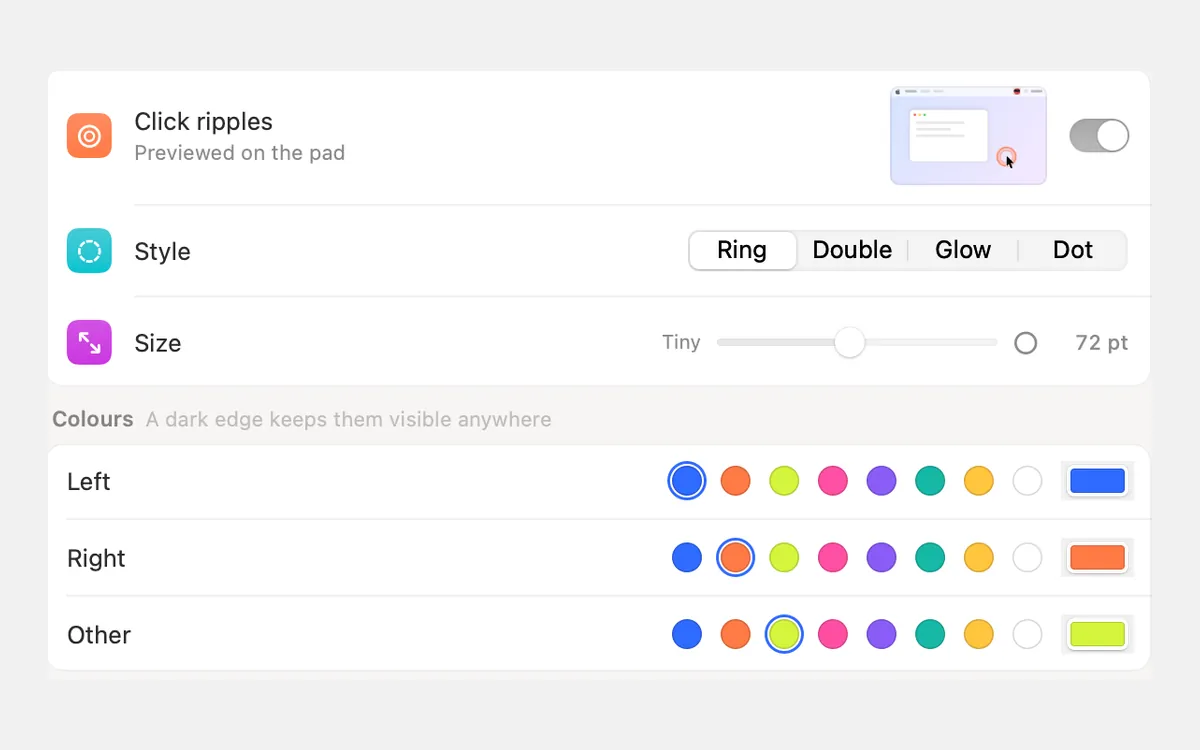
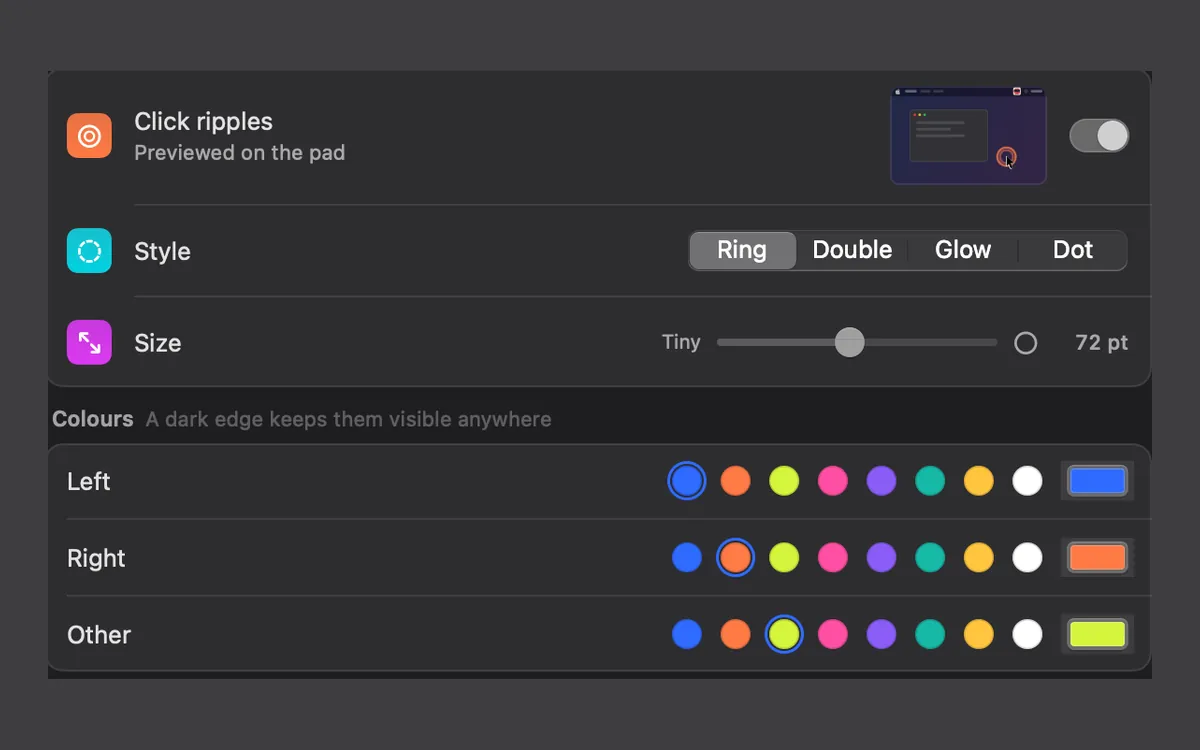
Pick a style (Ring, Double, Glow or Dot), a size and a colour for each mouse button. More options adds the line, opacity, speed and a release echo.
Ripples work on their own: keep them on with every sound off, for calls and quiet rooms.
How to use it
Turn it on
Click Ripples is on from the start. Its card in Sounds has the switch, and so does Settings → Ripples.
Try it
Click on the pad at the top of Settings → Ripples to see it.
Make it yours
Pick a Style and a Size, then Colours for each mouse button.
Fine-tune
Open More options for Line, Opacity, Speed and Release echo.
Tips
- Clacky’s Screen Recorder records your ripples together with your clicks, with nothing to add afterwards.
Questions
- Do ripples show in Zoom, Meet or other screen sharing?
- Yes. They show in screen recordings and screen sharing, so people watching see where you clicked.
- Can I have ripples without sounds?
- Yes. Ripples have their own switch, and they keep showing in apps where sounds are quiet.
Make something on your Mac today.
Seven days free, every feature, cancel anytime.