Presenter Mode
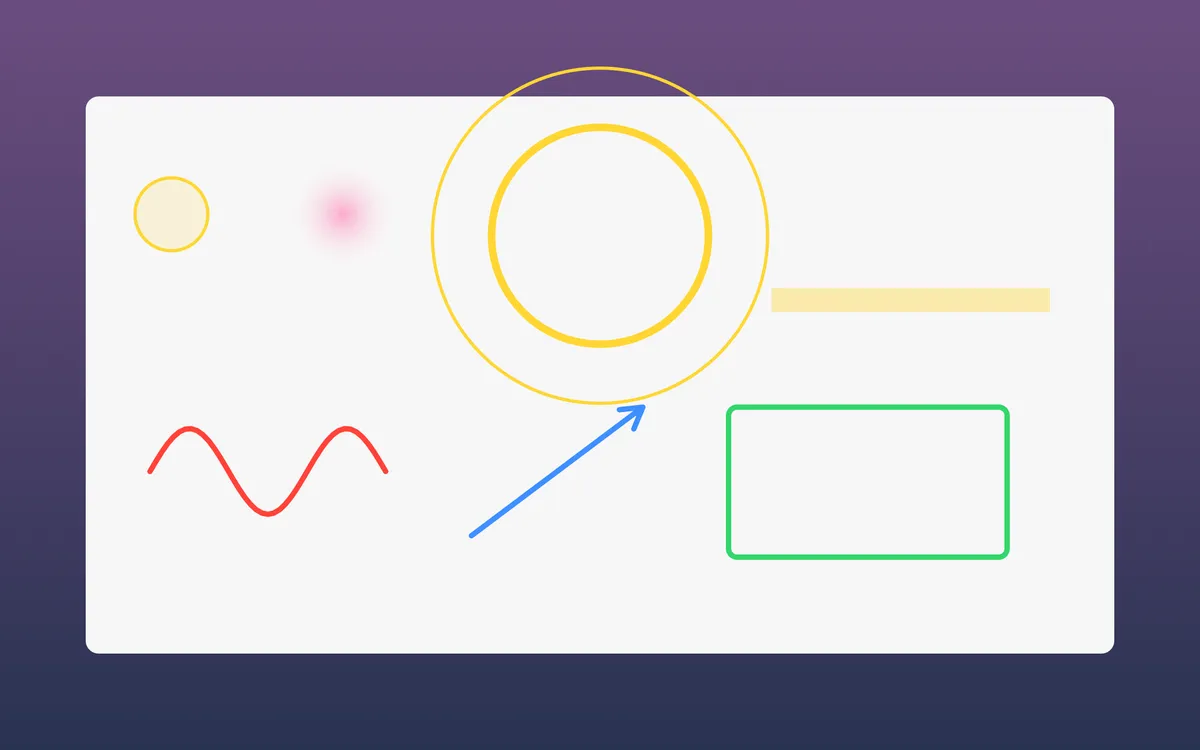
A halo that follows your cursor, drawing on the screen, click to zoom, and a big pulse when you lose the pointer.
What it is
Presenter Mode is for demos, talks and calls. A halo follows your pointer, so people watching can always find it.
Hold a shortcut to draw on the screen; the line fades when you let go. Press another, then click, and that spot is magnified so everyone can read it. Lost the pointer? A big pulse shows where it is.
It shows in recordings and screen sharing. Click to zoom needs macOS 14 and Screen Recording access.
How to use it
Find it
Presenter Mode is a card in Studio, under More for recording. Its settings are in Settings → Presenter.
Turn it on
Flip it on: the cursor halo follows your pointer. Pick its style, size and colour in Settings → Presenter.
Draw
Hold ⌃⌥D and draw. Let go and it fades; Esc clears it.
Zoom
Press ⌃⌥Z, then click: that spot is magnified.
Find your cursor
Press ⌃⌥F for a big pulse around the pointer, or turn on Also on a quick shake.
Tips
- Change any of these shortcuts in Settings → Shortcuts.
- Want drawing and zoom without the ring? Turn off only Cursor halo.
- The Present mode switches on the halo, Spotlight and ripples together.
Questions
- Does it show in Zoom or Meet when I share my screen?
- Yes. Presenter Mode shows in recordings and screen sharing.
- Why can’t I turn on Click to zoom?
- It needs macOS 14 or later, and Screen Recording access for Clacky.
Make something on your Mac today.
Seven days free, every feature, cancel anytime.