Look and 3D angle
Float your recording on a wallpaper, a colour, your own image or a blur, then tilt it in 3D: it leans in as a zoom starts.
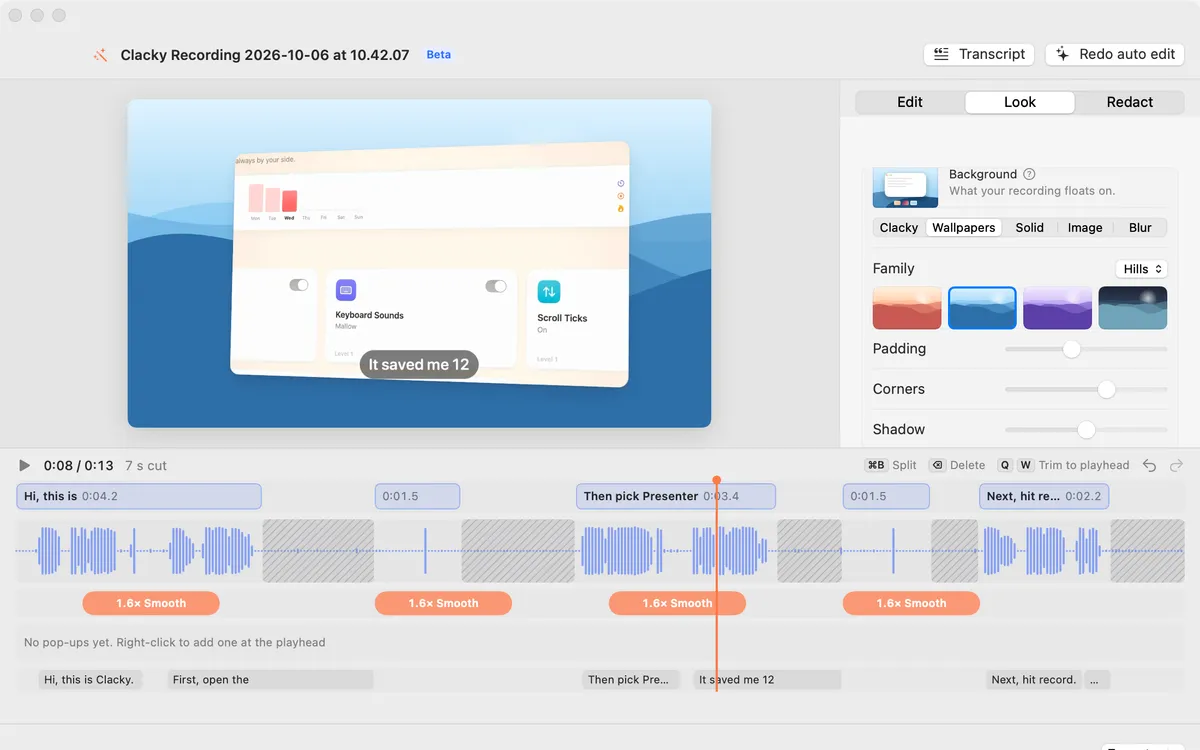
What it is
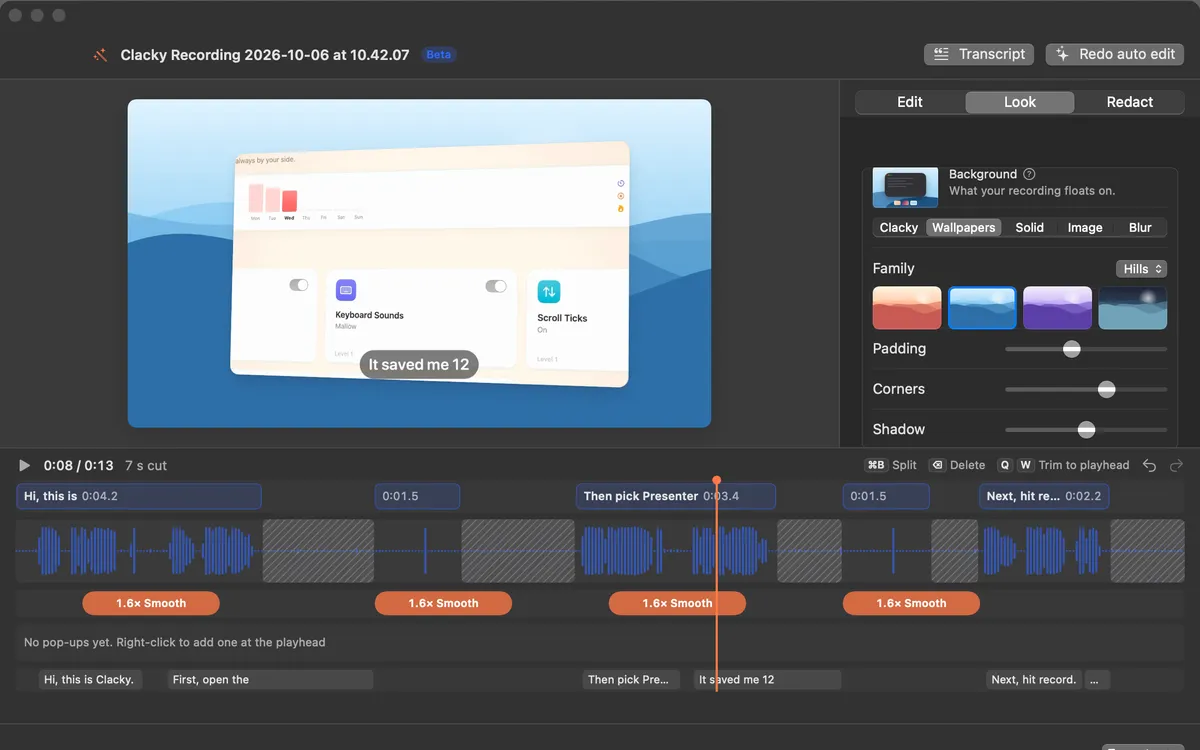
The Look tab in Studio decides what your recording floats on: Clacky’s warm look, a wallpaper, a solid colour, your own image or a blur of the recording itself. Padding, Corners and Shadow shape the window.
Then tilt it in 3D: Left, Right, Low, High, Float or Dive, or keep it Flat. With Tilt with zooms on, it leans in as a zoom starts and lies flat again after it.
How to use it
Open the Look tab
In Studio’s editor, click Look at the top of the inspector, next to Edit and Redact.
Pick a background
Choose Clacky, Wallpapers, Solid, Image or Blur. For Image…, pick a picture from your Mac.
Shape the window
Set Padding, Corners and Shadow.
Tilt it
Under 3D angle, pick Left, Right, Low, High, Float or Dive. Turn on Tilt with zooms if you want it to lean in on each zoom.
Tips
- Happy with it? Save look… keeps the background, frame, angle and captions for your next video.
- Back to Clacky’s look puts the original look back.
Questions
- Can I use my own background picture?
- Yes. Pick Image… and choose any picture on your Mac.
- Can I turn the tilt off?
- Yes. Pick Flat and the recording stays straight.
Make something on your Mac today.
Seven days free, every feature, cancel anytime.