Made for
Tell Studio what the video is made for: Product demo, Launch teaser, Short, Tutorial or Build in public. The shape, captions and cuts follow.
What it is
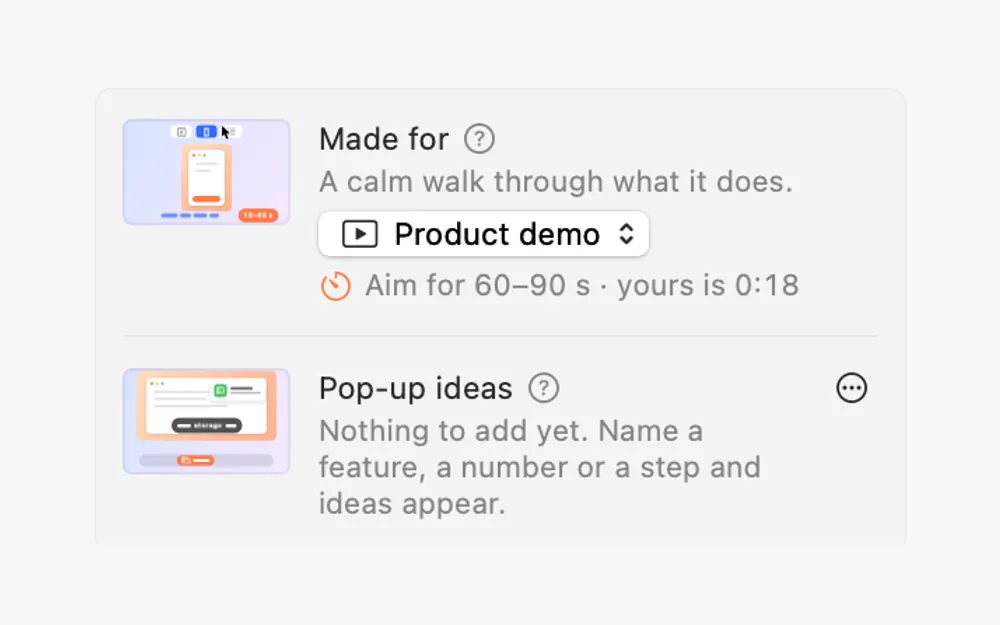
Made for, at the top of Studio’s inspector, tells Studio what the video is for: Product demo, Launch teaser, Short, Tutorial or Build in public.
Each one sets the pacing, the captions, the zoom, how many pop-ups it suggests, the sound effects, and a length to aim for. A Short turns tall with bold captions and tight cuts, 15–45 s; a Tutorial stays wide with boxed captions and roomy cuts, 90–300 s.
Under the picker, Studio shows the length to aim for next to the length of your edit.
How to use it
Open the recording in Studio
Click the Clacky icon in the menu bar, go to Studio and click Edit a Video.
Pick what it’s for
In the Edit tab, open the Made for menu and choose Product demo, Launch teaser, Short, Tutorial or Build in public.
Check the length
The line under it says Aim for… and how long yours is.
Change anything you like
Change a setting it picked and it shows (edited). Pick the same one again to go back to its recipe.
Questions
- Does it change my recording?
- No. It only changes the edit, and every change is one Undo away.
- Which one should I pick for X?
- Launch teaser is 16:9 for X, fast and punchy. Short is 9:16 for TikTok, Reels and Shorts.
Make something on your Mac today.
Seven days free, every feature, cancel anytime.