Export presets
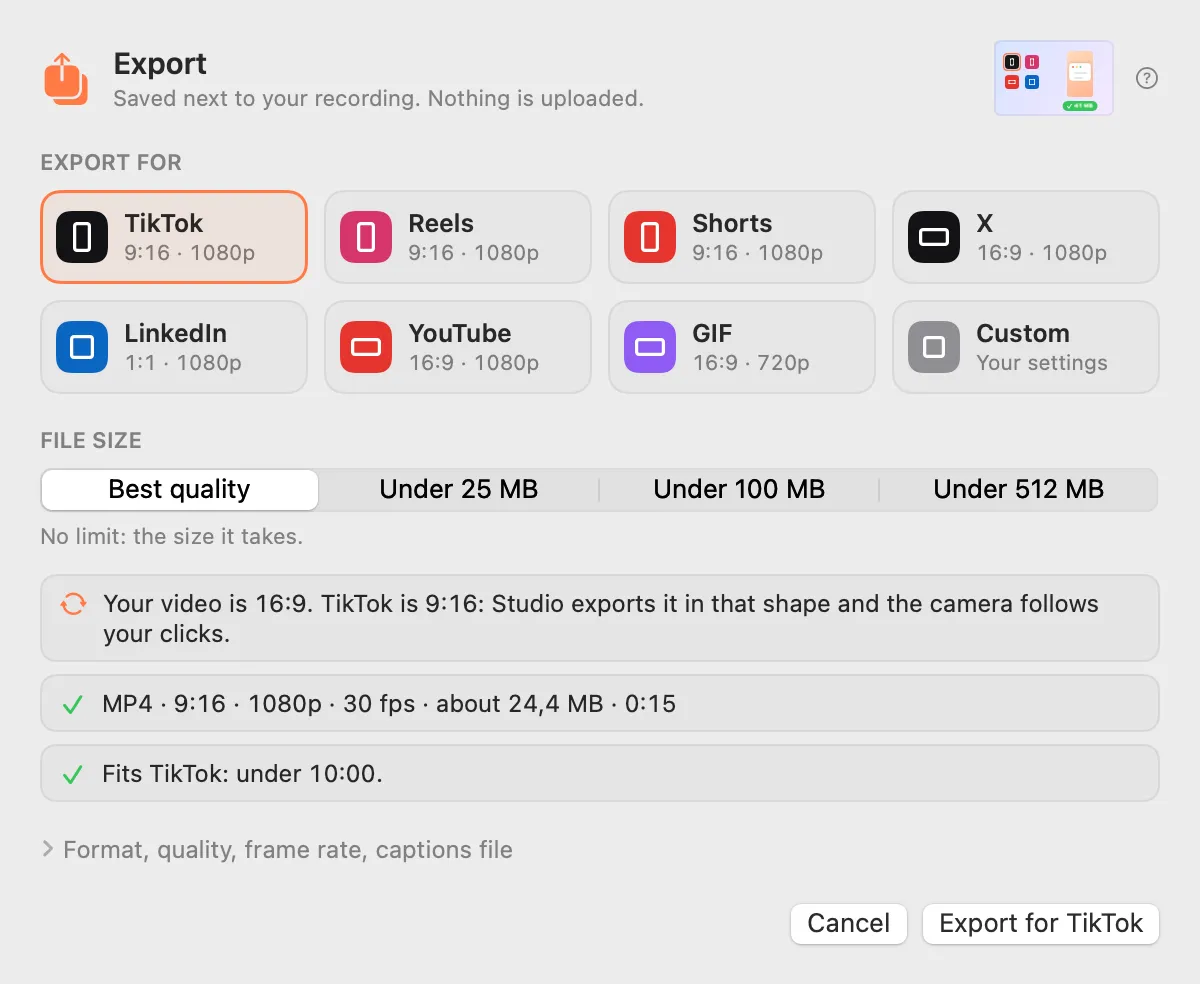
Pick where it’s going: TikTok, Reels, Shorts, X, LinkedIn, YouTube or a GIF. Pick a file size and Studio makes it fit.
What it is
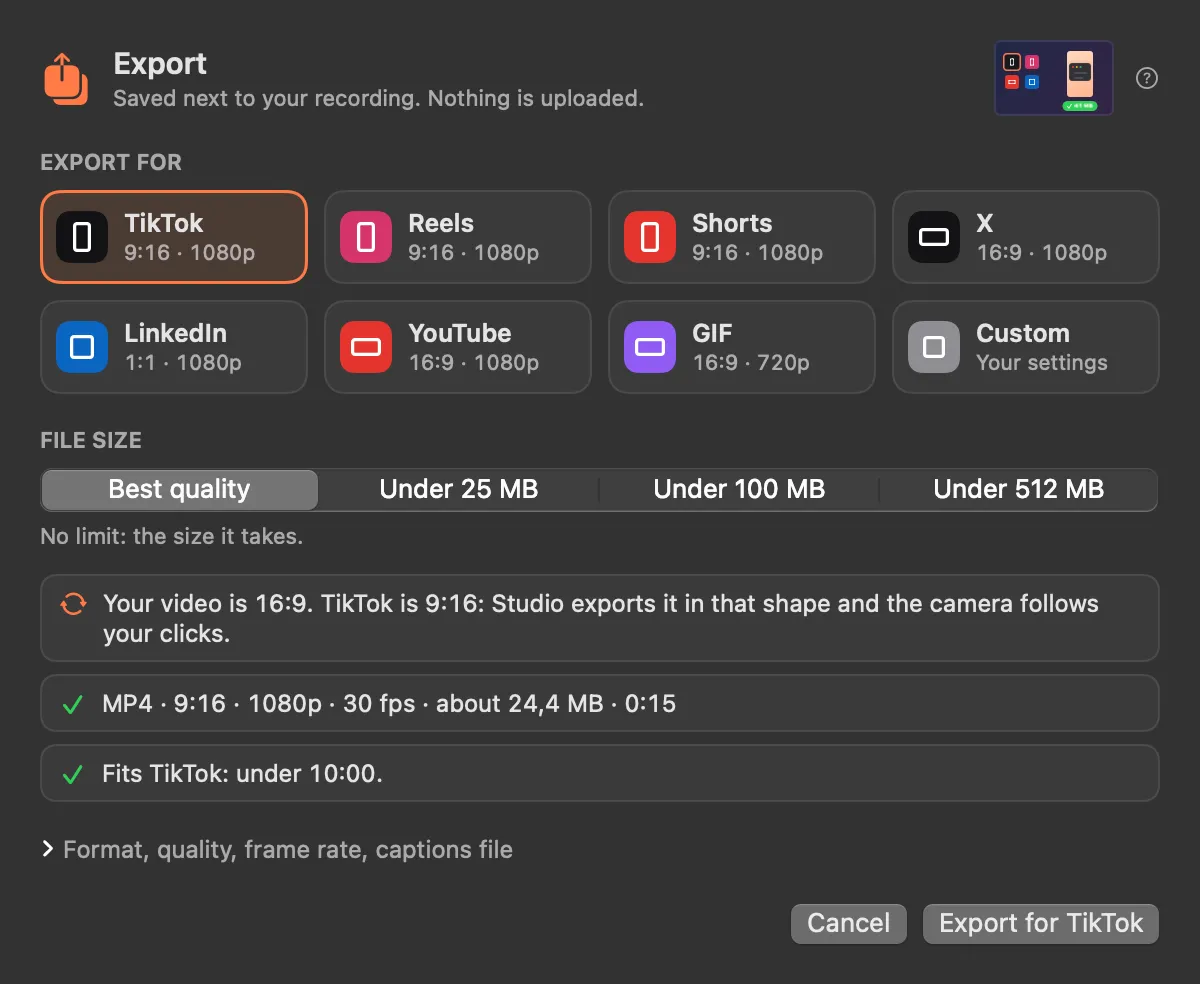
Export for picks the right settings for where the video is going: TikTok, Reels, Shorts, X, LinkedIn, YouTube or a GIF. The shape, size, frame rate and format follow; change any of them and it becomes Custom.
Pick a file size (Under 25 MB, Under 100 MB, Under 512 MB or Best quality) and Studio makes it fit, then checks the length and size against the platform for you. Files are saved next to your recording and nothing is uploaded.
How to use it
Click Export…
In Studio’s editor, click Export… in the toolbar.
Pick where it’s going
Choose TikTok, Reels, Shorts, X, LinkedIn, YouTube, GIF or Custom.
Pick a file size
Choose Best quality or a size to stay under. Studio lowers the bitrate only if it has to.
Check the notes
Studio says if the video fits, or if it’s longer than the platform plays.
Export
Click Export. The file is saved next to your recording.
Tips
- Custom lets you pick MP4 (H.264), MP4 (HEVC, smaller), MOV, ProRes, a GIF or audio only.
- Under 25 MB fits email, Slack and Discord.
Questions
- Can I export in 4K?
- Yes. Pick 4K in Custom. For 4K at 60 fps, pick MP4 (HEVC).
- Where does the file go?
- Next to your recording, in the same folder. Nothing is uploaded.
Make something on your Mac today.
Seven days free, every feature, cancel anytime.