 MacPip
Answer
Can I change the colour and size of Clacky's click ripple?
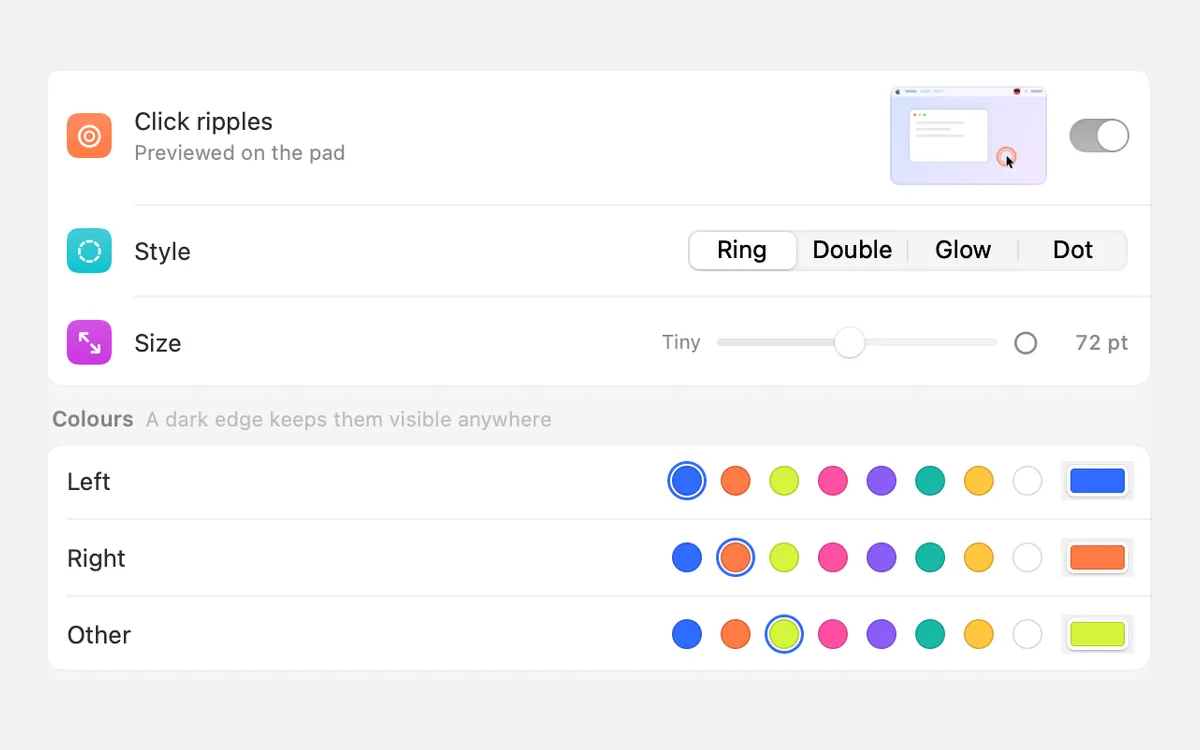
Yes. Settings → Ripples has a size slider from 12 to 140 points and a colour for each kind of click: left, right and other buttons.
You can also pick the style (Ring, Double, Glow or Dot), the line weight, the opacity, the speed and a small echo when you let go. Every change shows at once on the test pad at the top.
How to change the ripple
- Open Clacky's Settings and go to Ripples. Click on the pad at the top to see your ripple as you change it.
- Pick a Style: Ring, Double, Glow or Dot.
- Drag Size from Tiny (12 pt) up to 140 pt. It starts at 72 pt.
- Under Colours, pick a swatch for Left, Right and Other, or click the colour box at the end of a row for any colour you like.
- Open More options for the Line (Hairline, Thin, Regular, Bold), Opacity (30% to 100%), Speed (Snappy, Normal, Relaxed) and Release echo.
Every ripple setting
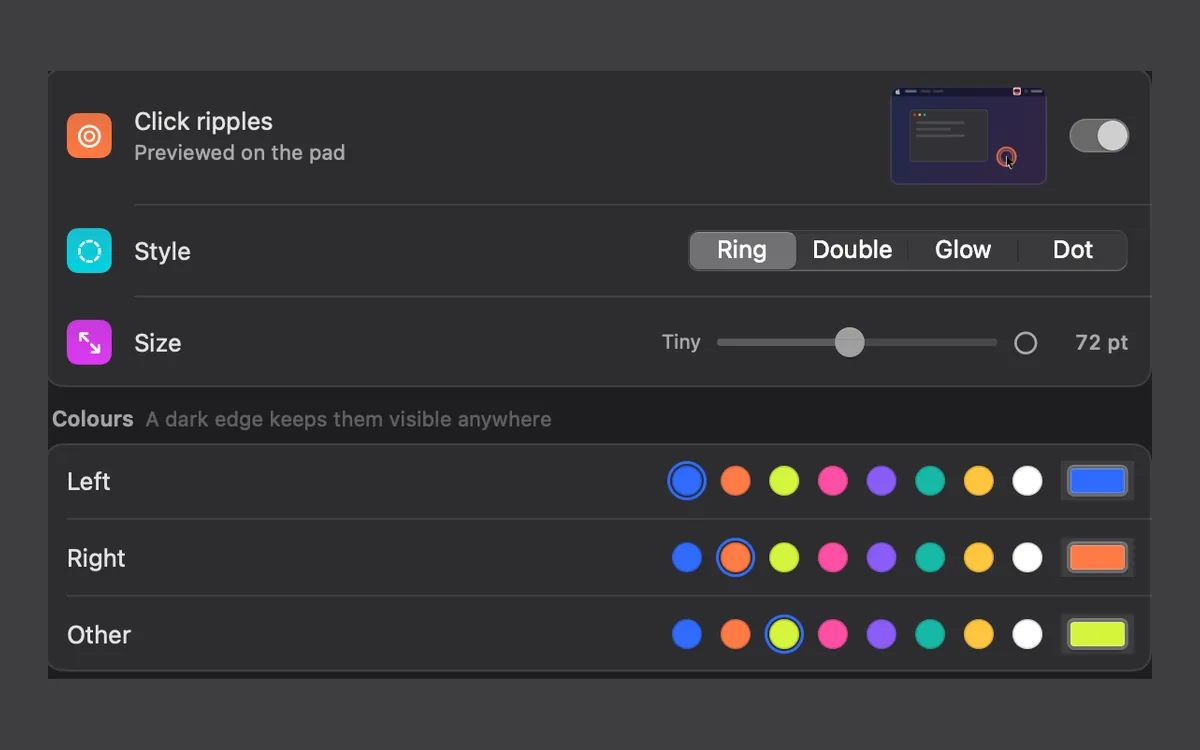
Each ripple has a thin dark edge, so a light colour still shows on a white page.
| Setting | Choices | Starts at |
|---|---|---|
| Style | Ring, Double, Glow, Dot | Ring |
| Size | 12 to 140 points | 72 pt |
| Left colour | 8 swatches or any colour | Blue |
| Right colour | 8 swatches or any colour | Orange |
| Other colour | 8 swatches or any colour | Lime |
| Line | Hairline, Thin, Regular, Bold | Regular |
| Opacity | 30% to 100% | 100% |
| Speed | Snappy, Normal, Relaxed | Normal |
| Release echo | A second, smaller ring when you let go | On |
Picking a ripple for recordings and demos
The ripple is drawn on your real screen, so it shows in any recorder and in any screen share, not only in Clacky's. To try the look on a screenshot first, the free click ripple maker runs in your browser.
- For a tutorial, a medium Ring in a colour that is not in your app's design is easy to follow.
- Different colours for left and right clicks help viewers tell a right click apart.
- For a calm look, try Glow with Thin lines and Relaxed speed.
- On a big 4K screen, or when the video will be watched on a phone, go larger.
Turning the ripple off, or off in some places
The Click ripples switch at the top of the Ripples page (or Ripples in the menu) turns it off everywhere. To hide it only in some apps, add them to Quiet in these apps in General → More options and choose Ripples only. Hide ripples too under Automatic hides it during calls.
Questions
Can the ripple match my brand colour?
Does the ripple show in OBS, Loom or QuickTime recordings?
Can I change the cursor too?
Facts checked on 5 November 2026.
Related
- Click RipplesA ripple under the pointer on every click, so anyone watching sees where you clicked.
- Click ripple makerAdd click ripples and a moving cursor to any screenshot, with click sounds, then download a GIF or a video. Free, in your browser, nothing uploaded.
- How do I show mouse clicks in a screen recording on Mac?Show mouse clicks in a Mac screen recording: Apple’s Show Mouse Clicks option, editors that add click effects later, and a live click ripple with a sound.
- The best cursor highlighter apps for MacCursor highlighters and click visualizers for Mac: macOS’s own options, Mouseposé, Mouzz, CursorFlow, Cursor Pilot, Cluxo, CursorRipple and Clacky.
- Zoom in on clicks in a screen recordingmacOS can’t zoom on clicks by itself. Zoom by hand in iMovie with Ken Burns, or use a recorder that knows where you clicked, like Clacky.
Make something on your Mac today.
3 days free, every feature. Then $4.99 once.