 MacPip
Answer
How do Clacky's keyboard sounds work?
Clacky's keyboard sounds work by listening for each key going down and coming back up, then playing a short sound made on your Mac, with a little variation on every press.
There are 29 keyboard sounds in 9 families, and they play in every app. Clacky never records which keys you press, and it goes quiet in password fields.
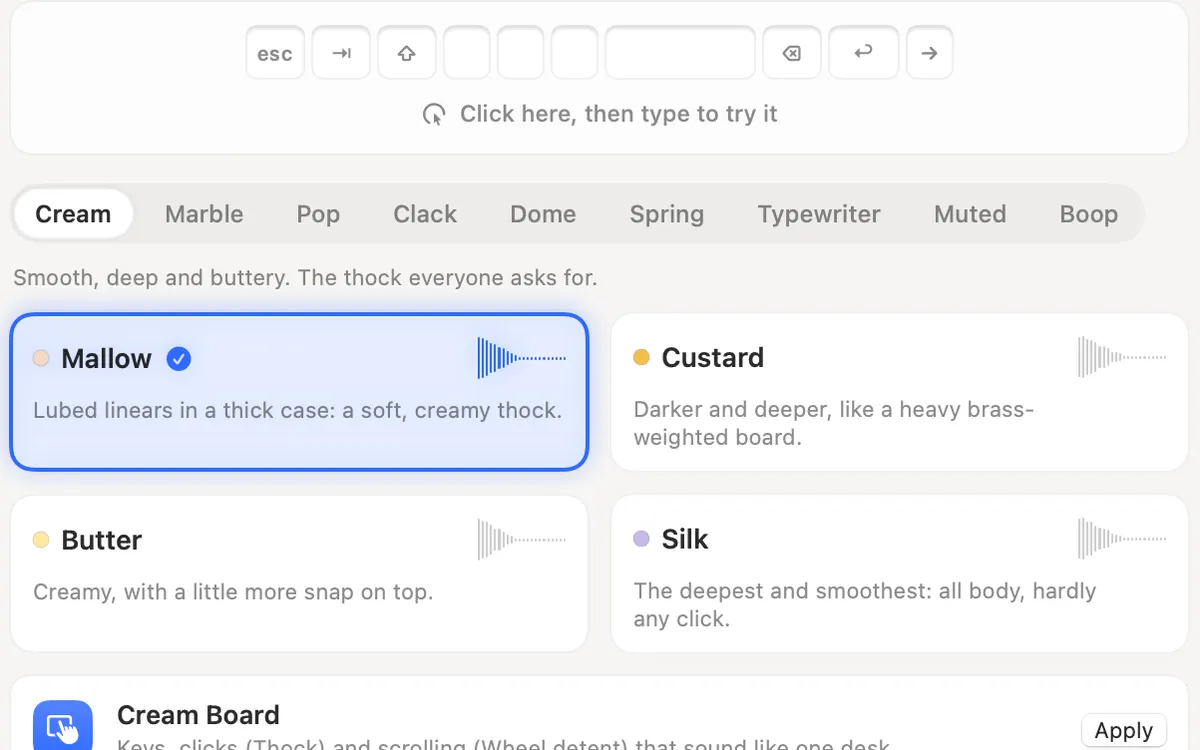
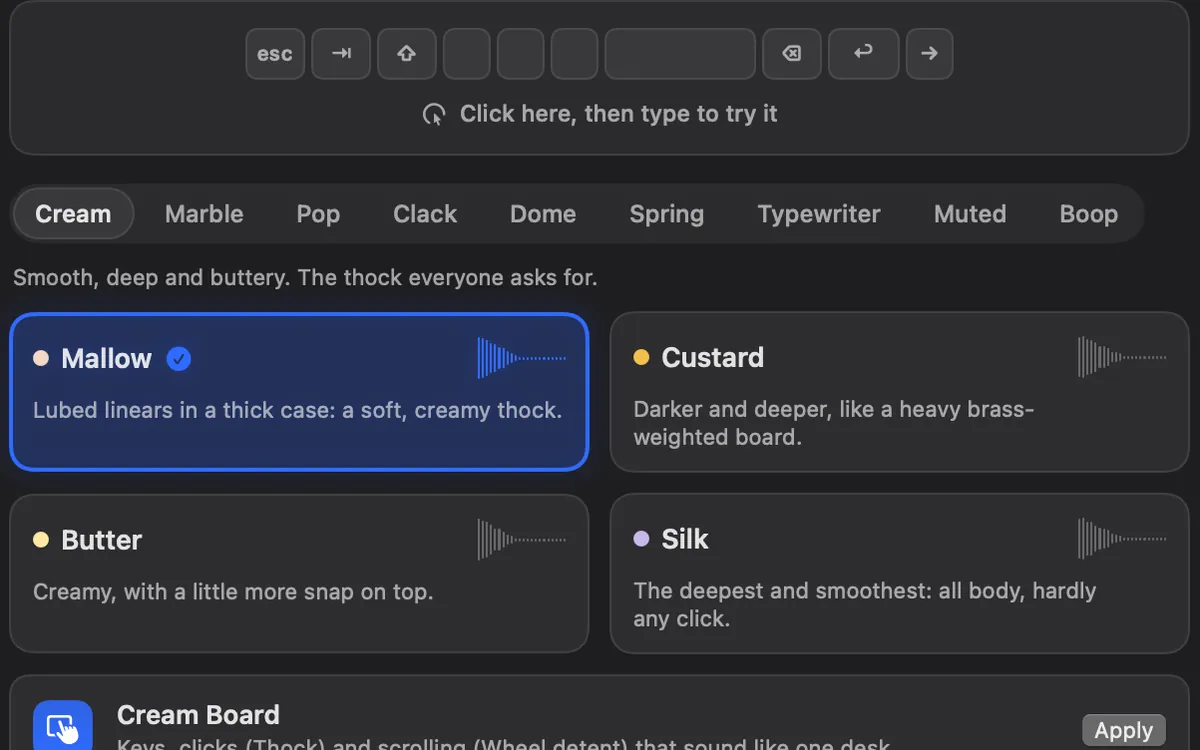
What happens when you press a key
macOS lets an app with the Input Monitoring permission know when a key goes down and when it comes up. Clacky uses that signal to play a sound, then forgets it. It uses only the kind of key (Return, Space, Tab, a letter key), so Return can sound a little different and sit a little to the right.
Keyboard sounds listen for key down/up only. Clacky never records, stores or sends which keys you type, and respects Secure Input.
Secure Input is the macOS switch an app turns on while you type a password. While it is on, macOS sends no key events to any app, so keyboard sounds pause until you leave the field. The blog post do keyboard sound apps record what you type? goes deeper.
Why the sounds are made on your Mac, not recorded
Many keyboard sound apps play recordings of real switches. Clacky makes its sounds on your Mac instead, with a small change in pitch and texture on every press, so no two presses sound exactly alike, the way a real board never repeats itself. That also means there are no real switch recordings and no switch brand names in Clacky, and you can't load keyboard sound packs of your own.
The 9 families are Cream, Marble, Pop, Clack, Dome, Spring, Typewriter (with a bell on Return), Muted and Boop. Keyboard sounds explained says what thock, clack and creamy mean, and the typing test lets you hear them in your browser.
How to set up keyboard sounds
- Open Clacky and allow Input Monitoring when it asks (System Settings → Privacy & Security → Input Monitoring). If macOS says to quit and reopen Clacky, do that once.
- Open the Sounds place, choose the keyboard tab and press a card to hear it. Pick the one you like.
- Set the Volume on Settings → Keyboard. It is separate from the click volume and starts a little lower, because you press far more keys than you click.
- Under More options on the same page, choose Sound on key up, what Held keys do (First press only, Quieter repeats or Every repeat) and Stereo by key position.
The settings on the Keyboard page
Not sure where to start? Find My Sound… in the menu asks five quick questions and sets up a sound that fits you.
| Setting | What it does |
|---|---|
| Keyboard sounds | The on/off switch for typing sounds |
| Volume | Its own level, apart from clicks |
| Sound on key up | A lighter sound as each key comes back up |
| Held keys | First press only, Quieter repeats or Every repeat |
| Stereo by key position | Return on the right, Tab on the left |
| Typing combos | A soft chime climbs while you keep a fast, steady rhythm |
| Per-app sounds | A different sound, or none, while you type in one app |
Questions
Do keyboard sounds work in every app?
Why don't I hear keyboard sounds after installing Clacky?
Does Clacky slow down typing?
Can I turn off keyboard sounds but keep click sounds?
Facts checked on 5 November 2026.
Related
- Keyboard SoundsTyping sounds as you type: 29 sounds in 9 families. Clacky listens for key down and up only and never records, stores or sends which keys you type. Password fields (Secure Input) stay quiet.
- Thock, clack, creamy, poppy: keyboard sounds explainedWhat thock, clack, creamy, poppy, marbly and clicky mean for keyboard sounds, with a player: hear each one in your browser with Clacky’s own sounds.
- Typing test with keyboard soundsTest your typing speed in the browser and hear every Clacky keyboard sound as you type.
- What is Secure Input?Secure Input is the macOS shield that hides key presses from other apps in password fields, so keyboard sounds pause. How to find the app holding it.
- Why does Clacky need Input Monitoring?Clacky needs Input Monitoring to notice clicks, scrolls and key presses in other apps and play a sound for each. It never records which keys you type.
- Can I add my own sounds to Clacky?Yes, for clicks and scroll ticks: drop in your own WAV, AIFF, MP3 or M4A file. Keyboard sounds are Clacky's own 29 sounds, with no custom packs.
Make something on your Mac today.
3 days free, every feature. Then $4.99 once.