Keyboard Sounds
Typing sounds as you type. Each key press becomes a sound on your Mac and is never recorded, stored or sent. Password fields stay quiet.
What it is
Keyboard Sounds plays a sound for every key you press, in every app, so your Mac’s keyboard sounds the way you like.
Each key press only plays a sound. Clacky never records, stores, logs or sends which keys you type, and never captures text. Password fields (Secure Input) stay quiet.
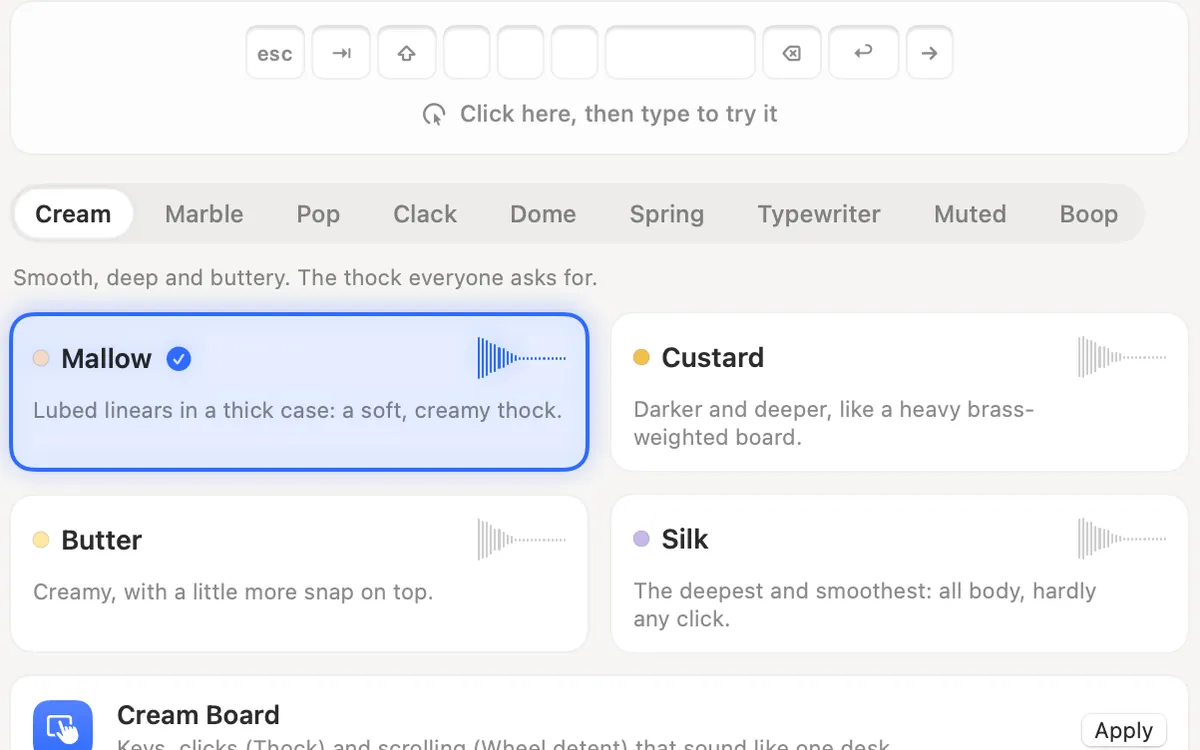
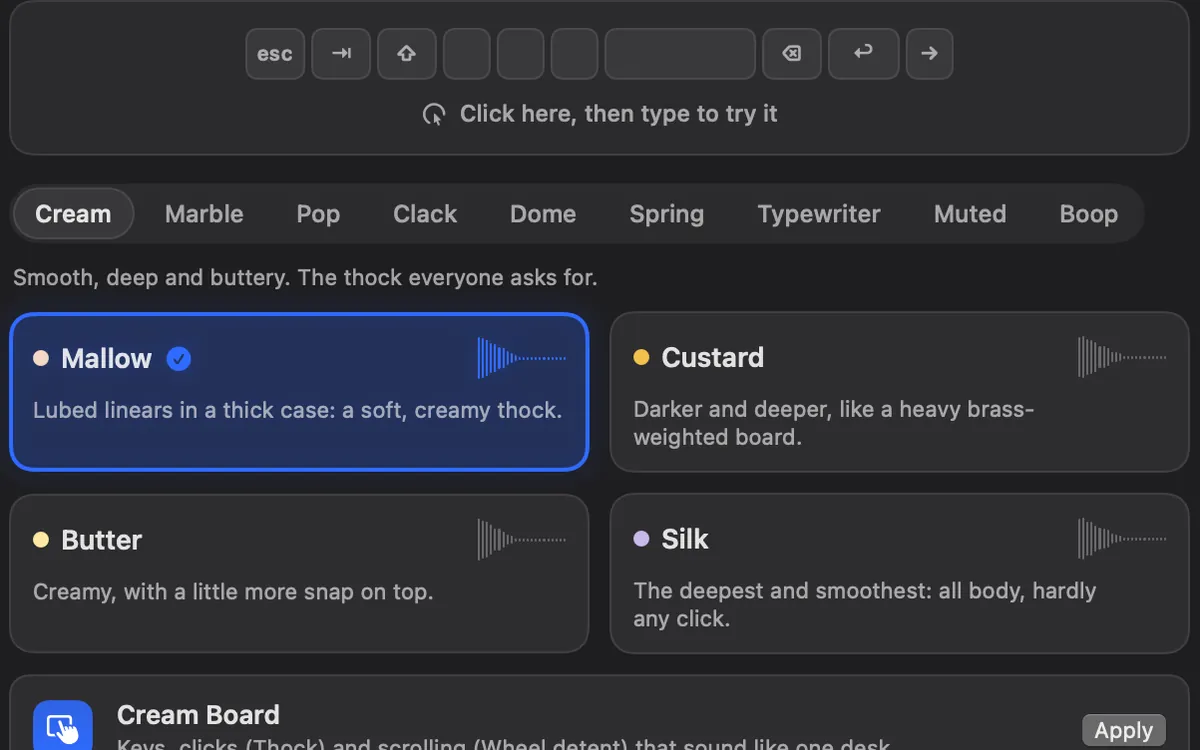
Pick the keyboard sound you like, set its own volume, and change the feel: a sound on key up, held keys, stereo by key position and the case.
How to use it
Turn it on
Flip on the Keyboard Sounds card in Sounds, or go to Settings → Keyboard.
Allow Input Monitoring
If macOS hasn’t allowed it yet, the card shows Allow…. Allow Clacky in System Settings, then reopen Clacky if it asks.
Pick a sound
In Settings → Keyboard, press a card to hear it, then type in the box to try it. Or use Keyboard Sound in the Clacky menu.
Change the feel
More options has Sound on key up, Held keys, Stereo by key position, Case, Typing combos and Per-app sounds.
Tips
- Per-app sounds gives an app a different keyboard sound, or none, while you type in it.
- The keyboard volume is separate from the click volume.
Questions
- Does Clacky record what I type?
- No. Each key press only plays a sound. Clacky never records, stores, logs or sends which keys you type, and never captures text.
- What about passwords?
- Password fields use Secure Input, and Clacky stays quiet there.
- Why does it need Input Monitoring?
- macOS only lets an app hear key presses with that permission. Clacky uses it to play a sound for each press, nothing more.
Make something on your Mac today.
Seven days free, every feature, cancel anytime.