App Uninstaller
Remove an app and the files it left in your Library. Everything goes to the Trash, so you can change your mind.
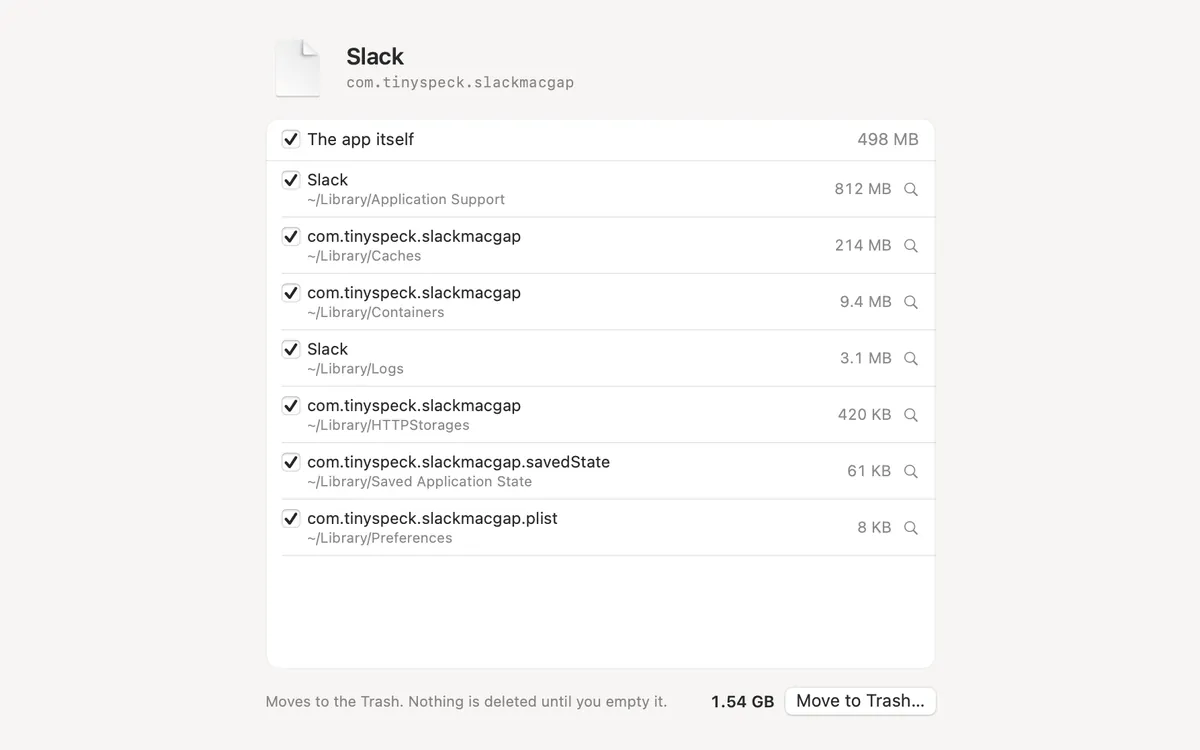
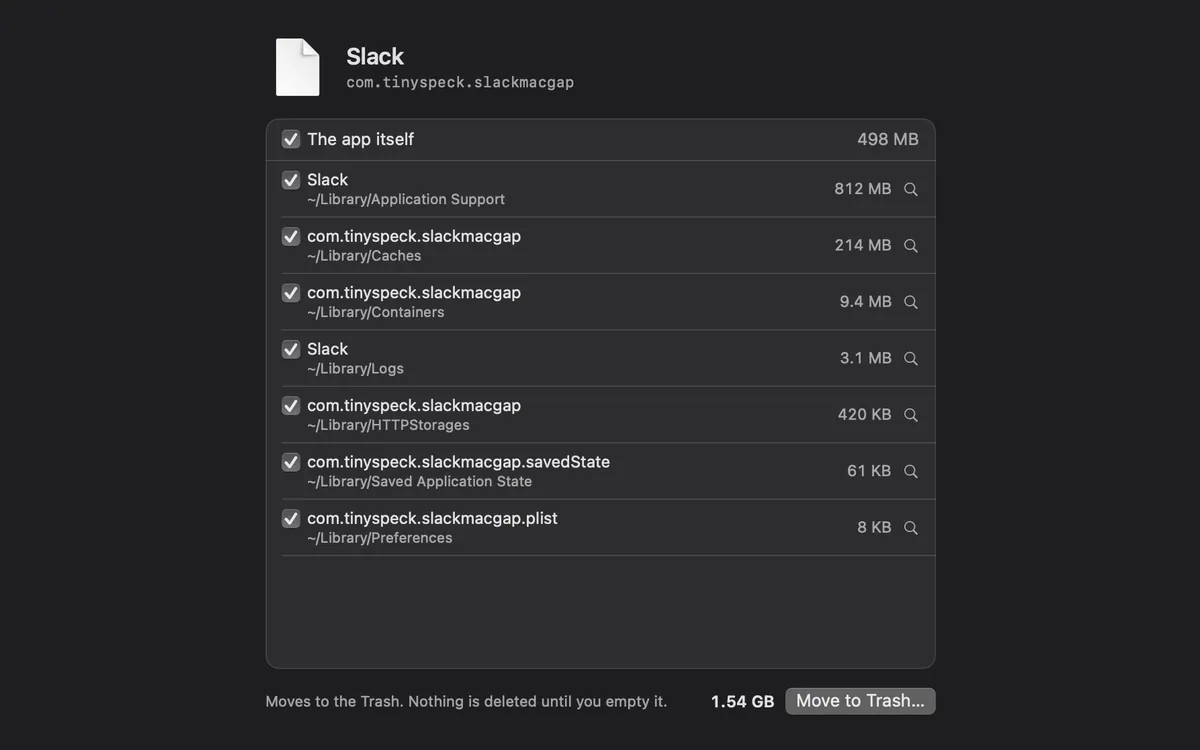
What it is
Dragging an app to the Trash leaves its files behind. App Uninstaller finds what it left in your Library, such as caches, preferences, containers, logs and saved state, and lets you choose what goes.
Everything moves to the Trash, nothing is deleted for good. Put anything back from there, or empty the Trash when you’re sure.
Apple’s apps and macOS itself are never touched, and Clacky isn’t listed.
How to use it
Open App Uninstaller
Open Clacky from the menu bar and click the App Uninstaller card in My Kit (add it from Explore if it isn’t there).
Pick an app
Drop an app on the window, or pick it from the list. If it’s running, quit it first.
Review
Clacky looks in your Library and lists the app and its leftovers. Untick anything you want to keep.
Move to Trash
Press Move to Trash… and confirm. Clacky says how much it moved; empty the Trash to free the space.
Questions
- Can I undo it?
- Yes, until you empty the Trash. Everything moves there, nothing is deleted.
- Can it remove Apple’s apps?
- No. Apple’s apps and anything that is part of macOS are never removed.
Make something on your Mac today.
Seven days free, every feature, cancel anytime.