Mac Health
Memory, CPU, battery, busy apps and what fills your disk, explained by Boop, with gentle alerts. Turn on Remember 30 days to look back over the week and the month.
What it is
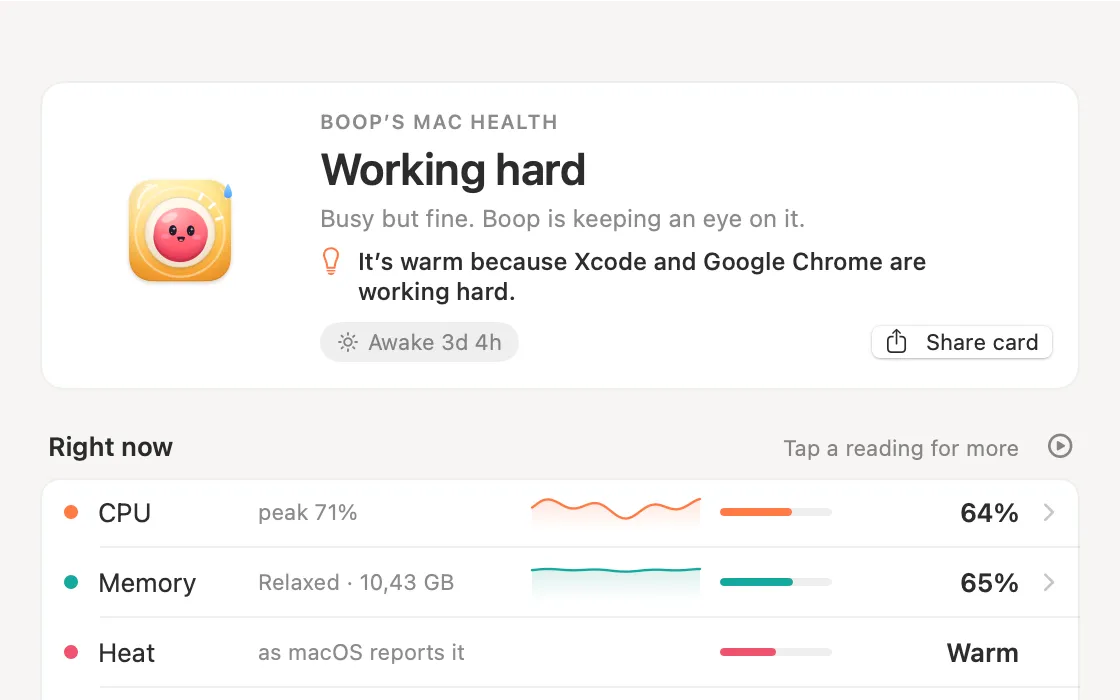
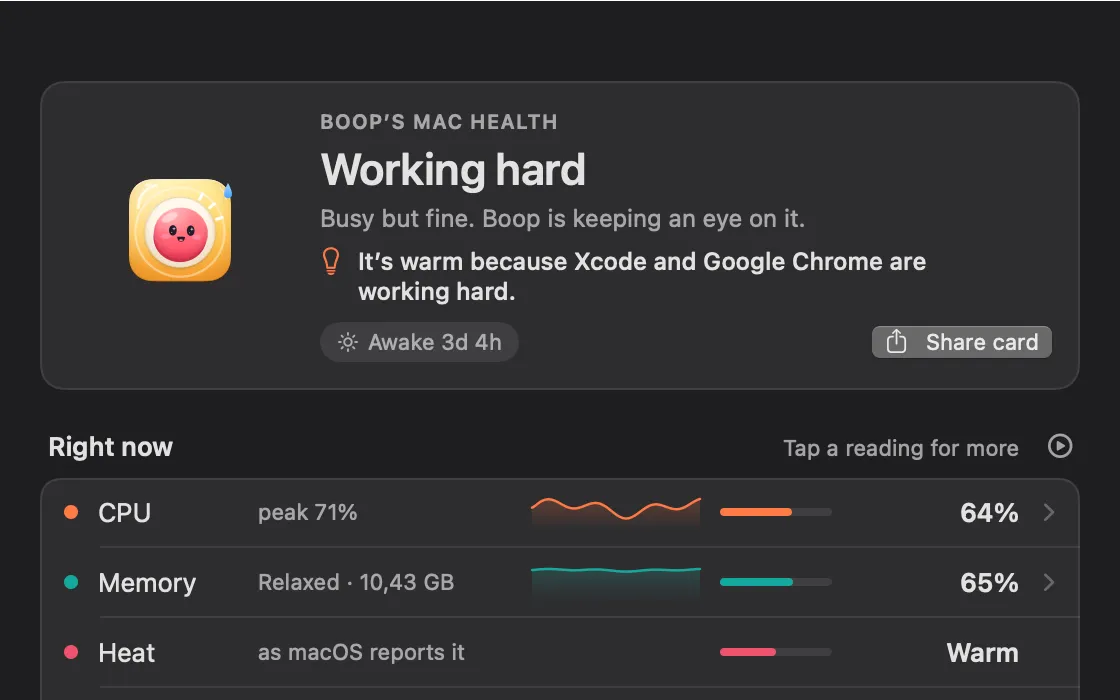
Mac Health shows how your Mac is doing right now: CPU, memory, disk, battery and heat, and the busiest apps. Tap any reading and its page says what’s going on, then who is behind it.
Tap an app for its card: CPU, memory, energy, disk and its week. Quit… and Force Quit… always ask first. Storage shows what fills your disk, and Projects shows your running dev servers.
Boop can keep watch with gentle alerts: a soft chime and a ripple at the menu bar, never a popup. Remember 30 days keeps about 3 MB of history, on this Mac only.
How to use it
Open it
Click the Mac Health card in My Kit, or the Mac Health button in the Clacky menu.
Read it
Right now shows each reading. Tap one for its page, with today, the week or the month.
Turn on alerts
Under Boop keeps watch, pick what Boop watches: gentle alerts, memory creep, disk hammering, battery drain, low on space.
Keep a history
Turn on Remember 30 days for charts over the week and the month. Forget it any time.
Tips
- Side panel on the screen edge puts a slim strip with a tiny bar per reading on the edge of your screen.
- Mood dot in the menu bar shows a coloured dot and the CPU next to Clacky’s icon.
- Freeze Guard, in the same window, warns you before your Mac freezes.
Questions
- Does Mac Health send my data anywhere?
- No. Readings and history stay on this Mac, and history is off until you turn on Remember 30 days.
- Can it quit an app for me?
- Only when you click. Quit… and Force Quit… always ask first, and Clacky never quits anything on its own.
Make something on your Mac today.
Seven days free, every feature, cancel anytime.