Menu Bar Tidy
Tuck rarely used menu bar icons behind a divider. Notch-safe; hover or scroll the menu bar to bring them out.
What it is
Menu Bar Tidy hides the menu bar icons you rarely use behind a divider. Hold ⌘ and drag them to the left of Clacky’s | line; one click on ‹ tucks them away.
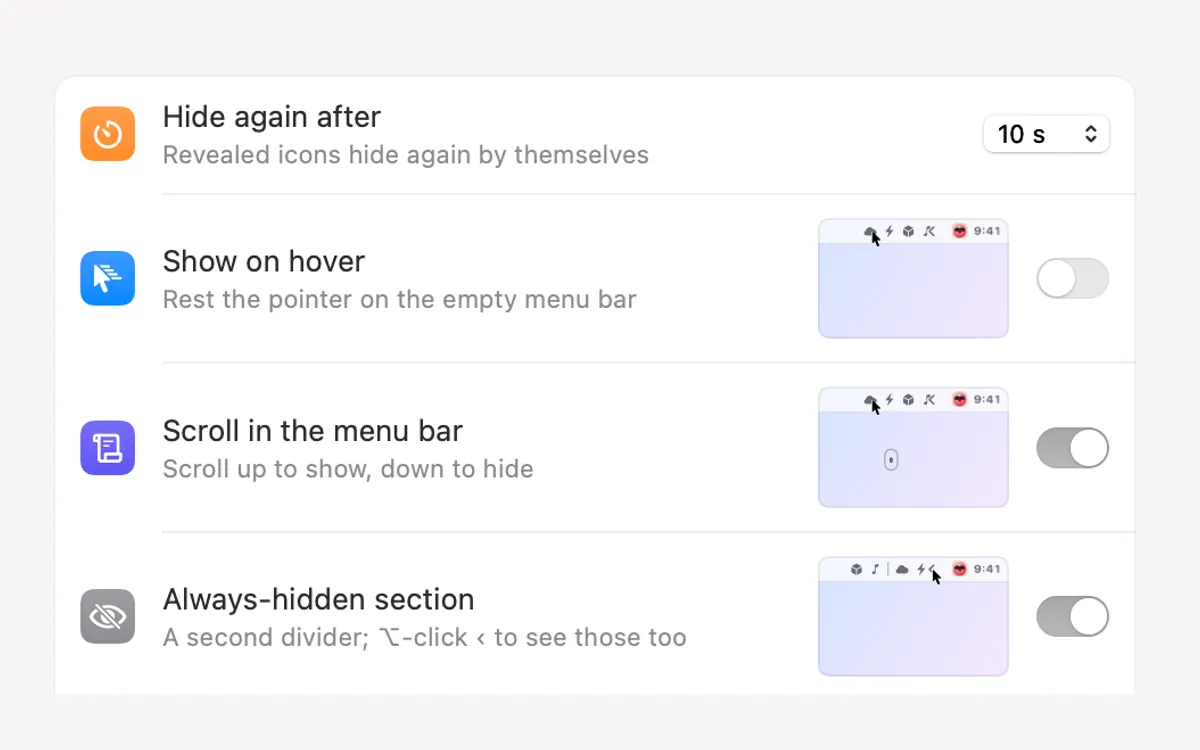
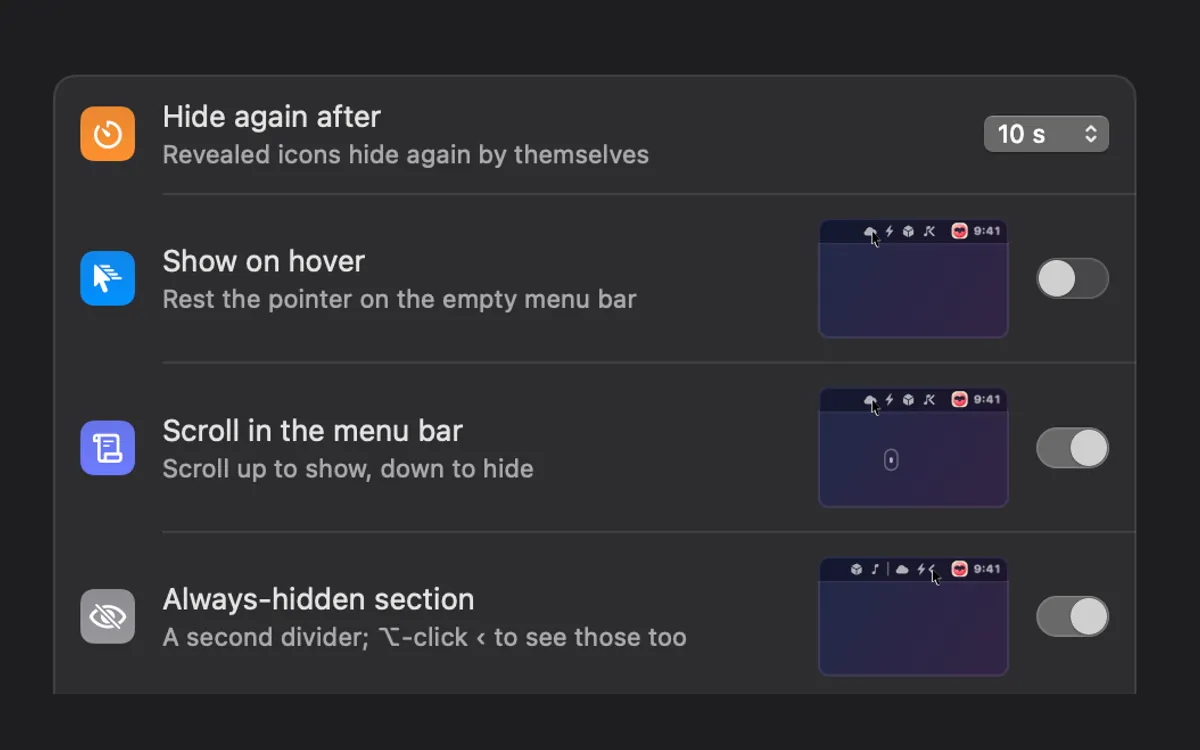
Scroll up in the menu bar to bring them out, or turn on Show on hover or the ⌃⌥⌘B shortcut. They hide again by themselves after a few seconds.
On a Mac with a notch, icons that won’t fit beside it open from a list instead of disappearing under the notch. Turn it off or quit Clacky and every icon comes back where it was.
How to use it
Turn it on
Open Clacky from the menu bar, click the Menu Bar Tidy card in My Kit (add it from Explore if it isn’t there) and switch it on. Show Me Where… points at the ‹ and | in your menu bar.
Show the divider
Click ‹ so the | divider is short.
Move icons
Hold ⌘ and drag the icons you rarely use to the left of |.
Tuck them away
Click ‹ again: everything left of | hides. Click ‹, scroll or hover to see them for a moment.
Tips
- Turn on Always-hidden section for a second divider; ⌥-click ‹ to see those icons too.
- Hide again after sets how long revealed icons stay out, or Never.
Questions
- Does it see what my menu bar icons show?
- No. Clacky reads only where the icons sit. Pictures of the icons in the drop-down only appear if you already allowed Screen Recording; Clacky never asks for it here.
- How do I get every icon back?
- Turn Menu Bar Tidy off or quit Clacky, and macOS puts every icon back.
Make something on your Mac today.
Seven days free, every feature, cancel anytime.