Camera bubble
Your camera in a bubble over the recording: built-in, Continuity Camera or external, with shape, size, border and mirror.
What it is
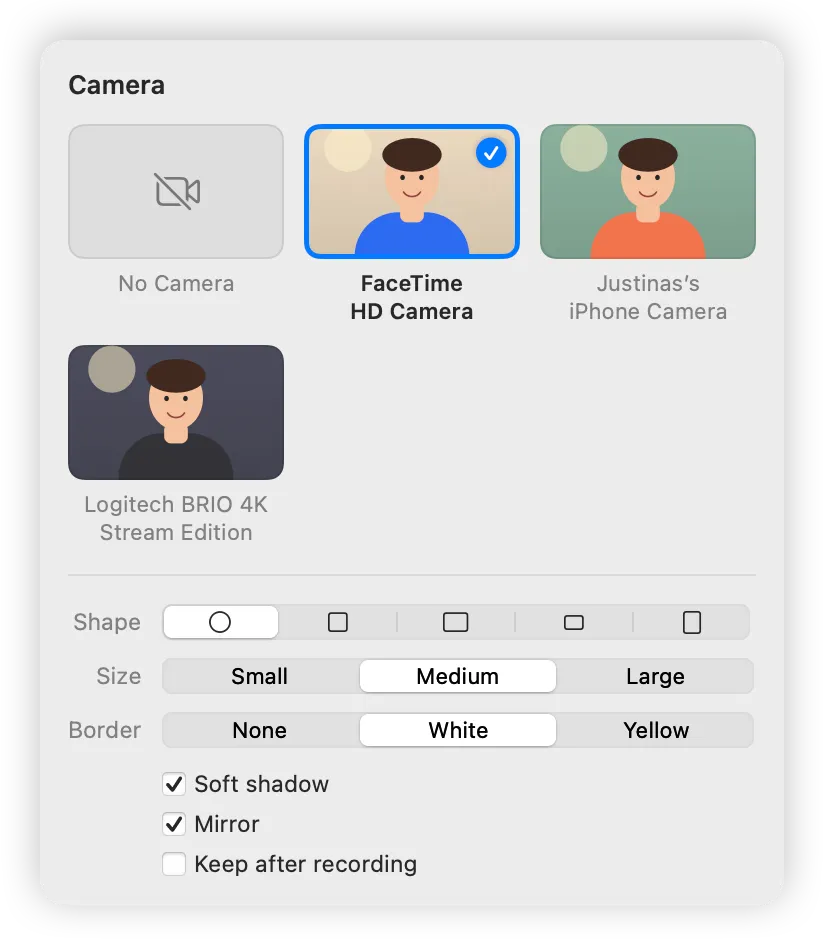
The camera bubble puts your face over the recording. Use the built-in camera, your iPhone with Continuity Camera, or an external one.
Pick a shape (Circle, Rounded Square or a 16:9, 4:3 or 9:16 rectangle), a size, a border and whether it’s mirrored. Drag the bubble anywhere; its hover controls are for you only and never show in the video. The camera light is on only while the bubble shows.
How to use it
Open the recorder
In Studio, click Record.
Pick a camera
Click Camera in the recorder bar and click a camera tile. Each one shows a live thumbnail.
Style it
Choose Shape, Size and Border, and turn on Soft shadow or Mirror if you like.
Place it
Drag the bubble where you want it, or drag its corner to resize. Then click Record.
Tips
- Turn on Keep after recording to leave the bubble open between takes.
- Clacky remembers where the bubble sits on each display.
Questions
- Can I use my iPhone as the camera?
- Yes. Continuity Camera shows up in the camera picker with your other cameras.
- Is the camera on all the time?
- No. The camera runs only while the bubble is visible and stops the moment it hides.
Make something on your Mac today.
Seven days free, every feature, cancel anytime.