Teleprompter
Your script right under the camera. It never shows in recordings.
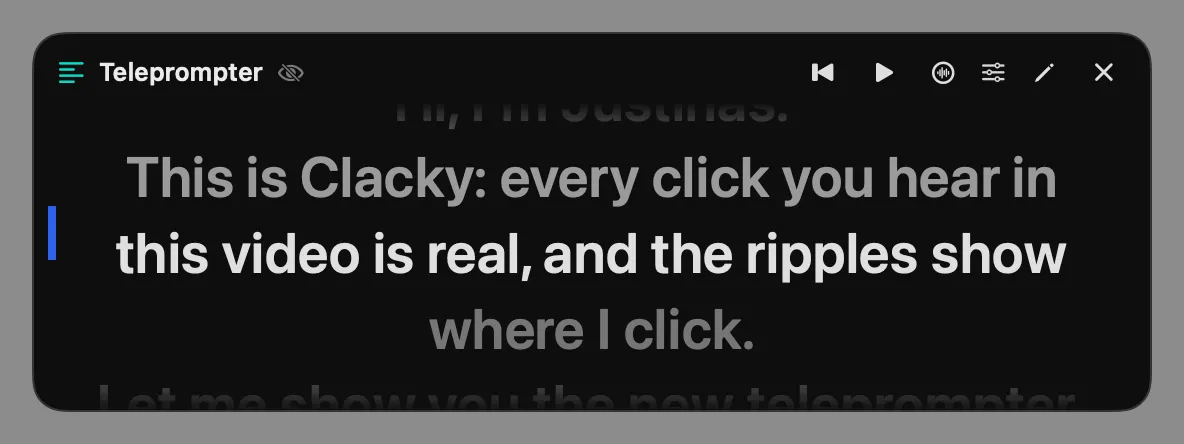
What it is
The Teleprompter puts your script in a slim panel just under the notch, close to the camera, so you look at the lens while you read. It scrolls at the speed you set, in words a minute.
It never shows in screen recordings, screenshots or screen shares. Your script stays on your Mac. Turn on Follow my voice and it keeps pace with you as you speak, listening on your Mac.
How to use it
Open it
In Studio, under More for recording, open Teleprompter. It’s also a tile in the Clacky menu.
Add your script
Type it, click Paste, or click Dictate and say it.
Set it up
Under Speed, size and more, set the Speed, Text size and Opacity. Mirror text is there for teleprompter glass.
Read
Click Scroll to start. Click the text to pause.
Tips
- With Start with the recorder’s countdown on, it rewinds at the countdown, scrolls when recording starts and pauses when you stop.
- Settings → Shortcuts has two optional Teleprompter shortcuts: show or hide it, and scroll or pause.
Questions
- Will viewers see the script?
- No. It’s hidden from screen recordings, screenshots and screen shares.
- Does Follow my voice send my voice anywhere?
- No. It listens on your Mac, and only while the script is scrolling.
Make something on your Mac today.
Seven days free, every feature, cancel anytime.