Mic and Mac audio
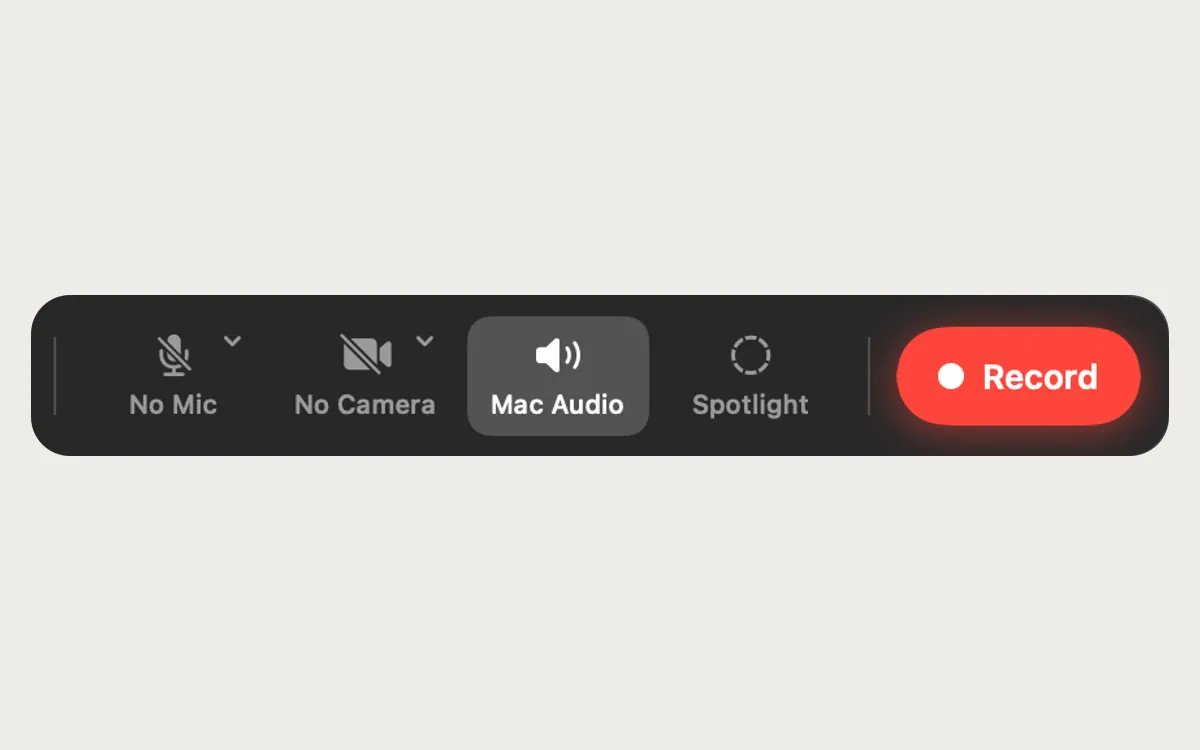
Mac audio is on, so your clicks and everything the Mac plays are in the video. Add your microphone when you want it.
What it is
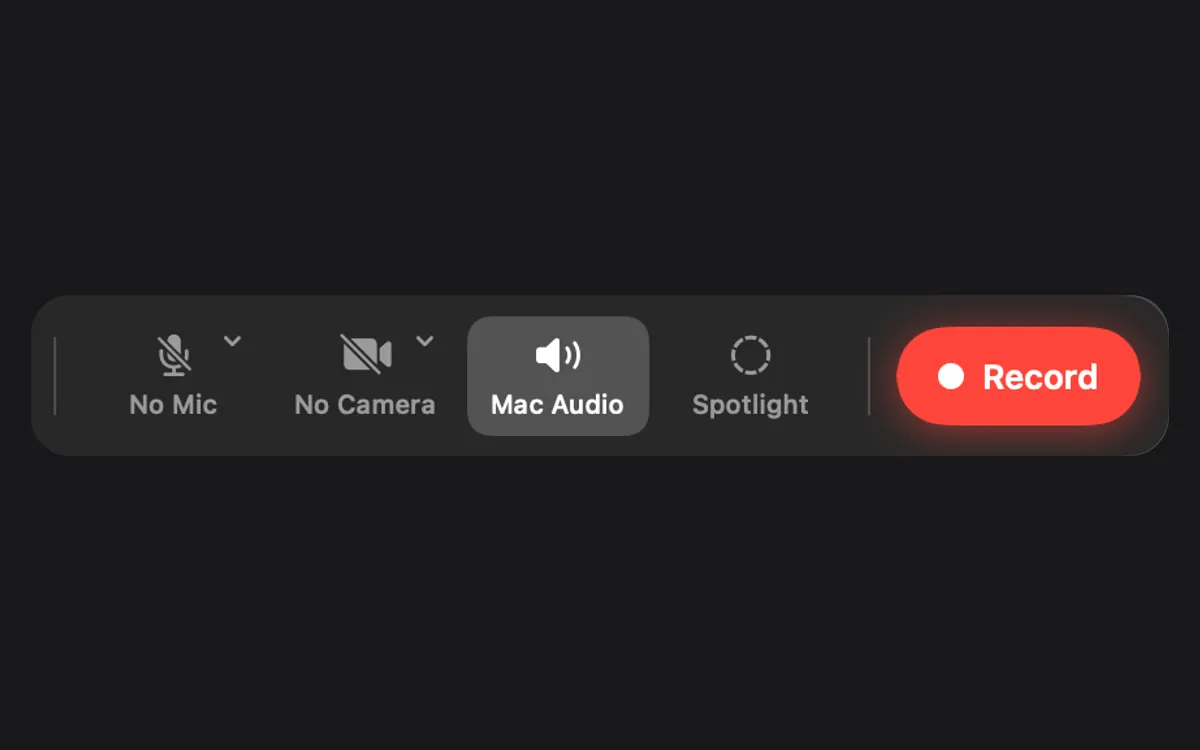
Mac Audio is on by default, so your clicks and everything else your Mac plays end up in the video. Add your microphone from the recorder bar when you want your voice too.
If a microphone drops mid-take, like an iPhone’s, Clacky switches to the Mac’s own mic without a gap and switches back when it returns. After the take, Clacky checks the sound and tells you if the video came out silent.
How to use it
Open the recorder
In Studio, click Record.
Check Mac Audio
Mac Audio is on in the recorder bar. Click it to record no Mac sound.
Add your mic
Click No Mic and pick a microphone. macOS asks for microphone access the first time.
Record
Click Record. Your voice and your Mac’s sound are both in the video.
Tips
- Studio’s Clean Up Voice removes hum and room noise from your voice afterwards, on your Mac.
Questions
- Why are there no click sounds in my recording?
- Mac Audio must be on, and Clacky’s sounds must be playing. If the video is silent, the preview says No sound was captured with what to check.
- Is the microphone always on?
- No. It is off by default and only records when you pick one in the recorder bar.
Make something on your Mac today.
Seven days free, every feature, cancel anytime.