Click Sounds
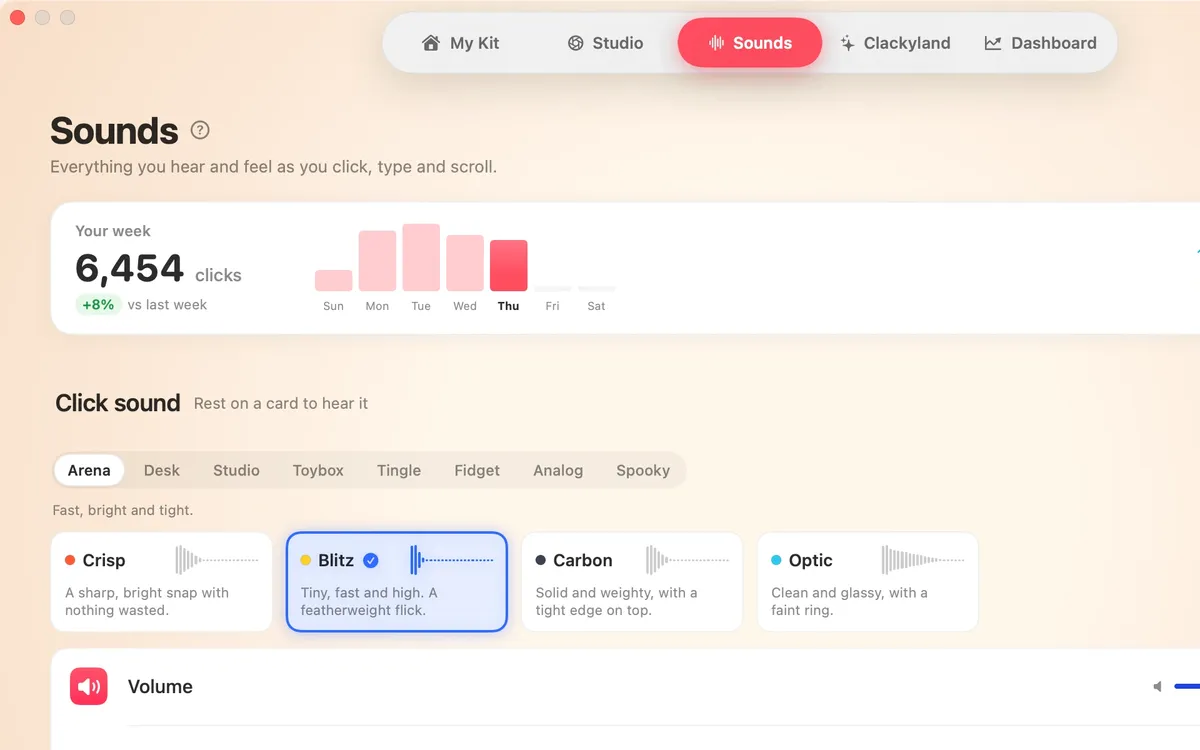
A satisfying click for every press and release of your mouse or trackpad: 37 sounds in 8 families, from Arena to Spooky.
What it is
Click Sounds plays a click every time you press and release your mouse or trackpad button, in any app. You hear the press, then a lighter release as the button comes back up.
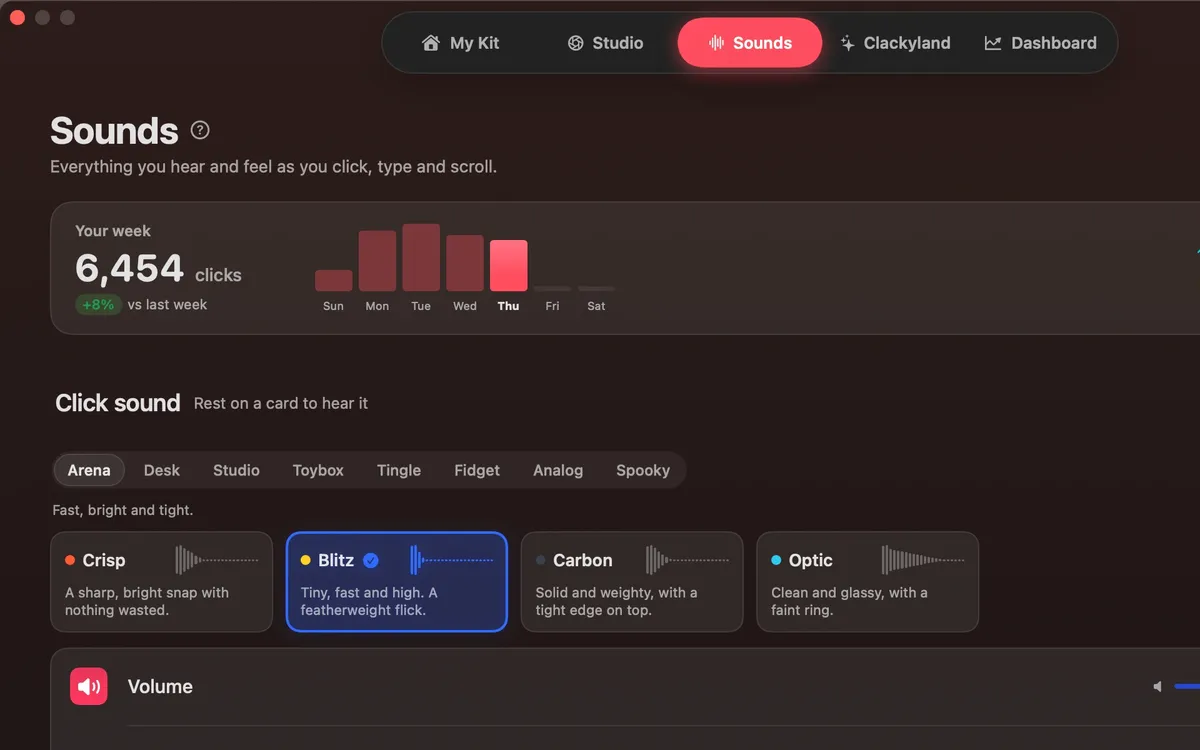
There are 37 click sounds in 8 families: Arena, Desk, Studio, Toybox, Tingle, Fidget, Analog and Spooky. Each one previews the moment you pick it.
Clacky needs Input Monitoring from macOS to hear clicks. It only listens for the click itself and plays the sound on your Mac.
How to use it
Turn it on
Click Sounds is on from the start, and its card in Sounds has the switch.
Allow Input Monitoring
The first time, macOS asks. Allow it in System Settings → Privacy & Security → Input Monitoring, then quit and reopen Clacky.
Pick a sound
Click the Clacky icon in the menu bar and open Sound, or go to Settings → Sounds and press a card to hear it.
Set the volume
Use the slider in the Clacky menu, or Volume in Settings → Sounds.
Fine-tune it
Settings → Sounds has Release sound and Scroll ticks. More options adds presets, a different right click, tone, stereo, levels and your own sound files.
Tips
- Not sure which one you like? Find My Sound… in the Clacky menu’s More asks a few quick questions and suggests a set-up.
- The pad at the top of Settings → Sounds lets you click, right-click and scroll to hear exactly what other apps get.
Questions
- I turned it on but hear nothing. Why?
- macOS needs to allow Input Monitoring for Clacky, and only applies it after Clacky is reopened. Also check the switch at the top of the Clacky menu and the volume.
- Does it work with a trackpad and a Magic Mouse?
- Yes. Any mouse or trackpad click plays a sound, press and release.
- Can I use my own sound?
- Yes. Settings → Sounds → More options → Bring your own takes a sound file of your own.
Make something on your Mac today.
Seven days free, every feature, cancel anytime.