Volume Mixer
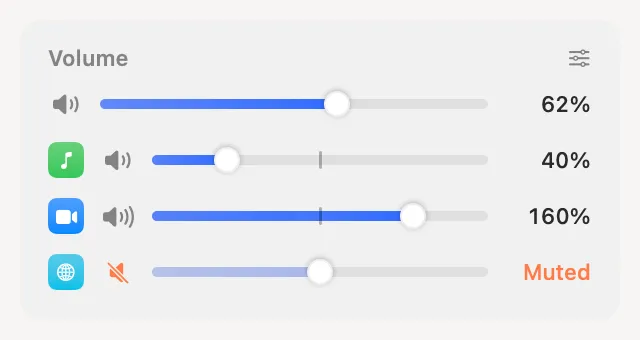
Each app its own volume, up to 200%, with a live meter, mute and its own output. Clacky remembers each app.
What it is
Volume Mixer lists every app that plays sound, each with its own slider and a live meter. Turn the music down, a quiet call up to 200 %, mute one app, or send it to your headphones.
Clacky remembers each app’s volume, mute and output. An app you never touch is left alone, and turning the mixer off puts every app back as it was.
The sound is changed live and never recorded or saved. Per-app volume needs macOS 14.2 or later; the Mac’s output, sound effects and microphone controls work on older versions too.
How to use it
Open it
Add Volume Mixer to My Kit from Explore, or go to Settings → Volume Mixer.
Turn it on and allow access
Switch it on. macOS asks for System Audio Recording, which Clacky uses only to change each app’s sound.
Set each app
Drag an app’s slider anywhere from off to 200 %, or mute it.
Pick an output
Choose where an app plays: the Mac’s output or another device, like your headphones.
Tips
- Right-click an app to put it back to 100 %.
- Under More options, Volume slider in the notch puts the Mac’s volume and the app playing now in the open notch. Scroll over it for 5 % steps, or hold ⌥ for 1 %.
- Every app back to 100 % forgets every app’s volume, mute and output in one go.
Questions
- Does it record what my apps play?
- No. The sound is changed live and never recorded or saved.
- What happens if Clacky quits?
- Every app is heard again straight away, as it was.
- Which macOS do I need?
- Per-app volume needs macOS 14.2 or later. On older versions the Mac’s output, sound effects and microphone controls still work.
Make something on your Mac today.
Seven days free, every feature, cancel anytime.