Sounds where you want them
Only with headphones, on the output you pick, or only in the apps you choose. Ripples still show everywhere.
What it is
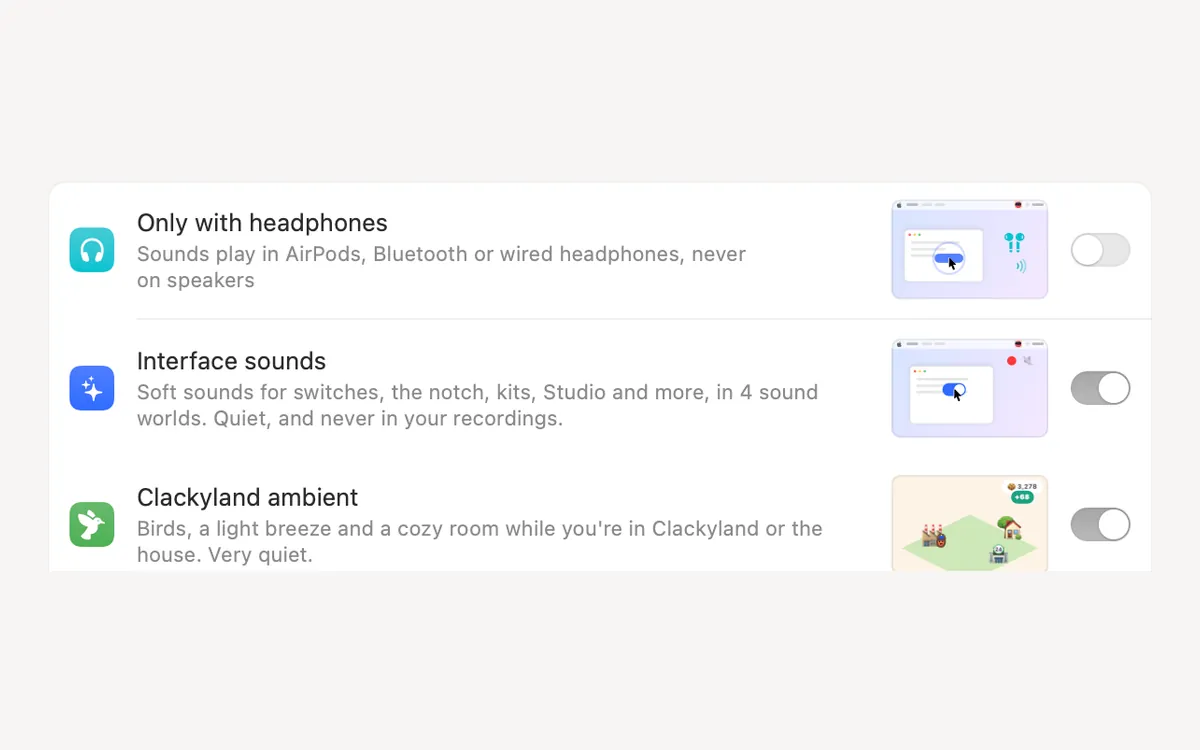
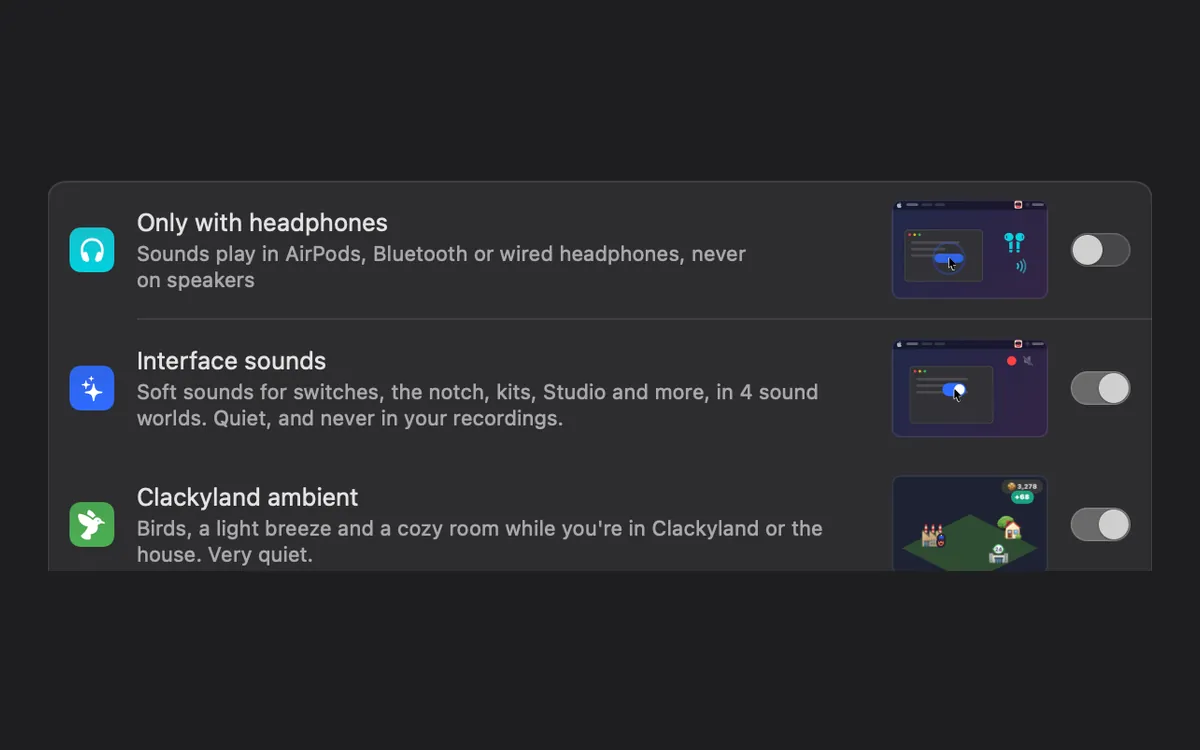
You decide where Clacky’s sounds play. Only with headphones keeps them in your AirPods or headphones and never on the speakers.
Output sends them to the device you pick, and Clacky keeps using it while it’s connected. Quiet in these apps keeps Clacky silent in the apps you add, or turn it around so sounds play only in those apps.
Ripples still show everywhere, so a recording or a screen share always shows where you clicked.
How to use it
Only with headphones
Settings → General, under Look & sound: turn on Only with headphones.
Pick an output
Settings → Sounds → Output: Follow system output, or a device of your own.
Choose the apps
Settings → General → More options: add apps to Quiet in these apps.
Or only in those apps
Set Sounds play to Only in these apps. Until you add one, Clacky plays everywhere.
Tips
- An app counts while it’s in front, or under the pointer.
- Quiet during calls, in the same More options, keeps Clacky quiet while your microphone is in use.
Questions
- Do ripples stop too?
- No. These rules are for sounds; ripples still show everywhere.
- Does Only with headphones work with AirPods?
- Yes. AirPods, Bluetooth or wired headphones all count. On the speakers, Clacky stays quiet.
Make something on your Mac today.
Seven days free, every feature, cancel anytime.