Clipboard History
Your last 50 copies: search, pin, paste. Off by default and kept in memory; you can keep them across restarts, encrypted on this Mac. Copies from password managers are never kept.
What it is
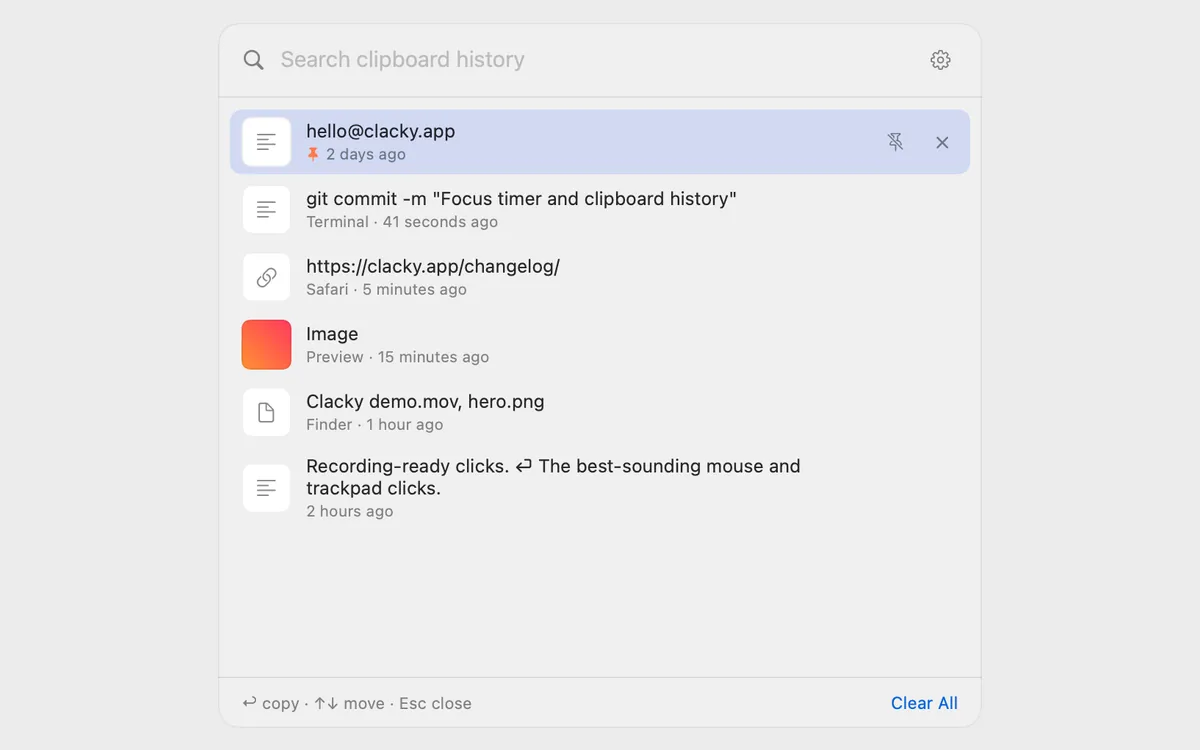
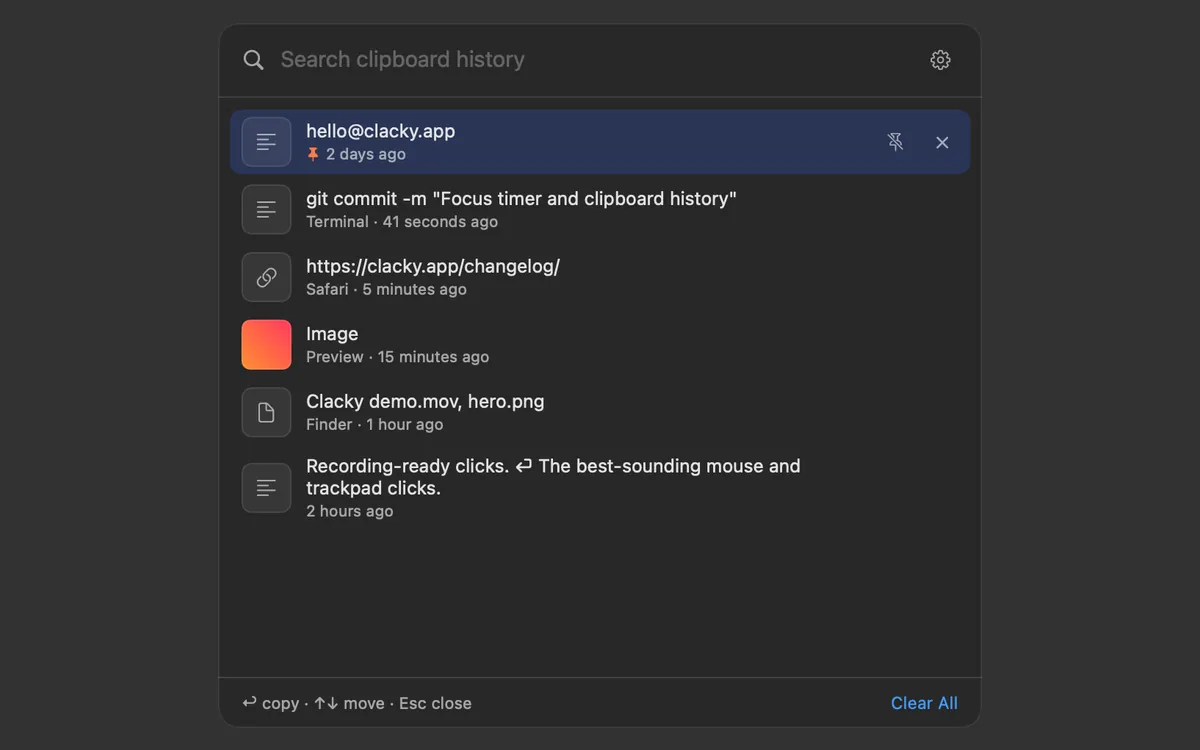
Clipboard History keeps the last 50 things you copy: text, images and files. Press ⌃⌥⌘V, type to search, and put any of them back on the clipboard. Pin the ones you reuse.
It’s off by default. Copies stay on this Mac, in memory. Keeping them after Clacky restarts is a separate choice, saved encrypted with a key in your Keychain.
Anything a password manager copies is never kept, and old copies forget themselves after a day, or whenever you choose. Pinned ones stay.
How to use it
Turn it on
Open Clacky from the menu bar, click the Clipboard History card in My Kit and switch on Keep clipboard history.
Copy as usual
Everything you copy from now on shows up in the list.
Find one
Press ⌃⌥⌘V and type to search. Use ↑ and ↓ to move.
Use it
Press Return to copy it again. Turn on Paste into the app I was in and Return pastes it for you.
Tips
- Click the pin on a row to keep it. Clear Clipboard History in ⌘K keeps pinned items.
- Forget copies after sets how long the rest are kept: 1 hour to 30 days, or never.
Questions
- Are my passwords saved?
- No. Copies marked as private by password managers, or made while one is in front, are never kept.
- Is the history synced or backed up?
- No. It stays on this Mac. If you keep it across restarts, the file is encrypted and left out of backups.
- Does it read my clipboard when it’s off?
- No. While it’s off, nothing is read at all.
Make something on your Mac today.
Seven days free, every feature, cancel anytime.