Voice to Prompt
Speak, and your words are copied as a prompt, with the ums taken out, on your Mac. Turn on Paste automatically and it’s pasted where you were typing.
What it is
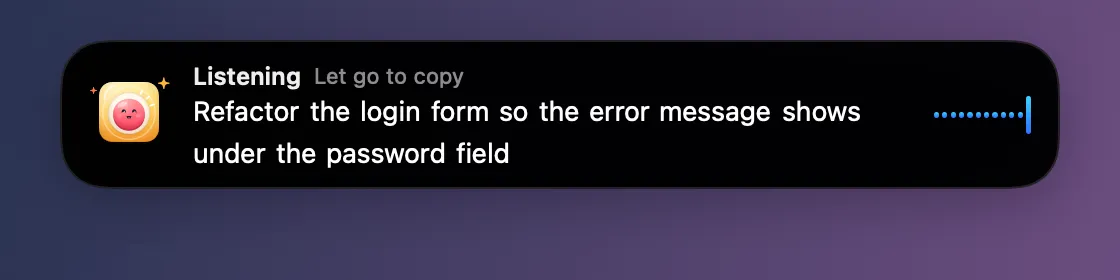
Voice to Prompt turns speech into text for your AI agent, or anywhere else you type. Hold ⌃⌥V and talk; a pill grows out of the notch with your words as they’re heard. Let go and the text is on your clipboard.
Transcription runs on your Mac. Audio and text never leave it, nothing is saved, and the microphone is open only while the pill says Listening.
“Tidy up the text” takes out “um” and “uh” and adds a capital and a full stop, also on your Mac. Want it pasted for you? Turn on Paste automatically.
How to use it
Turn it on
Open Clacky from the menu bar and switch on the Voice to Prompt card in My Kit (add it from Explore if it isn’t there).
Allow the microphone
Clacky explains first, then macOS asks once for Microphone and Speech Recognition.
Hold and talk
Hold ⌃⌥V and speak. A quick tap keeps listening until you press again.
Let go and paste
The text is copied. Paste it with ⌘V, or turn on Paste automatically in Settings → Voice to Prompt and Clacky presses ⌘V for you once.
Tips
- Settings → Voice to Prompt lets you pick another push-to-talk shortcut and the pill’s size.
- There’s a mic button in the open notch too.
Questions
- Is my voice sent to the cloud?
- No. Speech is turned into text on your Mac, and neither the audio nor the text is saved or sent.
- Does it work while I’m on a call?
- No, on purpose. While you’re on a call, Clacky isn’t listening.
- What if my language isn’t supported?
- On some Macs the on-device speech model needs a one-time download, which Settings → Voice to Prompt offers. If your Mac can’t transcribe your language on device, Clacky says so instead of using a server.
Make something on your Mac today.
Seven days free, every feature, cancel anytime.