Text Expander
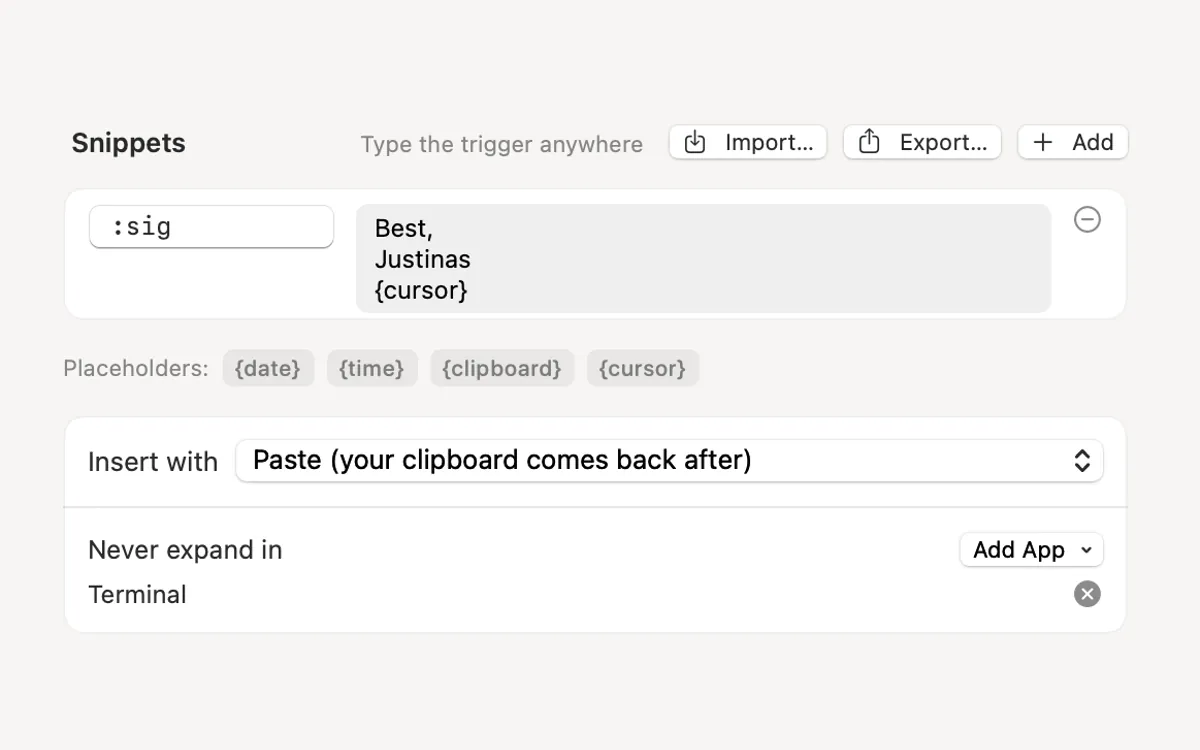
Type :sig, get your signature. Your snippets, anywhere you type.
What it is
Text Expander turns a short trigger into the full text. Type :sig and get your signature, an address, a reply you send every day, in any app you type in.
Snippets can hold placeholders: {date}, {time}, {clipboard} and {cursor}, where the cursor lands after.
To spot a trigger, Clacky keeps only the last few characters in memory while they could still become one of your triggers, and never records, stores, logs or sends what you type. Password fields, password managers and apps you exclude are skipped.
How to use it
Open Text Expander
Open Clacky from the menu bar and click the Text Expander card in My Kit (add it from Explore if it isn’t there).
Turn it on
Switch on Text Expander and press Allow in System Settings…: it needs Accessibility to type your snippet.
Add a snippet
Press Add, then type a trigger (2–32 characters, no spaces) and the text it stands for.
Use it
Type the trigger anywhere. It expands in place.
Tips
- Two examples come ready: :date and :shrug. Change or delete them.
- Import… and Export… move your snippets as a file.
- Insert with lets you paste the text (your clipboard comes back after) or type it in.
Questions
- Does Clacky read everything I type?
- No. It holds only the last few characters, in memory, and only while they could still be one of your triggers. Nothing is recorded, stored or sent.
- Can I stop it in one app?
- Yes. Add the app under Never expand in. Password managers are always skipped.
Make something on your Mac today.
Seven days free, every feature, cancel anytime.