Shortcuts
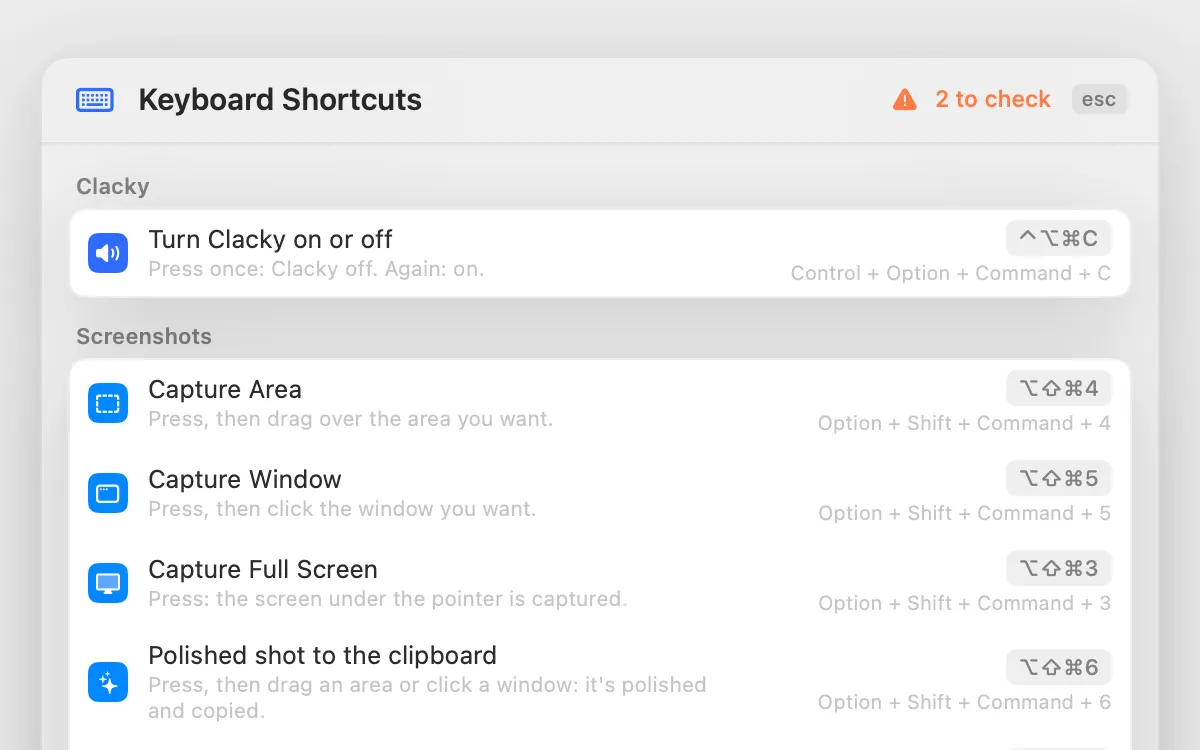
Every Clacky shortcut in one list. Change any of them; if the keys are taken, Clacky says by whom.
What it is
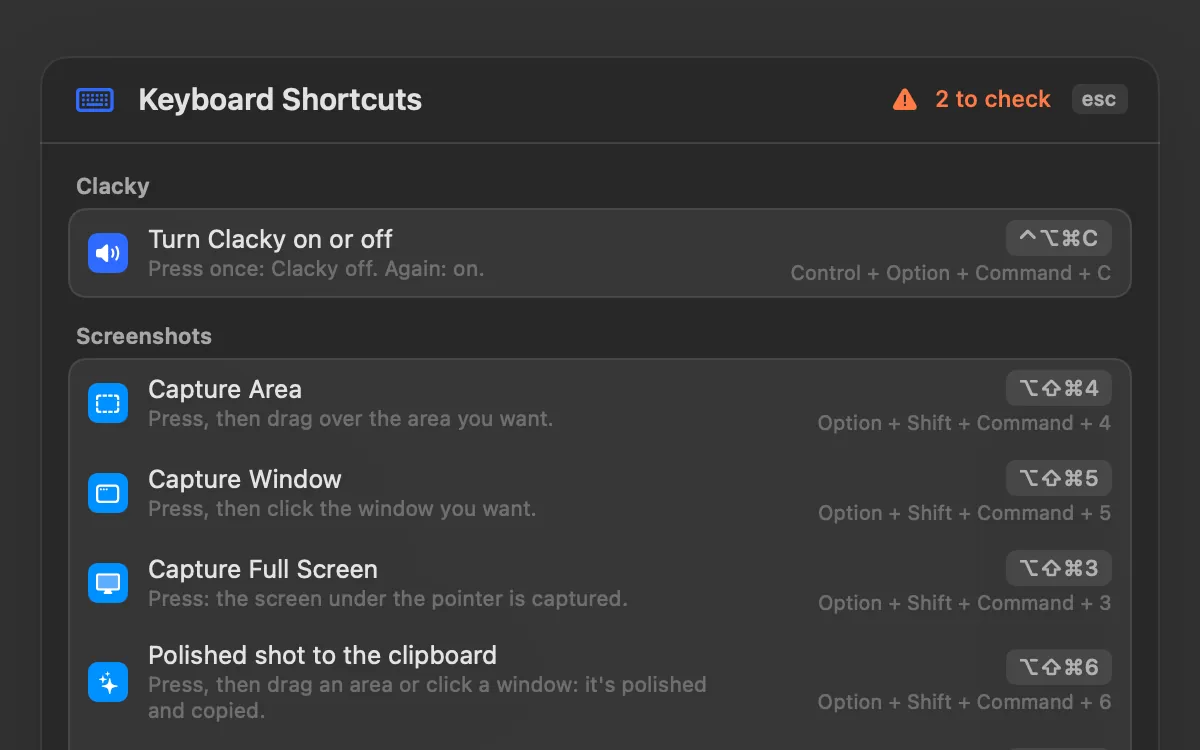
Settings → Shortcuts lists every Clacky shortcut in one place, grouped by tool: screenshots, Voice to Prompt, Presenter, Clipboard History, Color Picker, Window Snapping, Modes, the Teleprompter and Menu Bar Tidy.
Click one and press the keys you want; they work at once. If the keys are already used by another Clacky shortcut, another app or macOS, Clacky says so under the row.
Clacky’s shortcuts are registered with macOS, so Clacky hears only these combinations, never your other keys.
How to use it
Open Settings
Open Clacky from the menu bar and click the gear to open Settings.
Go to Shortcuts
Choose Shortcuts in the sidebar.
Press new keys
Click a shortcut, then press the new keys. Use ⌘, ⌃ or ⌥ with the key so it doesn’t get in the way of typing.
Undo a change
Click ↺ to put the original keys back, or Reset All… for every shortcut.
Tips
- While a shortcut listens, Esc cancels and Delete clears it.
- In ⌘K, Keyboard Shortcuts shows them all at a glance.
Questions
- Can I turn a shortcut off?
- Yes. Click it and press Delete to clear it.
- Why can’t I use ⌘ and a letter?
- ⌘ with a letter is some app’s menu command, like ⌘C or ⌘V, so Clacky won’t take it.
Make something on your Mac today.
Seven days free, every feature, cancel anytime.