Clips and speed
Split, trim and delete clips on the Clips lane (⌘B, Q, W), and play any clip from 0.5× to 8×.
What it is
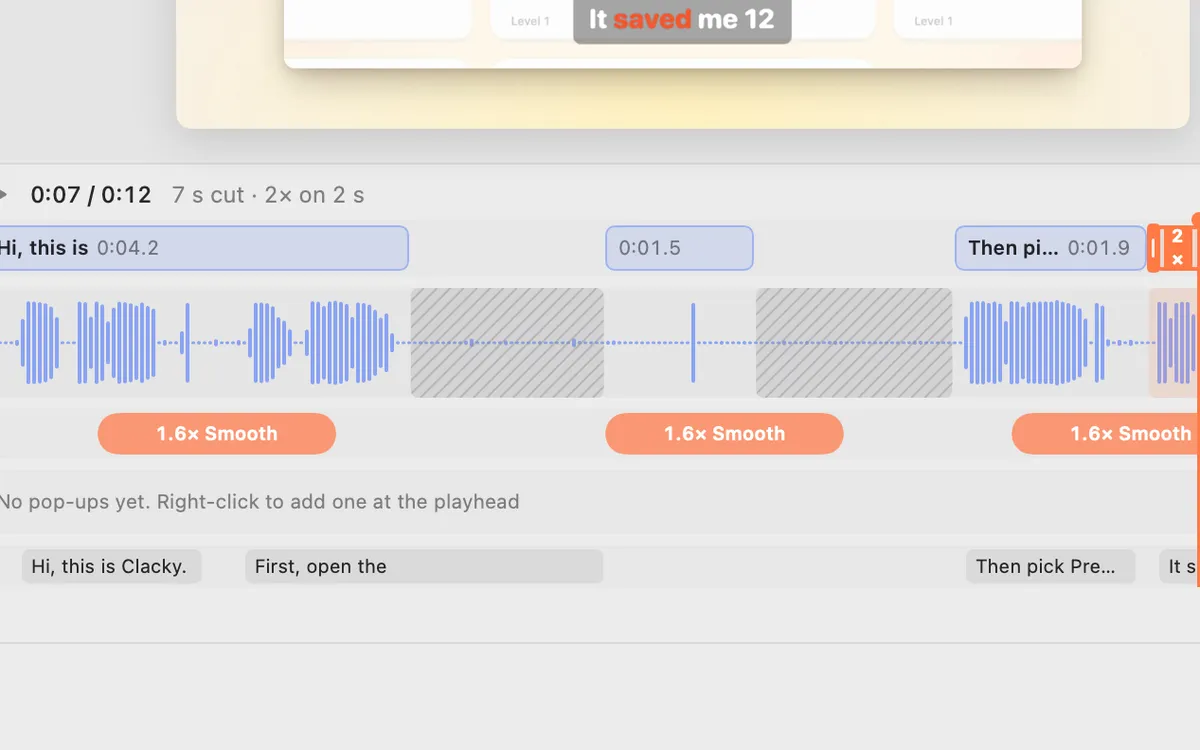
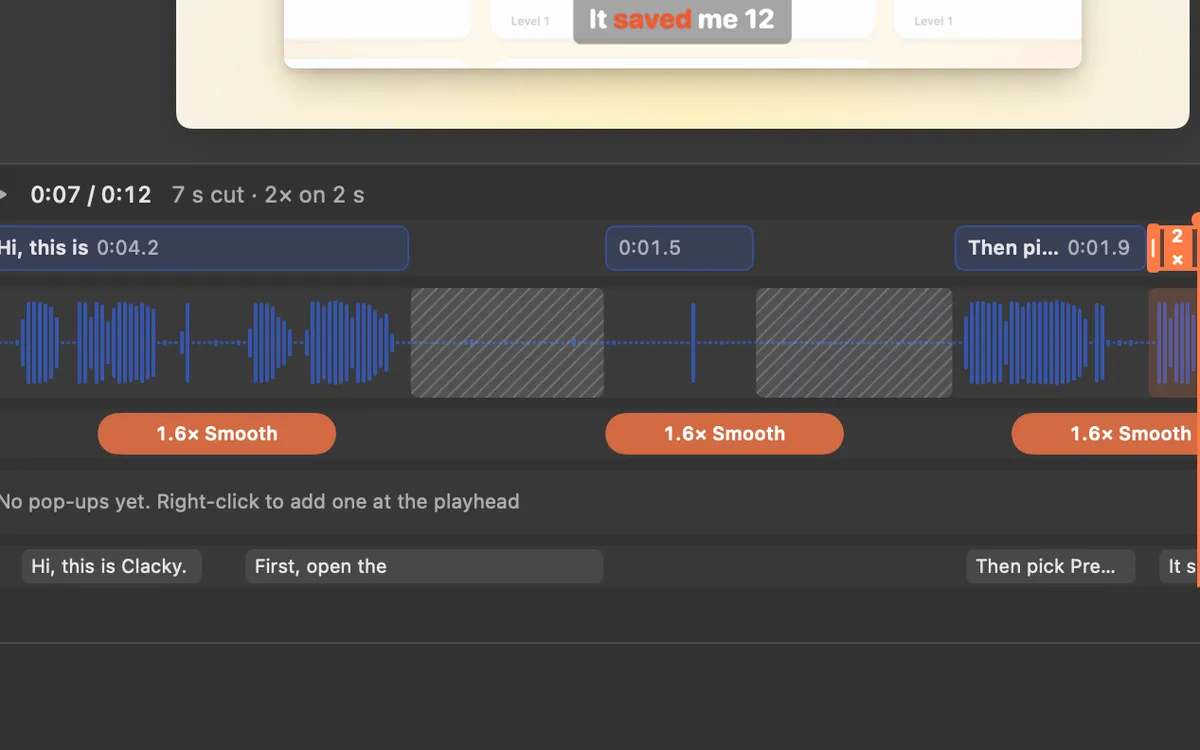
Each kept stretch of your recording is a clip on the Clips lane, above the waveform. Split, trim and delete them with a few keys, and the rest slides together.
Any clip can play from 0.5× to 8×. Faster or slower clips are muted so your clicks never squeak; at 1× you can mute a clip’s sound on its own.
How to use it
Split
Move the playhead and press ⌘B to split the clip there.
Trim
Press Q to trim from the clip’s start to the playhead, or W from the playhead to its end. You can also drag a clip’s edge.
Delete
Select a clip and press ⌫. The rest slides together.
Change the speed
Select a clip and pick a speed from 0.5× to 8× in the Clip section, or right-click the clip.
Tips
- Redo auto edit keeps all your hand edits.
- ⌘Z undoes, ⇧⌘Z redoes.
Questions
- Why is a sped-up clip silent?
- Clips that play faster or slower are muted so clicks don’t squeak. At 1× the sound plays as recorded.
- Will auto edit undo my cuts?
- No. Your splits, trims and deletes are kept when the auto edit runs again.
Make something on your Mac today.
Seven days free, every feature, cancel anytime.