Copy only
Mark up a shot, press ⌘C and it’s copied, with nothing left in your folder. Click Save when you want to keep it.
What it is
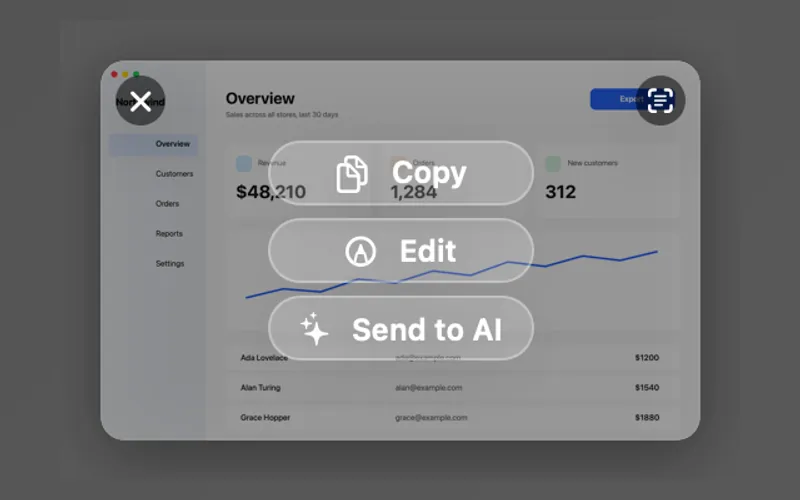
With Copy only, a screenshot opens in the editor and nothing is written to your folder.
Mark it up and press ⌘C: it’s copied and the editor closes. Nothing is left behind, not in the folder, Recent or the Shelf.
Want to keep one? Click Save and it lands in your folder.
How to use it
Open Screenshots
Click the Clacky icon in the menu bar, go to Studio and click All Screenshots.
Change After capture
Set After capture to Copy only, save when I click Save.
Take a shot and copy
Mark it up, then press ⌘C. It’s on your clipboard and the editor closes.
Keep one
Click Save (⌘S) in the editor and it’s saved to your folder.
Questions
- Where do my shots go with Copy only?
- Only to your clipboard, until you click Save.
- Can I switch back?
- Yes. Set After capture back to Save to folder and every shot is saved again.
Make something on your Mac today.
Seven days free, every feature, cancel anytime.