Polish
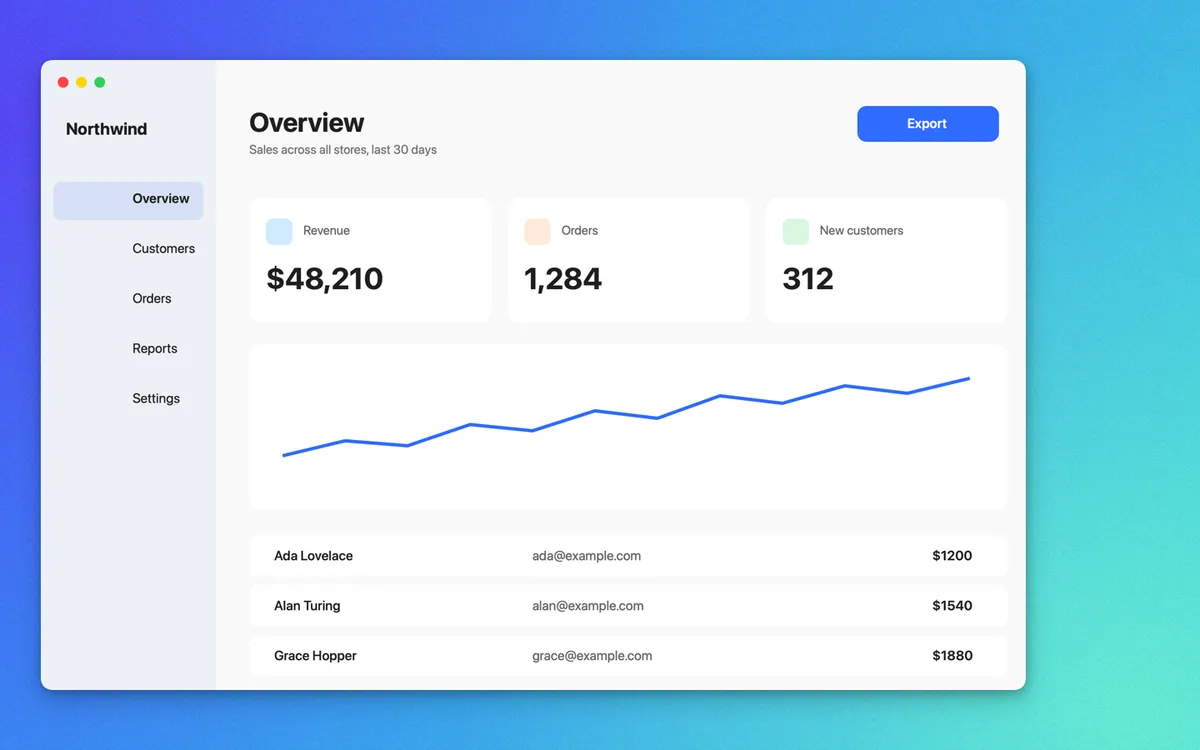
A background picked from the shot (or your own colour, picture or brand), padding and a soft shadow. ⌥⇧⌘6 takes a polished shot straight away.
What it is
Polish puts your screenshot on a background, with padding and a soft shadow, so it looks finished before you paste it into a post or a doc.
The background can be picked from the shot’s own colours, a solid colour of your own, your own picture, or your brand colours, read from your website when you ask.
Your original is kept as it was. Polish only changes the copy you share or save.
How to use it
Take a polished shot
Press ⌥⇧⌘6, then drag over an area or click a window. It’s polished with your last look and copied, ready to paste.
Or polish one you have
In the screenshot editor, pick Polish in the switch at the top (next to Original), or press ⌘B.
Pick a background
In the Background section, choose one picked from the shot, a colour, your own picture, or type your website under From your website and click Get colours.
Tune it
Set Padding, Corners and Shadow. Hold ⌥ to peek at the original.
Copy or save
Press ⌘C to copy, or ⌘S to save a copy next to the original.
Tips
- Your last look is used for the next shot, and for ⌥⇧⌘6.
- Under More…, Auto-balance trims empty margins so the shot sits in the middle.
Questions
- Does Polish change my original screenshot?
- No. The original is kept as it was; Polish makes the copy you share or save.
- What happens when I use my website’s colours?
- Only when you press Get colours, Clacky loads that page with its styles and icon to read the colours. No cookies.
Make something on your Mac today.
Seven days free, every feature, cancel anytime.