StudioLive
GIF Export
Turn any recording into a small, shareable GIF.
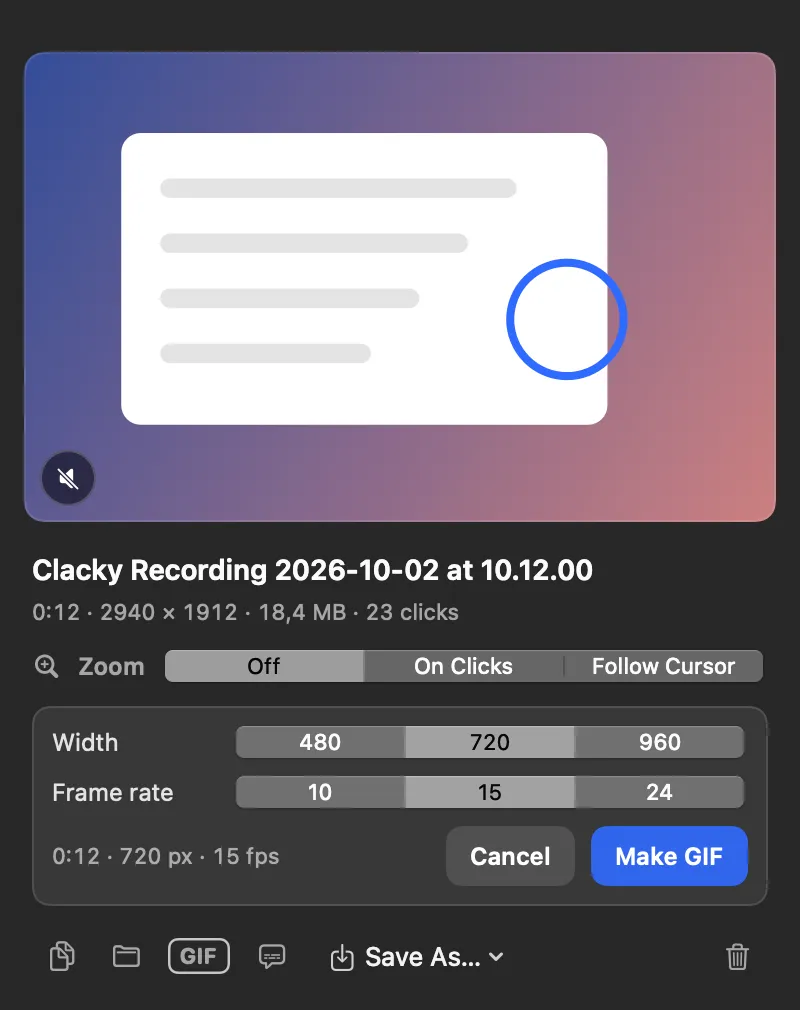
What it is
GIF Export turns a recording into a small, silent, looping GIF, good for docs, READMEs, chats and bug reports.
Pick a width of 480, 720 or 960 px and 10, 15 or 24 frames a second. Long recordings get big fast, so Clacky can keep only the first 30 seconds. The GIF is saved next to the video.
How to use it
Open the recording
Stop a recording, or open Recordings and click one. Its preview opens.
Click GIF
Click the GIF button in the preview.
Pick the size
Choose a Width and a Frame rate, and whether to keep only the first 30 s.
Make it
Click Make GIF. It’s saved next to the video.
Tips
- In Studio, Export as GIF makes a GIF of your edited video, cuts and zooms included.
- GIF Export is also in Studio, under More for recording.
Questions
- Does the GIF have sound?
- No. GIFs can’t carry sound, so the GIF is silent.
- How long can a GIF be?
- Clacky offers to keep the first 30 seconds of a long recording, since long GIFs get very big. Studio’s GIF export uses the first 30 seconds of the edit.
Make something on your Mac today.
Seven days free, every feature, cancel anytime.