StudioLive
Make a Clip
One click makes a 1080 × 1920 clip for TikTok, Reels and Shorts, the camera following your clicks, and copies a caption.
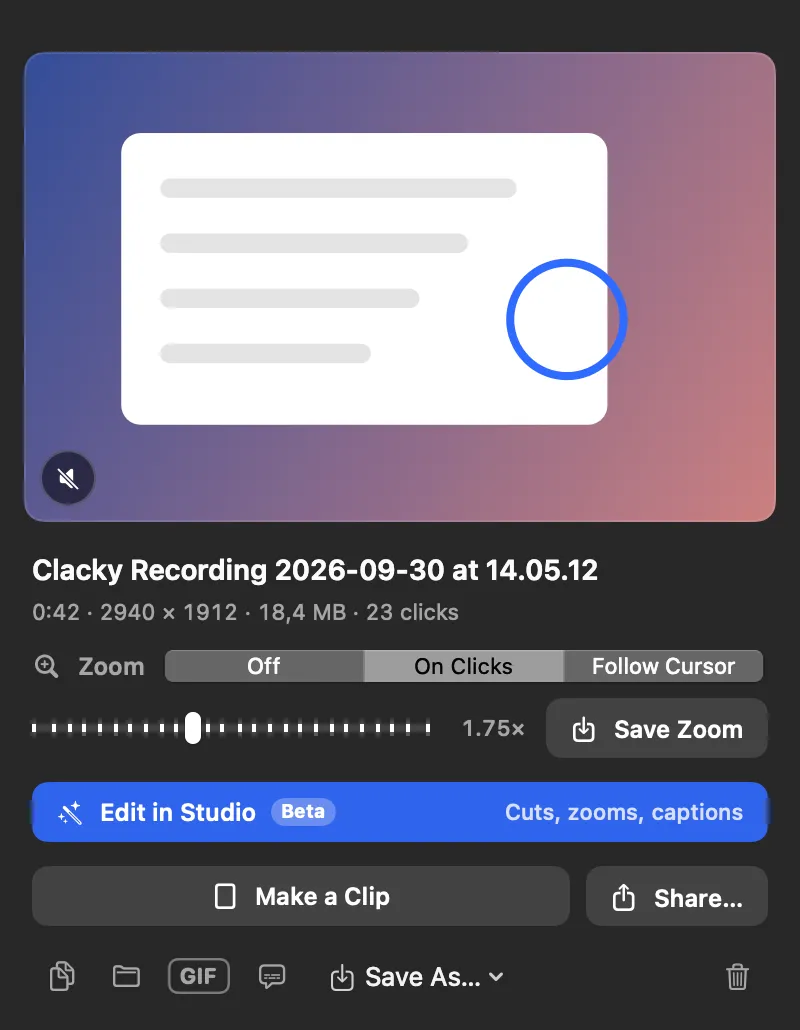
What it is
Make a Clip turns a recording into a tall 1080 × 1920 video for TikTok, Reels and Shorts in one click. The camera follows your clicks, zooming in a little around them and easing back out when you pause.
The clip is saved next to the recording, shown in Finder, and a caption is copied, ready to paste with your post.
How to use it
Stop a recording
The preview opens at the bottom right of the screen.
Click Make a Clip
A progress bar shows while it works; Cancel stops it.
Post it
The clip is shown in Finder and the caption is on your clipboard. Drag the clip into your post and paste the caption.
Tips
- For an older recording, open Recordings, click it to open its preview, and click Make a Clip.
- Want more control over the tall version? Studio’s 9:16 shape adds captions, safe zones and cuts.
Questions
- Where is the clip saved?
- Next to the recording, with “(clip)” after its name.
- Does it follow my clicks in any video?
- It follows the pointer track Clacky saves with its own recordings. Without one, the clip is a centred crop.
Make something on your Mac today.
Seven days free, every feature, cancel anytime.