Screenshots and recordings
Your agent can check a UI with a screenshot or record a short demo. Clacky asks you before every screenshot unless you say otherwise.
- take_screenshot
- start_recording
- stop_recording
What it is
Your agent can take a screenshot to see what you see, or start and stop Clacky’s screen recorder to film what it just built.
take_screenshot grabs the screen under the pointer, or lets you pick an area or a window. Your AI gets the PNG’s file path and a small preview. start_recording counts down 3 seconds, records the full screen or your last area, and can stop by itself after a set number of seconds. stop_recording hands back the video’s path in ~/Movies.
Before every screenshot Clacky asks you: Allow Once, Always Allow or Don’t Allow. Nothing is uploaded by Clacky.
How to use it
Connect Clacky
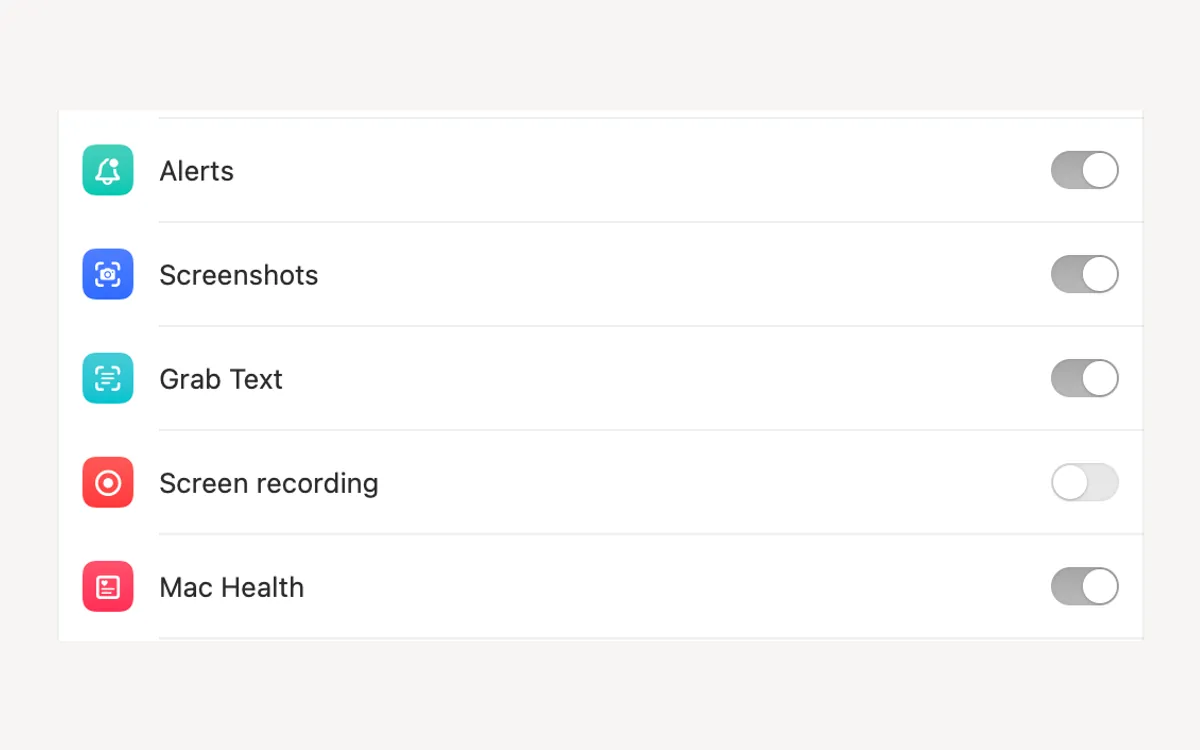
Turn on Settings → Connect AI tools and add Clacky to your AI app. Leave Screenshots and Screen recording on.
Ask for a screenshot
Say “Take a screenshot of this window and tell me what looks off.”
Allow it
Clacky asks first. Pick Allow Once, or Always Allow to skip the question next time.
Or ask for a demo
Say “Record my screen for 30 seconds.” After the countdown it records, stops by itself and returns the video’s path.
Tips
- “Take screenshots without asking” in Connect AI tools turns the question off. Leave it off if you want to approve each one.
- Clacky needs macOS’s Screen Recording permission for both. The recorder needs macOS 15.
Questions
- Does my AI see my screen all the time?
- No. It sees only the screenshots you allow, one at a time, and only while the Screenshots group is on.
- Where do the files go?
- They’re saved on your Mac (recordings in ~/Movies). Your AI gets the path and, for a screenshot, a small preview.
Make something on your Mac today.
Seven days free, every feature, cancel anytime.