Notch
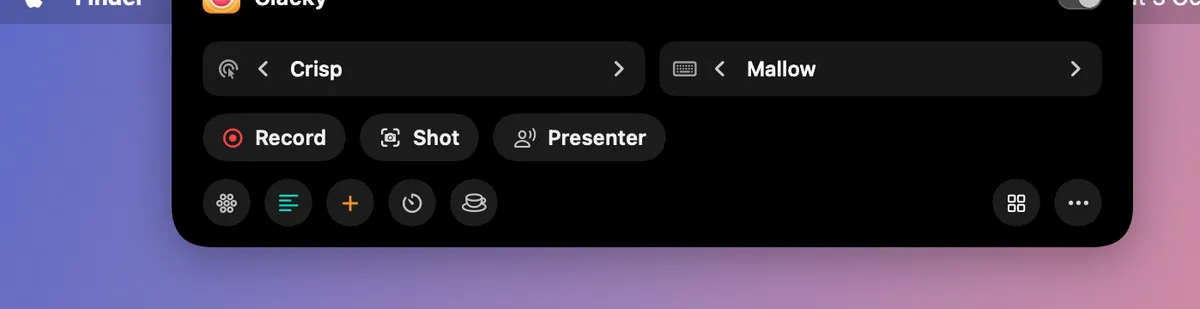
Clacky’s status and controls around the notch: the voice pill, the recorder’s Stop, Now Playing and the focus timer. A drawn notch on screens without one, left out of recordings unless you want it in.
What it is
Rest the pointer on the notch and it opens with Clacky’s controls: your sounds, the recorder, a screenshot, the focus timer, Mac Health and more. Move away and it closes.
While you record, the notch shows a red dot and the time, with Pause and Stop beside it. Now Playing, the focus timer and Clacky’s cards live there too.
A Mac without a notch gets a drawn one that works the same way, or a floating pill. Clacky’s notch is left out of your recordings and screenshots unless you want it in.
How to use it
Turn it on
Add the Notch card to My Kit from Explore and flip it on, or go to Settings → Notch.
Open it
Rest the pointer on the notch (or the drawn one at the top centre).
Choose the buttons
In Settings → Notch, Show in the notch picks the buttons: Record, Shot, Talk, Focus Timer, Keep Awake, Mac Health, Modes, Presenter, Quick Add and Teleprompter.
No notch?
On screens without a notch picks Virtual notch, Floating pill or Nothing. Show the notch on picks which screens.
Tips
- On a screen without a notch, Hide when a window is under it lets an app’s tabs reach the top; move the pointer to the top edge and it comes back.
- Turn on Show Clacky’s notch in screen recordings when you want it in the video.
Questions
- My Mac has no notch. Can I still use it?
- Yes. Clacky draws a notch at the top of the screen that behaves like the real one, or shows a floating pill instead.
- Will the notch show up in my recordings?
- Not by default. Your recordings and screenshots leave Clacky’s notch out, though you still see it. You can turn it on in Settings → Notch.
Make something on your Mac today.
Seven days free, every feature, cancel anytime.