Window Snapping
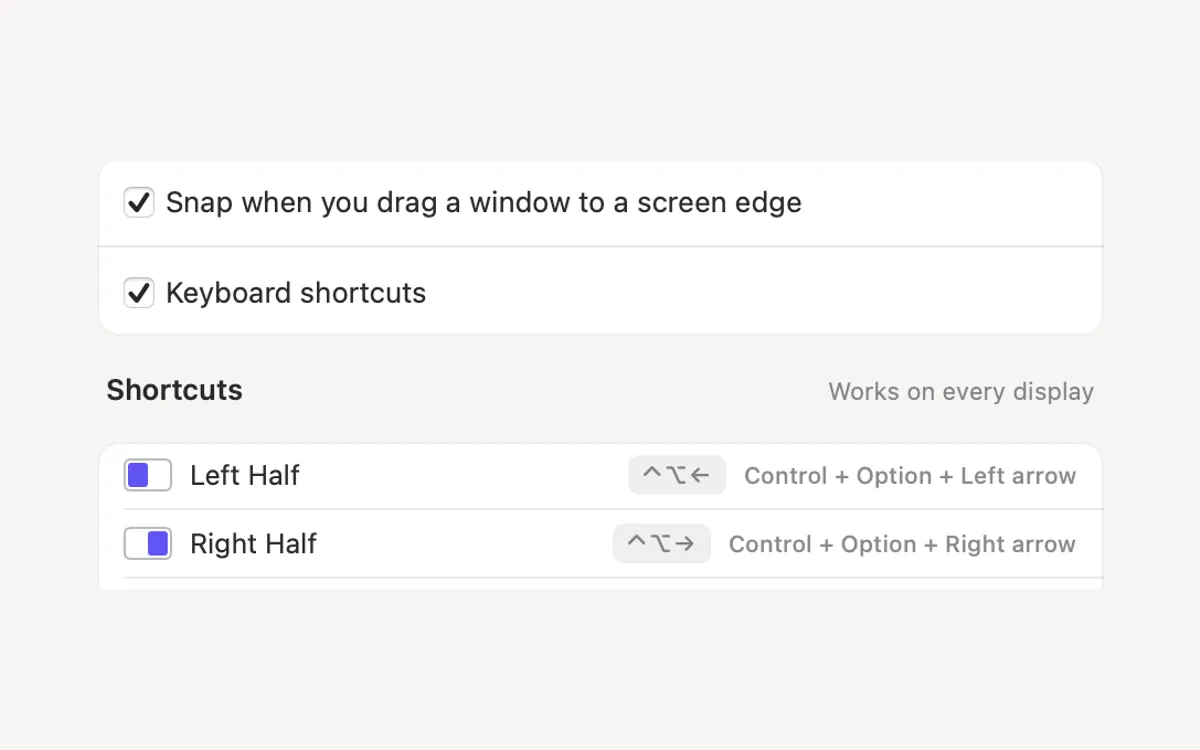
Drag a window to an edge for halves and quarters, or use ⌃⌥ and the arrow keys.
What it is
Window Snapping puts windows where you want them. Drag a window to a screen edge for a half, to a corner for a quarter, or to the top for the full screen. A soft preview shows where it will land.
Prefer the keyboard? ⌃⌥ with the arrow keys snaps the front window to a half, ⌃⌥↩ fills the screen and ⌃⌥⇧C centres it.
It needs Accessibility once, so Clacky may move windows. It reads and sets only the front window’s position and size.
How to use it
Open Window Snapping
Open Clacky from the menu bar and click the Window Snapping card in My Kit (add it from Explore if it isn’t there).
Turn it on
Switch on Window Snapping and allow Accessibility when macOS asks.
Drag to an edge
Drag a window to a screen edge or corner and let go: it fills that half or quarter.
Or use the keys
With the window in front, press ⌃⌥← or another arrow.
Tips
- Snap when you drag a window to a screen edge and Keyboard shortcuts each have their own switch.
- Change any of the keys in Settings → Shortcuts.
Questions
- Does it work on more than one display?
- Yes. A window snaps on the display that holds most of it.
- Why does it say Needs Accessibility?
- macOS only lets an app move other apps’ windows with Accessibility. Allow it once in System Settings.
Make something on your Mac today.
Seven days free, every feature, cancel anytime.