Mic Mute
One shortcut mutes your mic in every app. Hold it to talk.
What it is
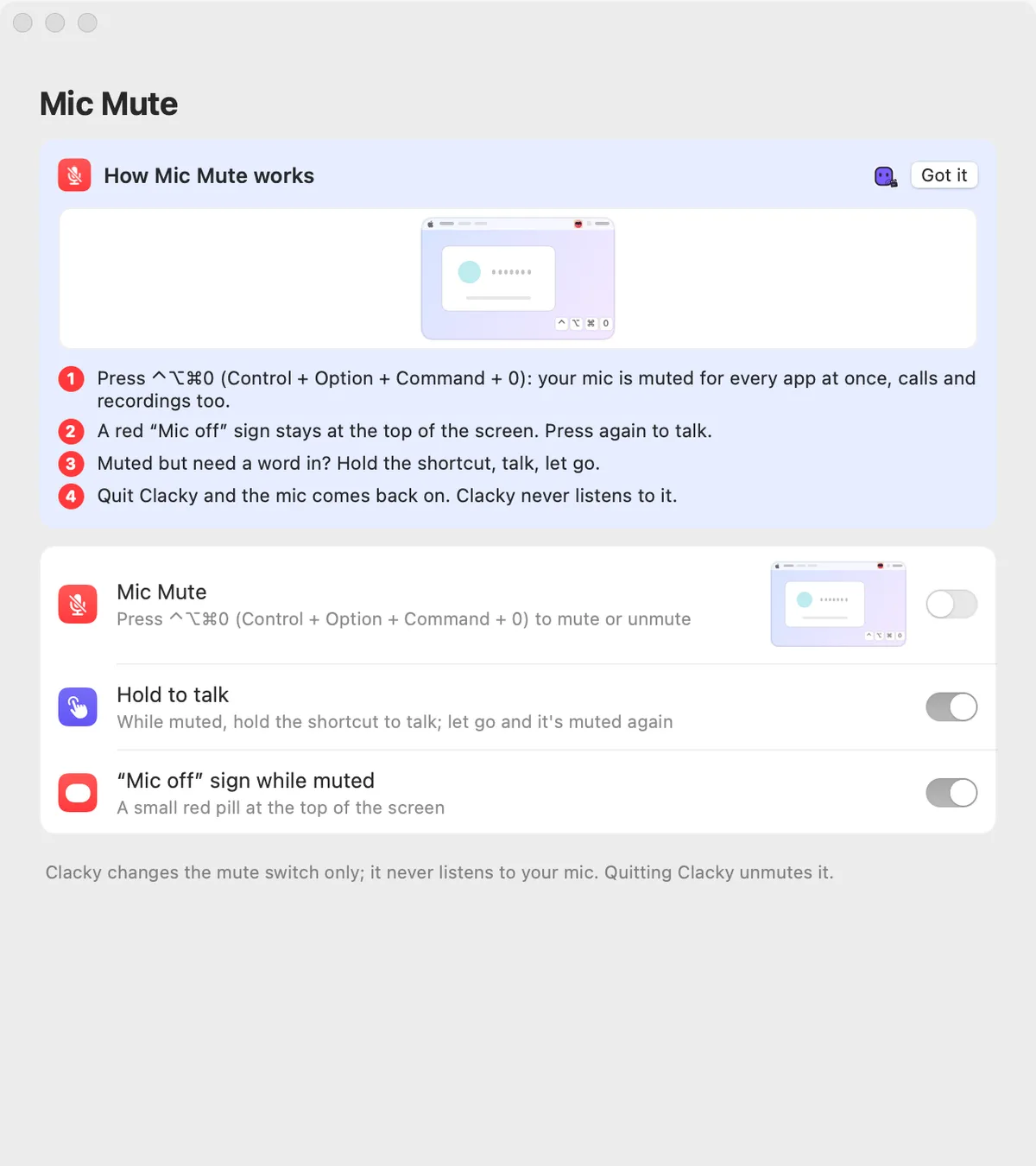
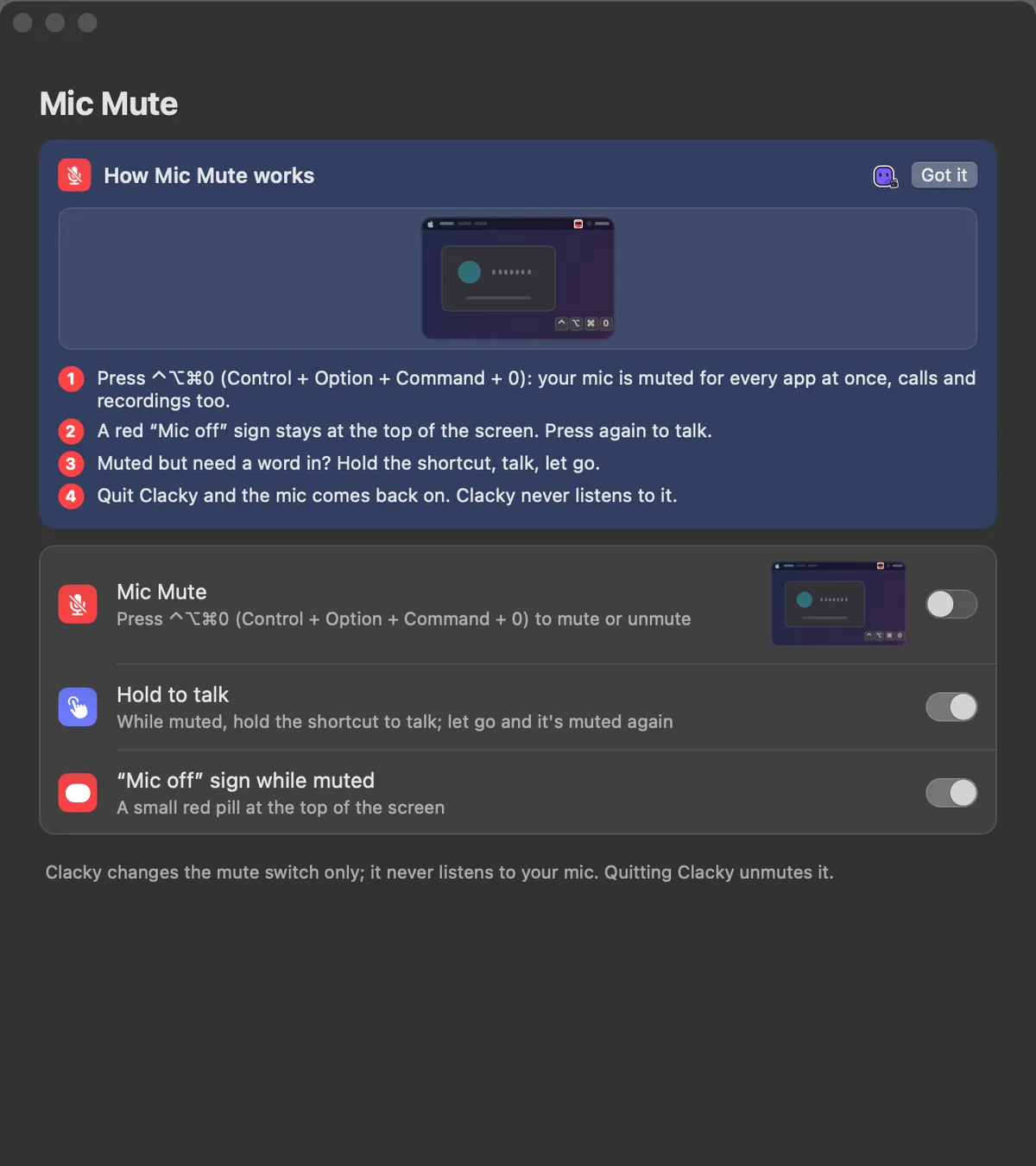
Mic Mute mutes your microphone for every app at once, with one shortcut: ⌃⌥⌘0. Calls, recordings and dictation all go quiet.
A small red “Mic off” sign stays at the top of the screen while you’re muted, so you never talk into a muted call by accident. Need a word in? Hold the shortcut, talk, let go.
Clacky only changes the mute switch and never listens to your mic. Quit Clacky and the mic comes back on.
How to use it
Turn it on
Open Clacky from the menu bar and switch on the Mic Mute card in My Kit (add it from Explore if it isn’t there).
Mute
Press ⌃⌥⌘0. The “Mic off” sign appears at the top of the screen.
Talk for a moment
While muted, hold ⌃⌥⌘0 and talk. Let go and it’s muted again.
Unmute
Press ⌃⌥⌘0 again.
Tips
- Plug in headphones while muted and the new mic is muted too.
- Settings → Mic Mute turns Hold to talk and the “Mic off” sign on or off.
Questions
- Does it work with Zoom, Meet and Teams?
- Yes. It mutes the Mac’s microphone itself, so every app hears silence.
- What if Clacky crashes while I’m muted?
- Clacky checks at the next launch and puts the mic back as it was.
- Why does it say “This mic can’t be muted”?
- Some microphones have no mute switch or level macOS can change. Try another input in System Settings → Sound.
Make something on your Mac today.
Seven days free, every feature, cancel anytime.