Modes
Record, Present, Code, Focus, Call, Quiet or your own: one click switches a set of tools on together. None puts everything back.
What it is
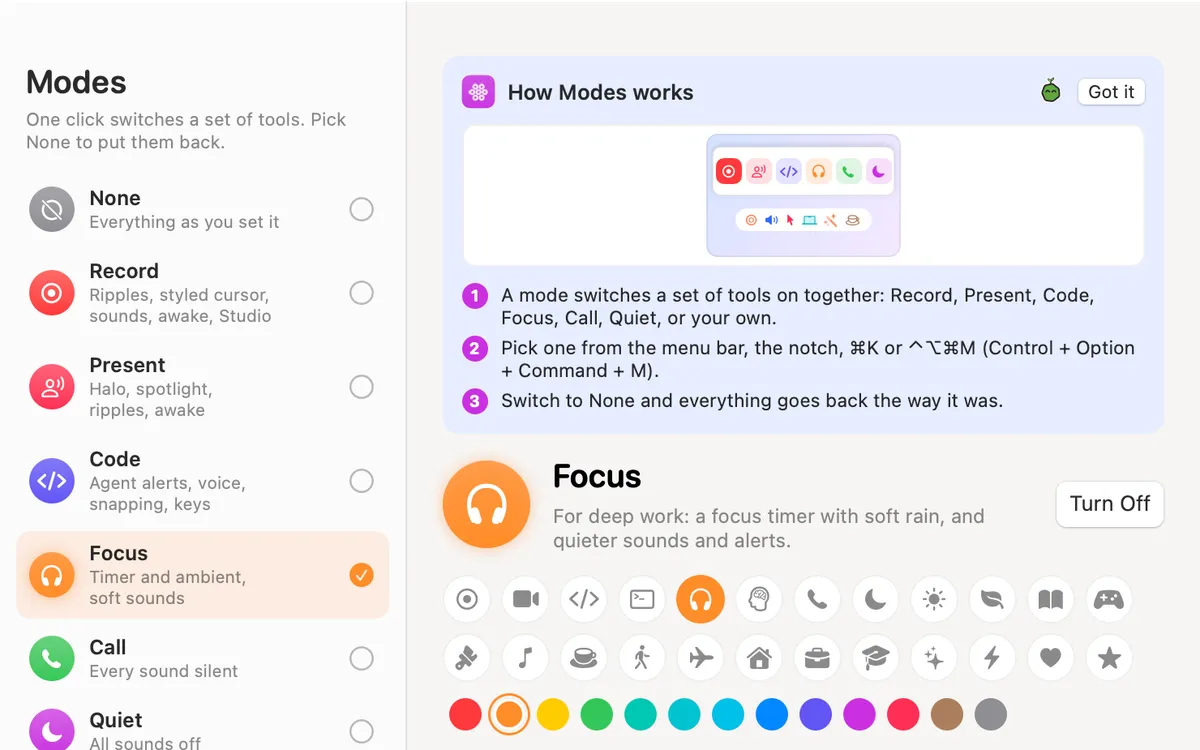
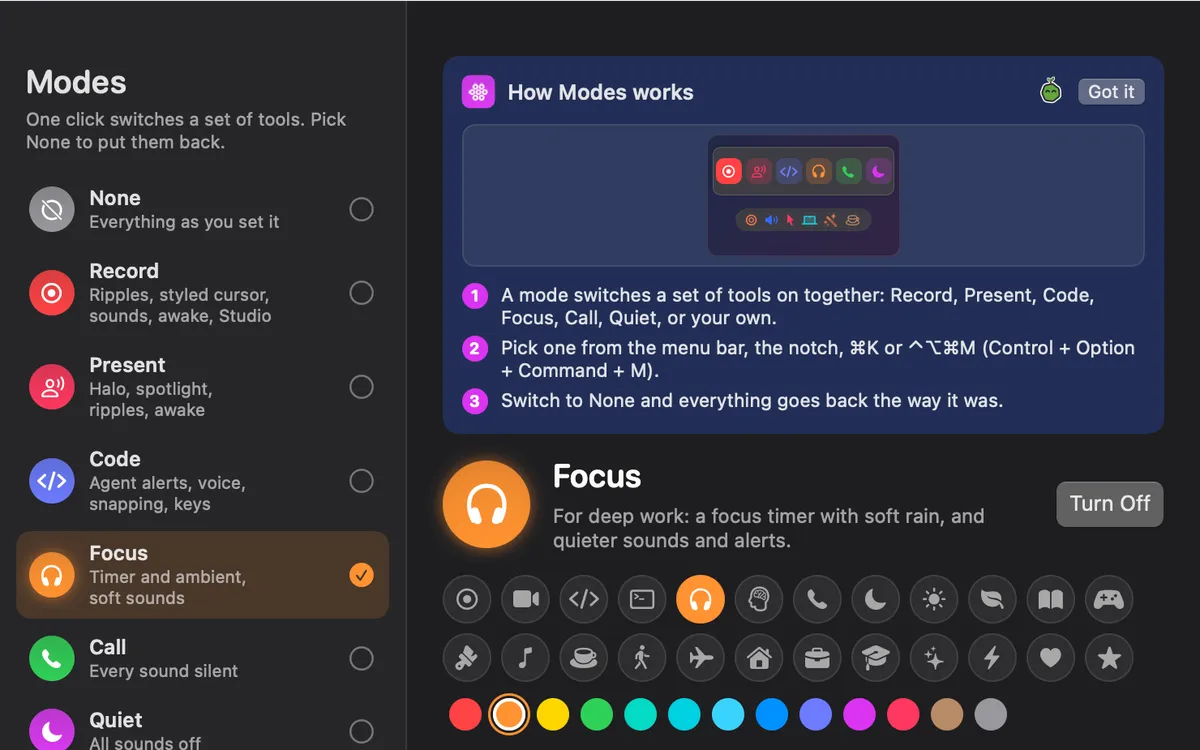
A mode switches a set of tools on together. Record turns on ripples, sounds, the styled cursor, Mac sound, Studio after recording and Keep Awake. Present brings the halo, Spotlight and ripples.
Code turns on agent alerts, Voice to Prompt, window snapping and key sounds. Focus starts a timer with soft rain and quieter sounds. Call turns every sound and ripple off, and Quiet turns all sounds and alerts off.
Switch to None and everything goes back the way it was. Edit any mode, or make your own.
How to use it
Open Modes
Add Modes to My Kit from Explore and click it to open the Modes window.
Pick a mode
Choose one there, or from the Mode button in the Clacky menu, the notch or ⌘K.
Make it yours
Select a mode to set each tool to leave as is, turn on or turn off, with its own volumes and ambient sound. New Mode adds your own.
Back to normal
Pick None: everything you had goes back the way it was.
Tips
- Turn on the ⌃⌥⌘M shortcut in the Modes window to step through your modes, then None.
- Under Automatic, Call when the mic is in use and Record mode while recording switch for you, and switch back when it ends. Both are off by default.
Questions
- Does a mode change my settings for good?
- No. Switch to None and everything the mode touched goes back the way it was.
- Can I change the built-in modes?
- Yes. Edit any of them, and Reset to Default brings one back.
Make something on your Mac today.
Seven days free, every feature, cancel anytime.