Your kit
Your favourite tools as cards on one home. Add any from Explore, drag to reorder, drag out to remove.
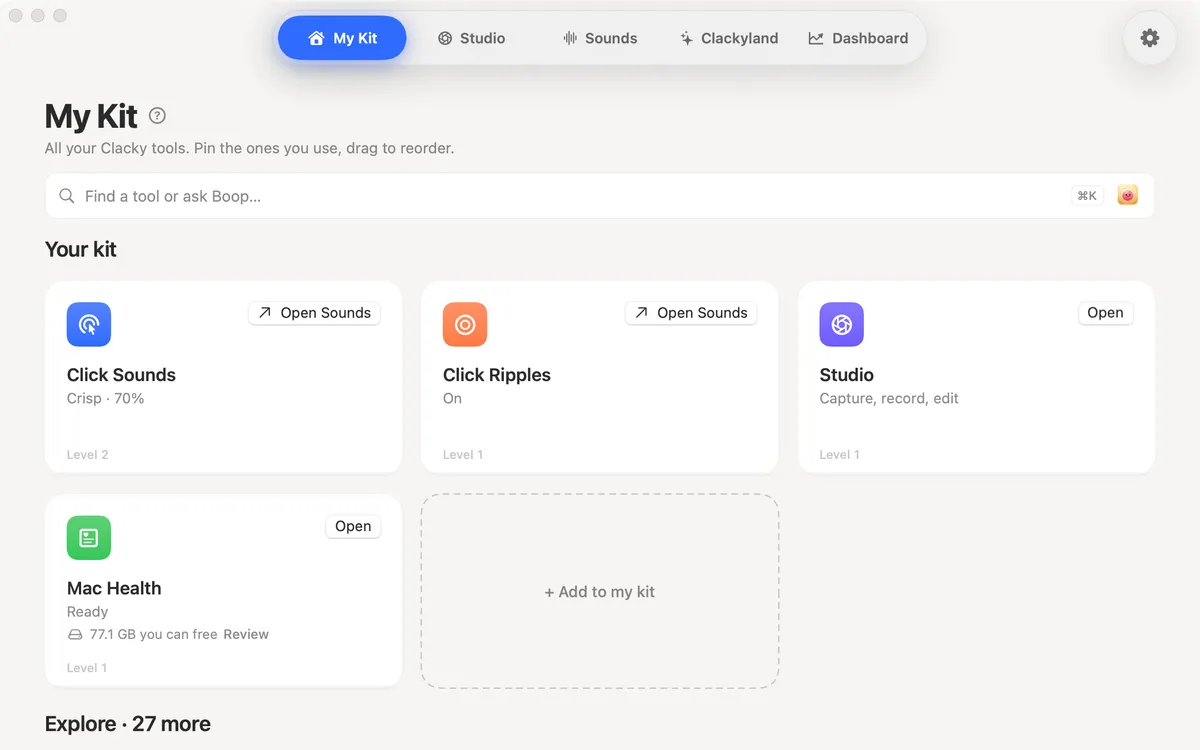
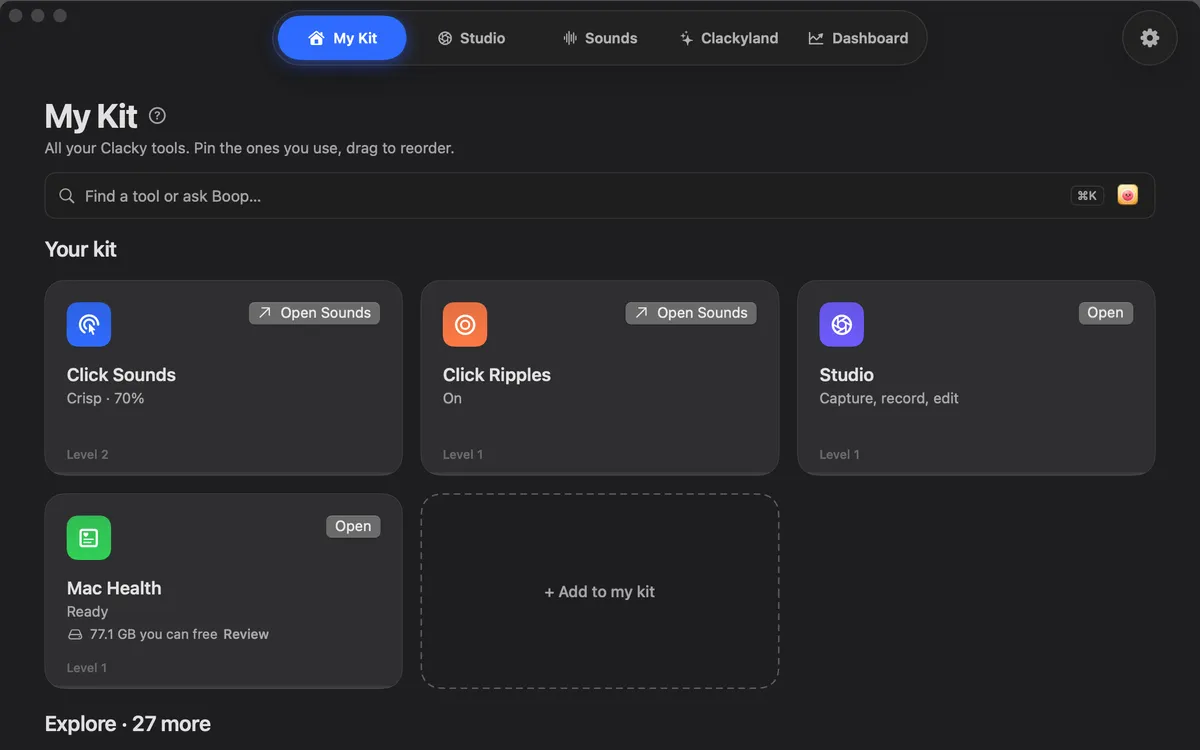
What it is
My Kit is the first place in the Clacky window: the tools you use most, as cards on one home, and nothing else. Each card has its switch or its Open button right on it.
Every other tool waits below in Explore. Add one when you need it, take it out when you don’t, and the kit stays small and calm. There’s no limit to how many cards it holds.
The capture and recording tools, like Screenshots, the Screen Recorder and the Teleprompter, live in Studio. My Kit has one Studio card that takes you there.
How to use it
Open Clacky Home
Click the Clacky icon in the menu bar and choose Clacky Home. The window opens on My Kit; the pill at the top switches between the places.
Add a tool
Click a tool in Explore, or drag it onto Your kit or the + Add to my kit card. More shows the rest of the list.
Put them in order
Drag the cards into the order you like.
Take one out
Drag a card back onto Explore, or right-click it and choose Remove from my kit.
Find anything else
Press ⌘K and type the name of any tool or setting, or ask Boop in plain words.
Tips
- Rest the pointer on a card to see its gear: it opens that tool’s page in Settings.
- While the window is in front, ⌘1 brings you back to My Kit and ⌘2 opens Studio.
- Settings → General → Card theme changes how the cards look.
Questions
- Is there a limit to how many tools my kit holds?
- No. Add as many as you like; the kit grows to fit.
- Where are the screenshot and recording tools?
- In Studio, the next place in the pill. My Kit keeps one Studio card that opens it.
- Can I use a tool that isn’t in my kit?
- Yes. Every tool is in Explore, and ⌘K finds any tool or setting by name.
Make something on your Mac today.
Seven days free, every feature, cancel anytime.