Studio home
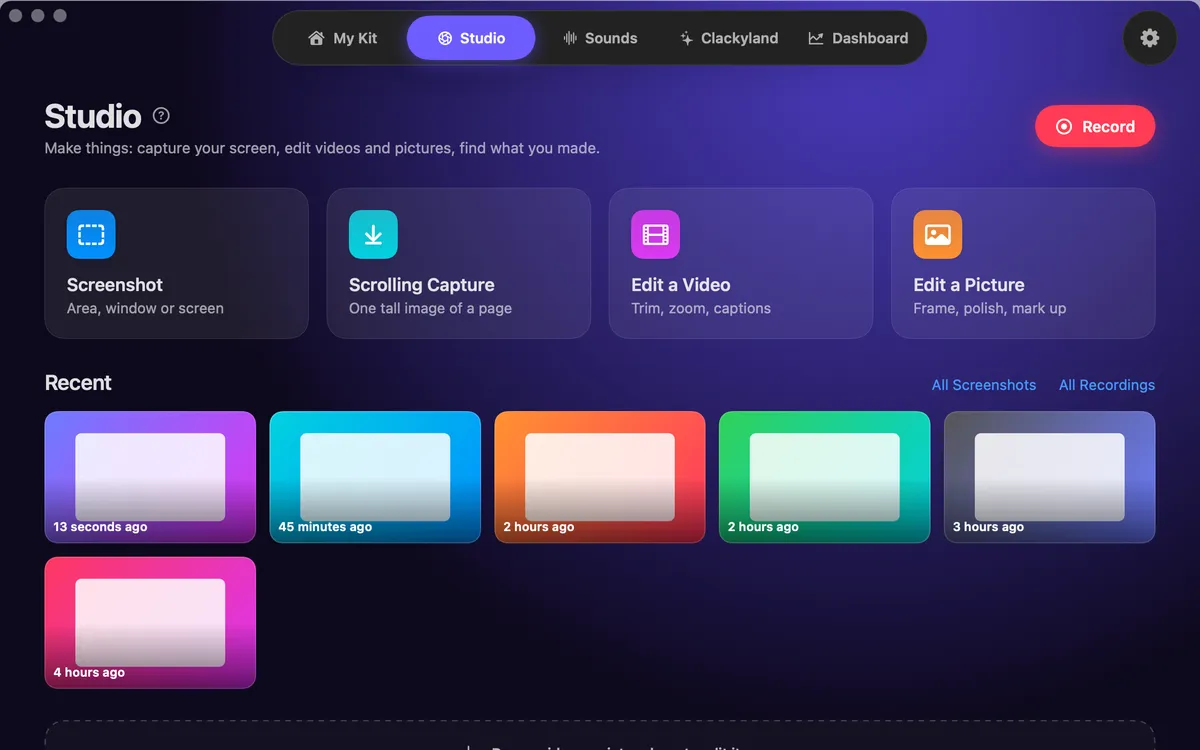
Screenshot, Scrolling Capture, Edit a Video and Edit a Picture, with your recent recordings and shots below.
What it is
Studio is the place in Clacky where you make things. A big Record button starts the screen recorder, and beside it are Screenshot, Scrolling Capture, Edit a Video and Edit a Picture.
Below them, Recent shows your latest recordings and screenshots, with links to All Screenshots and All Recordings. Drop a video or a picture anywhere on Studio to open it in the right editor.
More for recording holds the helpers that go with a take: the Teleprompter, Presenter Mode, Spotlight, GIF Export and Grab Code. Everything you make stays on your Mac.
How to use it
Open Studio
Click the Clacky icon in the menu bar and choose Studio, or click Studio in the pill switcher at the top of the Clacky window.
Record or capture
Click Record to open the recorder bar, or Screenshot for an area, a window or the whole screen.
Edit something you have
Click Edit a Video or Edit a Picture and choose a file, or drag one onto Studio and let go.
Find what you made
Your newest captures are under Recent. Click All Recordings or All Screenshots to see everything.
Tips
- Press ⌘K anywhere in Clacky to jump straight to a Studio tool by name.
- Hover a recent recording for a quick Edit button that opens it in the video editor.
Questions
- Which macOS do I need?
- Clacky runs on macOS 13 or later. The screen recorder and the video editor need macOS 15, and the screenshot studio needs macOS 14.
- Can I edit a video I didn’t record with Clacky?
- Yes. Edit a Video opens any video file. Zooms on clicks need the pointer track Clacky saves with its own recordings, so those come only with Clacky recordings.
- Is anything uploaded?
- No. Recordings, screenshots and edits are made and saved on your Mac.
Make something on your Mac today.
Seven days free, every feature, cancel anytime.