Redact video
Drag a box over something private: Blur, Pixelate or a solid Bar, for as long as you like. It follows the zoom.
What it is
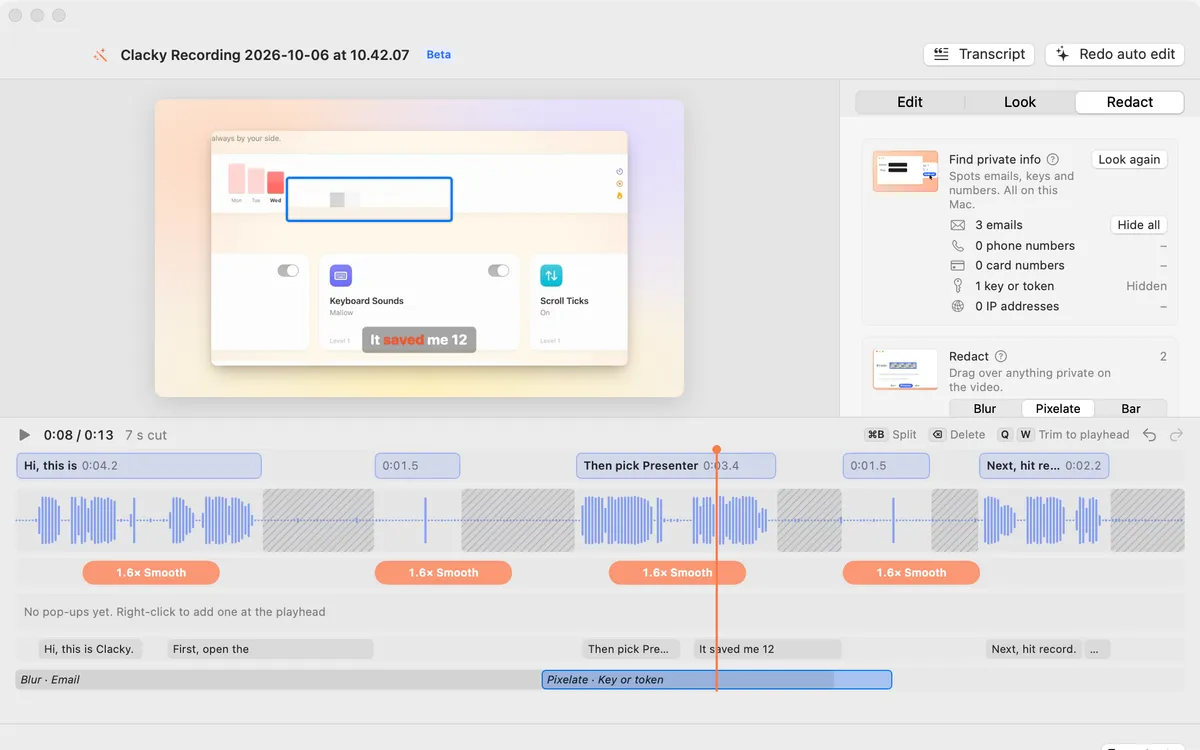
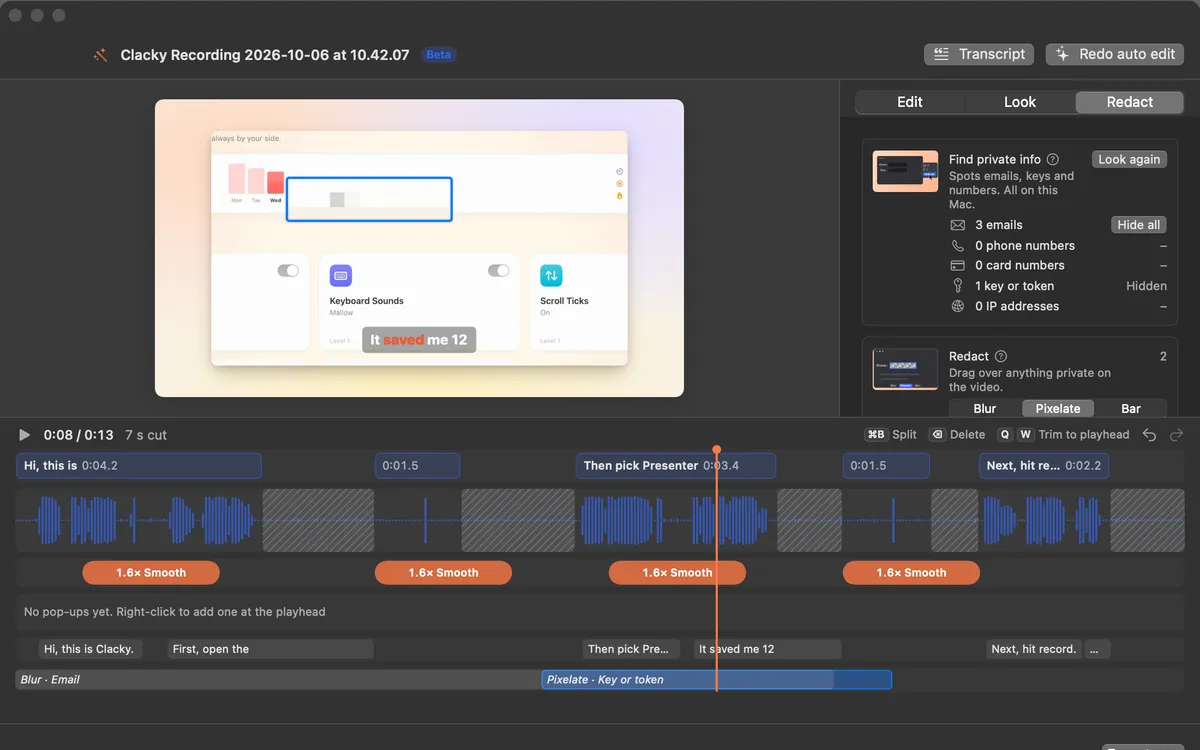
An email, a key or a customer’s name in your recording? In Studio’s Redact tab, drag a box over it on the video and choose Blur, Pixelate or a solid Bar.
Each box has its own stretch on the Redact lane of the timeline, so it shows for exactly as long as you need. With Follow the zoom on, the box stays on the content when the camera zooms in.
How to use it
Open the Redact tab
In Studio’s editor, click Redact at the top of the inspector.
Draw a box
Drag over anything private on the video preview.
Pick the style
Choose Blur, Pixelate or Bar, and set the Strength.
Set how long it shows
On the Redact lane, drag the box’s bar to move it, or drag an edge to make it shorter or longer.
Tips
- Find private info spots emails, phone numbers, card numbers, keys and IP addresses for you, and Hide all covers them.
- Turn off Follow the zoom to keep a box in one place on the screen.
Questions
- Which style is safest?
- Bar is a solid block, so nothing under it shows. Blur and Pixelate soften what’s under them.
- Does the redaction go into the export?
- Yes. The boxes are part of the edit, so every export has them.
Make something on your Mac today.
Seven days free, every feature, cancel anytime.