Your sites
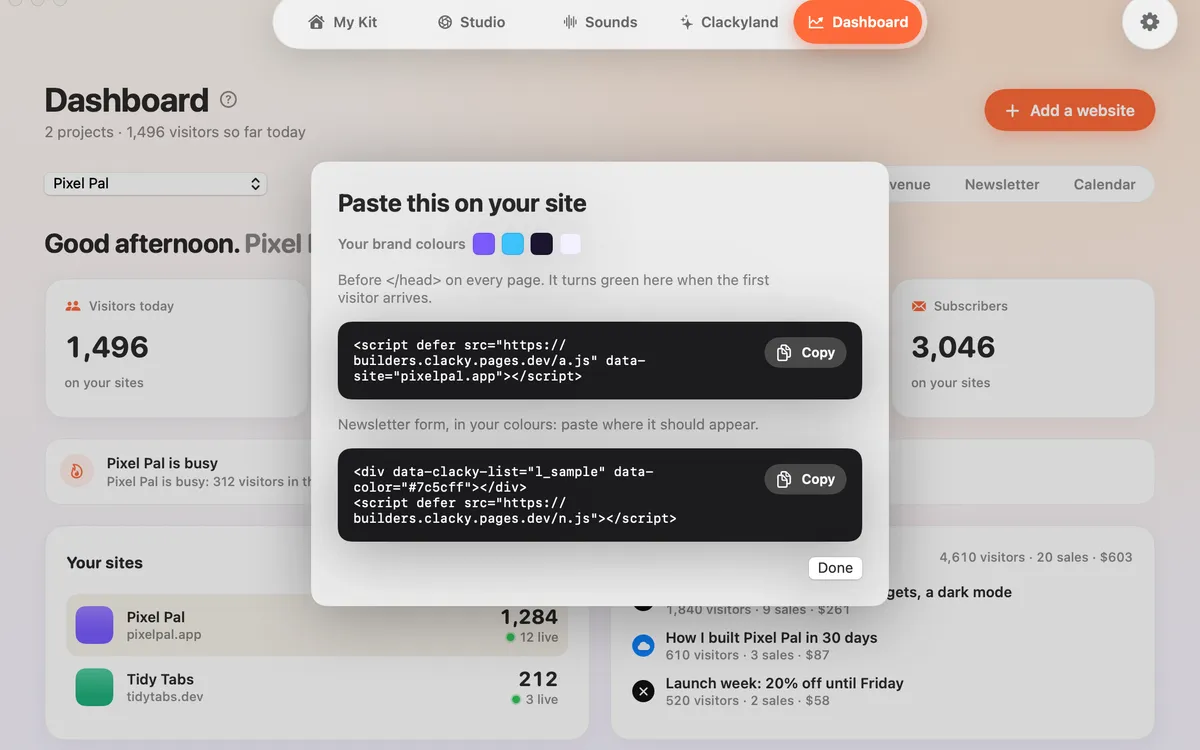
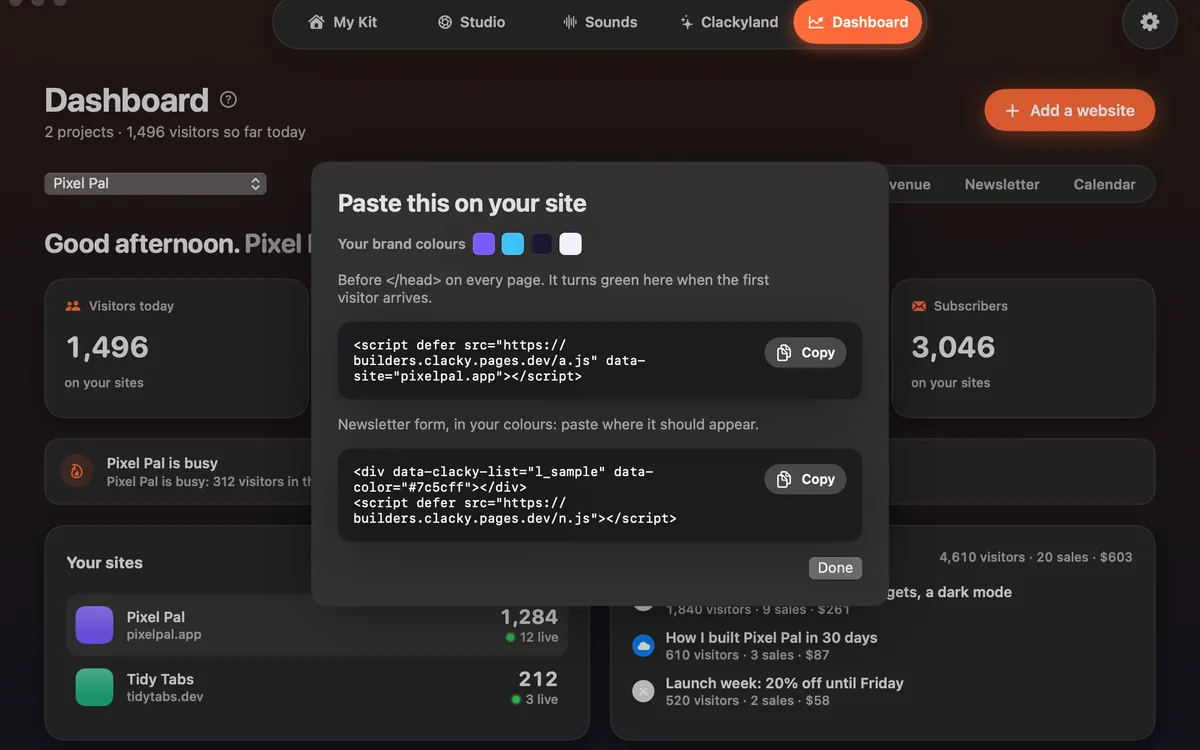
Add a website by pasting one line before </head>. It turns green when the first visitor arrives; live visitors can sit in the menu bar.
What it is
Adding a website takes one line. Paste its address in Clacky, copy the line it gives you and put it before </head> on every page.
Your site turns green in the Dashboard the moment the first visitor arrives. Clacky also reads your brand colours from the site and gives you a newsletter form in those colours.
With more than one site, a picker at the top of the Dashboard switches between them, and Home shows today’s visitors across all of them.
How to use it
Open the Dashboard
Click the Clacky icon in the menu bar, then pick Dashboard in the pill switcher.
Add a website
Click Add a website and paste your site’s address, then click Add.
Paste the line
Copy the line Clacky shows and paste it before </head> on every page of your site.
See the first visitor
Open your site in a browser. Within a minute it turns green in the Dashboard. If nothing shows, click Check again.
Show live visitors in the menu bar
On the Home tab, turn on Live visitors in the menu bar to see the number of people on your sites beside the Clacky icon.
Tips
- Visits from localhost aren’t counted, so test on your live site.
- Single-page apps are counted too: route changes count as page views.
- How many sites you can add depends on your plan’s usage tier.
Questions
- Will the line slow down my site?
- It’s one small script loaded with defer, so it doesn’t block your page from showing.
- Does it work with my site builder?
- If it lets you add code before </head>, yes.
- Can I add more than one site?
- Yes. Click Add a website again. A picker at the top switches between your sites.
Make something on your Mac today.
Seven days free, every feature, cancel anytime.