 MacPip
Answer
Does Clacky work with more than one display?
Yes. Clacky works across every display you connect: the click ripple shows on whichever screen you click, and the sounds play the same everywhere.
With Stereo on, clicks pan from left to right across all your screens together, and you choose which screens show Clacky’s notch.
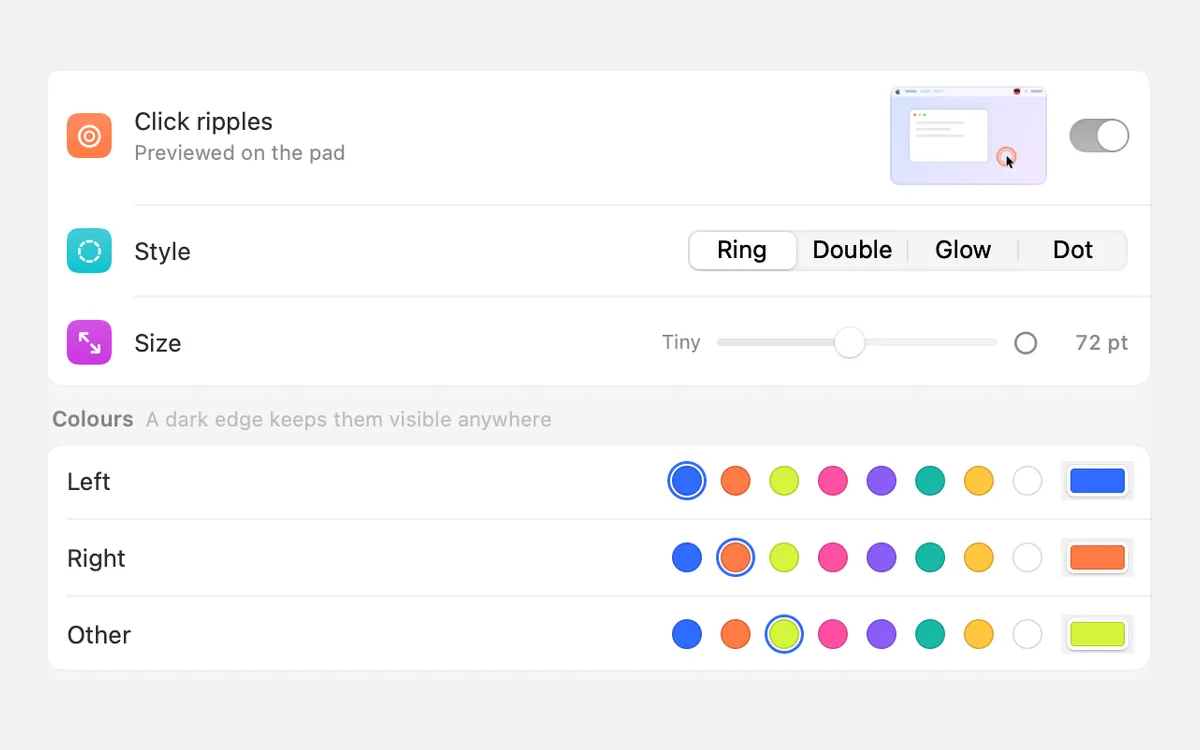
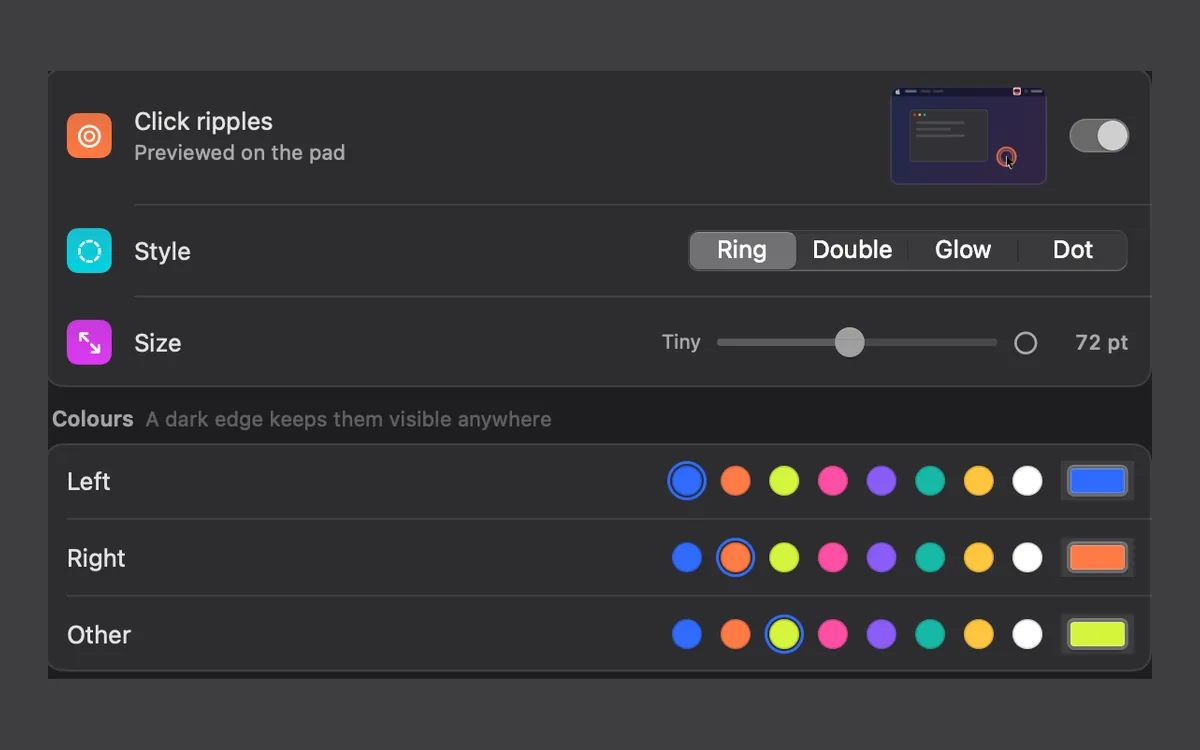
The ripple on every screen
- Clacky puts one invisible, click-through layer on each display. Your clicks pass straight through it.
- It sits above full-screen apps and the menu bar, and it’s there on every Space.
- When you plug in, unplug or rearrange displays in System Settings → Displays, Clacky rebuilds the layers by itself. There’s nothing to set up.
- Because the ripple is drawn on the real screen, a recording or screen share of any display shows it.
Stereo across all your screens
The Stereo setting (Off, Subtle or Wide) makes sounds follow the pointer across your screens. Clacky measures from the left edge of your leftmost display to the right edge of your rightmost one, so a click on the left monitor sounds on the left and a click on the right monitor sounds on the right.
Keyboard sounds have their own Stereo by key position, which pans by where a key sits on the keyboard, not by the pointer.
The notch on more than one screen
External displays have no notch, so Clacky draws one. You pick the screens that show it: the built-in one, the main one, all of them, or the ones you choose. In Compact, a screen without a notch shows only a tiny dot, which grows into the full notch when you move the pointer to the top edge.
Screenshots and recordings with several displays
- Capture Full Screen (⌥⇧⌘3) takes the screen under the pointer, so move the pointer to the display you want first. Needs macOS 14.
- Area (⌥⇧⌘4) and Window (⌥⇧⌘5) work on any display.
- The screen recorder records the full screen, one window or an area (macOS 15). Recording one window keeps the file smaller than a big external display. The screen recording size calculator shows how big a file gets.
Questions
Do I need to set anything up when I connect a second display?
Does the ripple show over a full-screen app or video?
Does the ripple show in a screen share of my second monitor?
Facts checked on 5 November 2026.
Related
- Does Clacky work on a Mac mini, iMac or Mac Studio?Yes. Clacky works on desktop Macs with any mouse, trackpad or keyboard. It needs no built-in trackpad and no motion sensor, only macOS 13 or later.
- Can I change the colour and size of Clacky's click ripple?Yes. Settings → Ripples sets a colour for left, right and other clicks, the size from 12 to 140 pt, the style, line, opacity and speed.
- Click RipplesA ripple under the pointer on every click, so anyone watching sees where you clicked.
- NotchClacky’s own notch, with your Blip beside it. Rest on it to see which sound is playing; while you record, Pause and Stop sit there. A drawn notch on screens without one, left out of recordings unless you want it in.
- How do I show mouse clicks in a screen recording on Mac?Show mouse clicks in a Mac screen recording: Apple’s Show Mouse Clicks option, editors that add click effects later, and a live click ripple with a sound.
- Screen recording size calculatorHow big will your screen recording be? Pick the length, resolution, frame rate and format (H.264, HEVC, ProRes, GIF) to see the size and MB per minute.
Make something on your Mac today.
3 days free, every feature. Then $4.99 once.