 MacPip
Answer
How do I copy text from an image or video on a Mac?
Use Live Text, which is built into macOS: open the picture in Preview or Photos, drag across the text to select it like normal text, then Control-click it and choose Copy Text (in Photos, Command-C works too).
For text in a paused video, a PDF made of scans, or anything else on screen, take a screenshot of it first and open that in Preview, or use a tool that reads any part of the screen, like Clacky’s Grab Text.
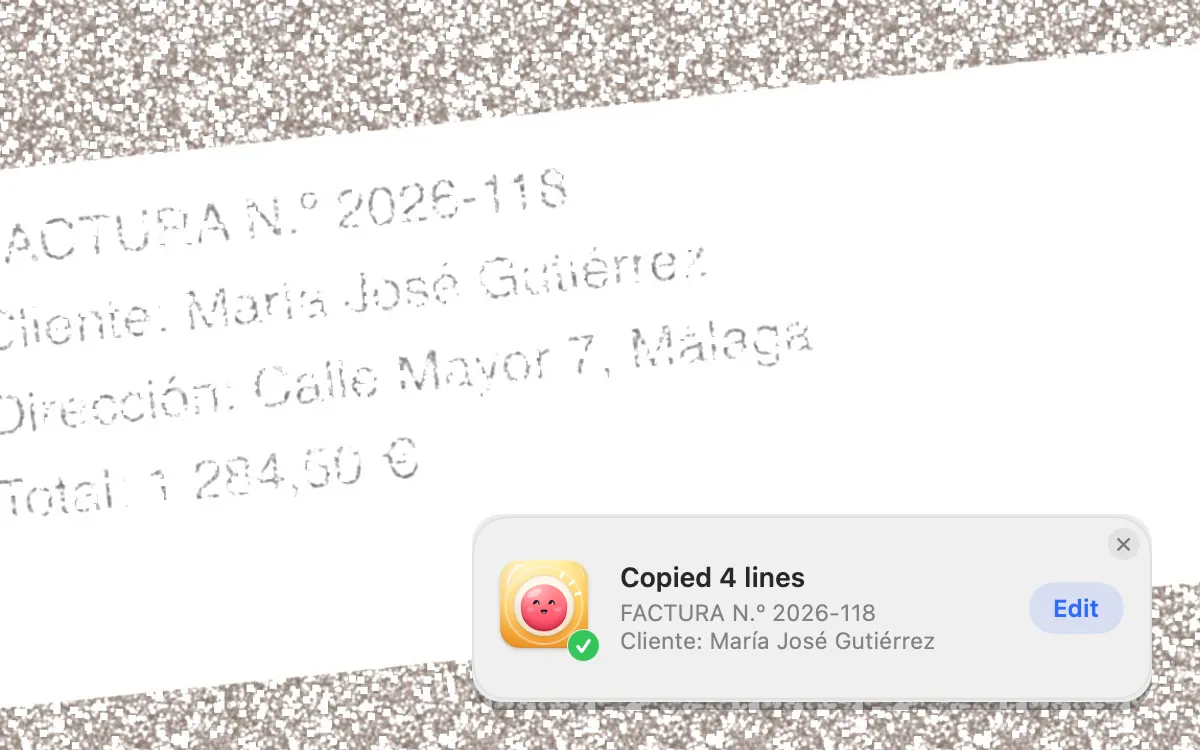
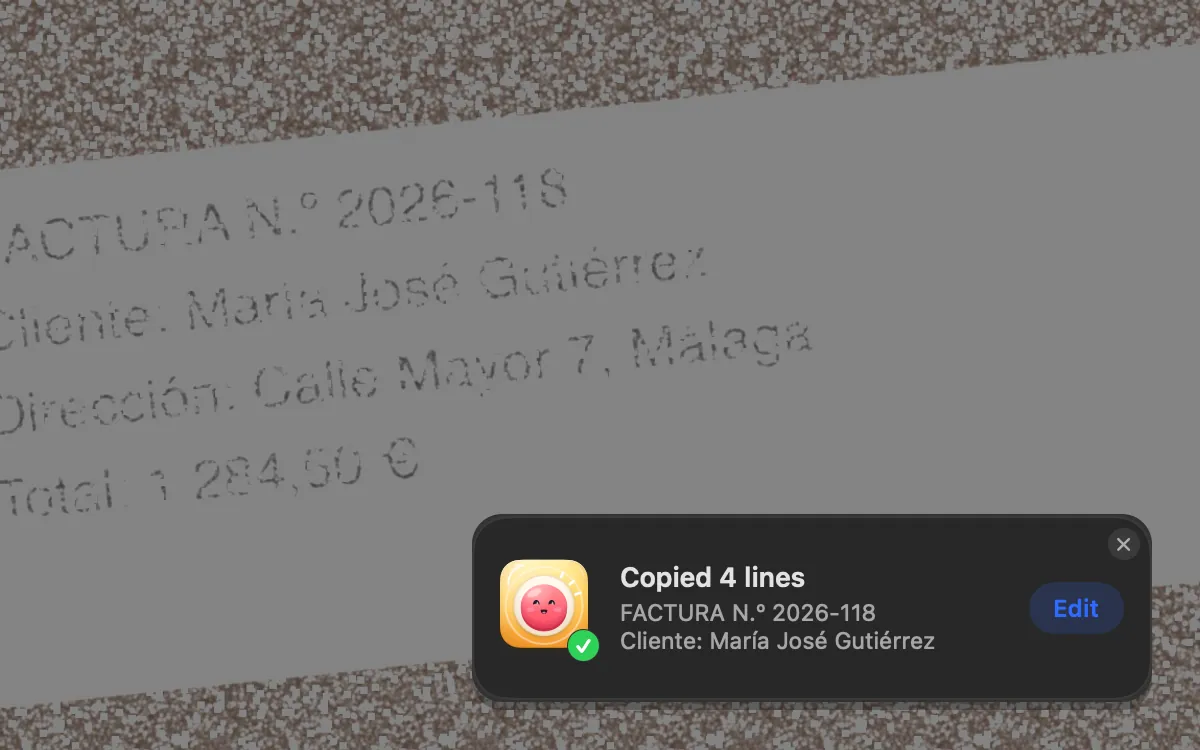
Copy text from a picture with Live Text
If Preview won’t select the text, choose Tools → Text Selection. Live Text isn’t available in every language or region.
- Open the image in Preview or Photos. Safari works the same on images in web pages.
- Move the pointer over the text. It turns into a text cursor.
- Drag to select the words you want.
- Control-click the selection and choose Copy Text.
- Paste it anywhere with Command-V.
Text in a video, or anywhere on screen
- Pause the video on a clear frame. On recent macOS you can often select text in a paused frame in apps that support Live Text.
- If you can’t select it, press Shift-Command-4 and drag over the frame. Open the screenshot in Preview and copy the text from there.
- Phone numbers, emails and links in a picture get their own menu items, like calling, writing an email or opening the link.
- Blurry or tiny text reads badly. Zoom in or make the video full screen before you take the shot.
With Clacky: Grab Text (macOS 14 or later)
Press ⌥⇧⌘T (Option-Shift-Command-T) and drag over any text on your screen: a video, a PDF, a photo, an app that won’t let you select. Your Mac reads it right there and it is on your clipboard, with a small note showing what was copied and an Edit button.
Clacky’s menu also has Grab Text from Copied Image and Grab Text from Image File… for pictures that aren’t on screen. Everything is read on your Mac, nothing is uploaded. You can change the shortcut in Settings → Shortcuts.
Where these facts come from
Checked on 5 November 2026.
- Apple: Interact with text in a photo in Preview on Mac (Copy Text, Tools → Text Selection, not all languages or regions)
- Apple: Use Live Text in Photos on Mac (Copy Text or Command-C, phone numbers, emails, links)
Questions
Does Live Text work offline?
Can I copy text from a scanned PDF?
Why can’t I select text in an image in Preview?
Facts checked on 5 November 2026.
Related
- Grab TextPress ⌥⇧⌘T and drag over any text: a video, a PDF, a photo. Your Mac reads it right there and it’s on your clipboard.
- Take a screenshot without saving a fileAdd Control to the shortcut: Control-Shift-Command-4 copies the shot to the clipboard and saves nothing. Then paste it with Command-V.
- What are Clacky's keyboard shortcuts?Clacky's shortcuts: ⌥⇧⌘4 area, ⌥⇧⌘5 window, ⌥⇧⌘3 full screen, ⌥⇧⌘6 polished shot, ⌥⇧⌘T Grab Text, ⌘K search. Change any in Settings.
- Is the built-in Mac screenshot tool enough?For everyday shots, yes. It has no blur or redact bar, numbered steps, backgrounds or scrolling capture. Here is what it does and when you need more.
- Blur part of a screenshot on a MacPreview has no blur tool, so cover it with a filled shape in Markup. Or use an editor with blur, like Clacky’s, which can find emails and keys for you.
Make something on your Mac today.
3 days free, every feature. Then $4.99 once.