 MacPip
Answer
How do I hide desktop icons before recording my Mac screen?
On macOS 14 Sonoma or later, open System Settings → Desktop & Dock and, under Show Items, turn off On Desktop: your files stay where they are, they just stop showing on the desktop.
On macOS 13 Ventura there is no switch for it, so move the files into a folder, run one Terminal command, or record only the window you need.
macOS 14 Sonoma and later: one switch
Nothing is moved or deleted. The files are still in the Desktop folder in Finder.
- Choose Apple menu → System Settings → Desktop & Dock.
- Under Show Items, turn off On Desktop.
- Check Click wallpaper to reveal desktop too. Set it to Only in Stage Manager so a stray click on the wallpaper doesn’t slide your windows away mid-recording.
- Record, then turn On Desktop back on.
macOS 13 Ventura: three ways
- A folder. Make a new folder on the desktop, select everything else and drag it in. One icon left instead of fifty.
- Terminal. Run
defaults write com.apple.finder CreateDesktop -bool false && killall Finder. Icons disappear until you rundefaults delete com.apple.finder CreateDesktop && killall Finder. - Record one window or an area. In Shift-Command-5, Record Selected Portion lets you frame just the app, so the desktop never shows.
More things to tidy before you record
- Wallpaper. Pick a plain one in System Settings → Wallpaper, so the desktop looks calm in the edges of the video.
- Menu bar and Dock. Hide them too, see how to hide the menu bar and Dock.
- Notifications. Turn on Do Not Disturb in Control Center, so no banner pops up mid-take.
- Other windows. Close what you won’t show, especially mail and chats.
With Clacky: record the window, add a background later
Clacky’s Screen Recorder (macOS 15 or later) has a Window mode: hover a window to light it up, click to pick it, and only that window is recorded, with your clicks, ripples and camera. The desktop and its icons are never in the picture.
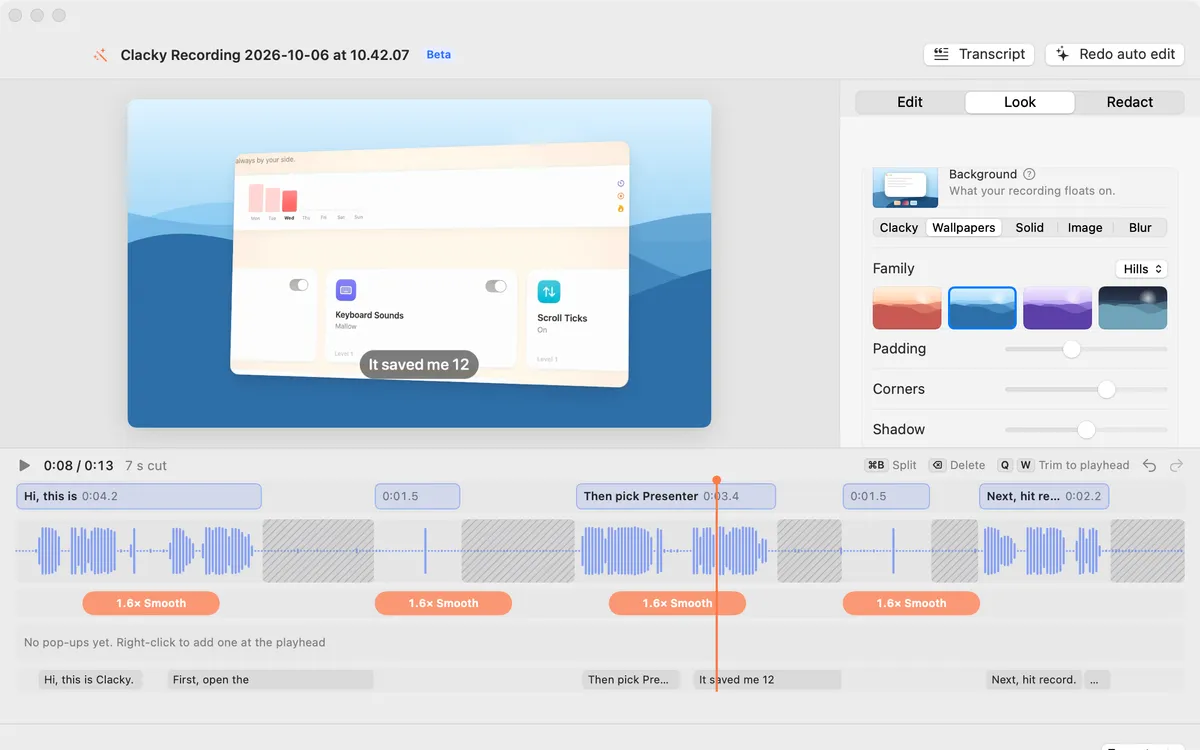
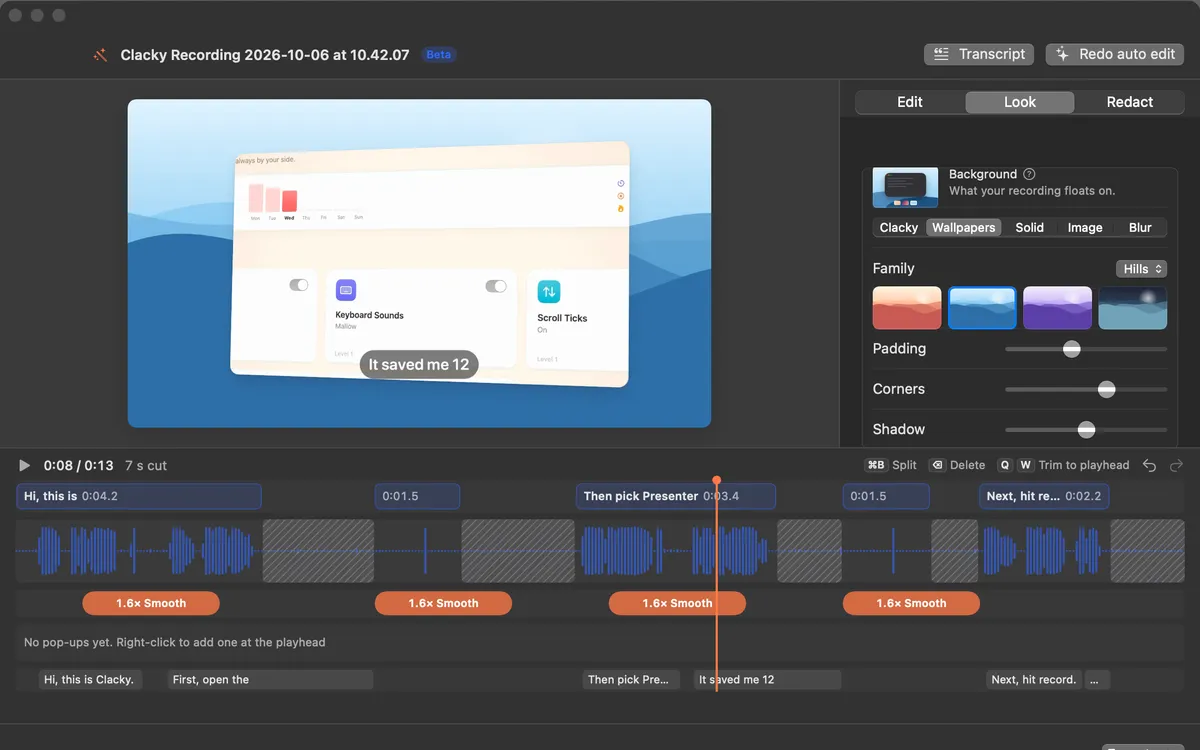
In Studio’s Look tab you can then float the recording on a wallpaper, a colour, your own image or a blur, so it still looks finished. More in making a product demo video.
Where these facts come from
Checked on 5 November 2026.
- Apple: Change Desktop & Dock settings on Mac (Show Items and Click wallpaper to reveal desktop, macOS 14 and 26)
- Apple: Take screenshots or screen recordings on Mac
Questions
Does hiding desktop icons delete my files?
Why did my windows slide away when I clicked the desktop?
Can I hide drives and servers from the desktop too?
Facts checked on 5 November 2026.
Related
- Hide the menu bar and Dock in a screen recordingTurn on Automatically hide and show for the menu bar and the Dock in System Settings, record a selected area, or crop them out later in an editor.
- Record one windowHover a window to light it up, click to pick it. Only that window is recorded, with your clicks, ripples and camera.
- Look and 3D angleFloat your recording on a wallpaper, a colour, your own image or a blur, then tilt it in 3D: it leans in as a zoom starts.
- Product demo video on MacRecord a product demo with clicks heard and seen, let Studio cut the pauses and zoom on clicks, add captions, and export for X, YouTube or a launch.
- Record your screen with your face in a bubbleOpen QuickTime’s camera window, float it on top and record the screen with Shift-Command-5. Or use a recorder with a camera bubble, like Clacky’s.
Make something on your Mac today.
3 days free, every feature. Then $4.99 once.