 MacPip
Answer
How do I record my screen with my face in a bubble on a Mac?
With the built-in apps, open your camera in QuickTime Player (File → New Movie Recording), choose View → Float on Top, drag the window to a corner, then record the screen with Shift-Command-5: the camera window is part of the screen, so it lands in the video.
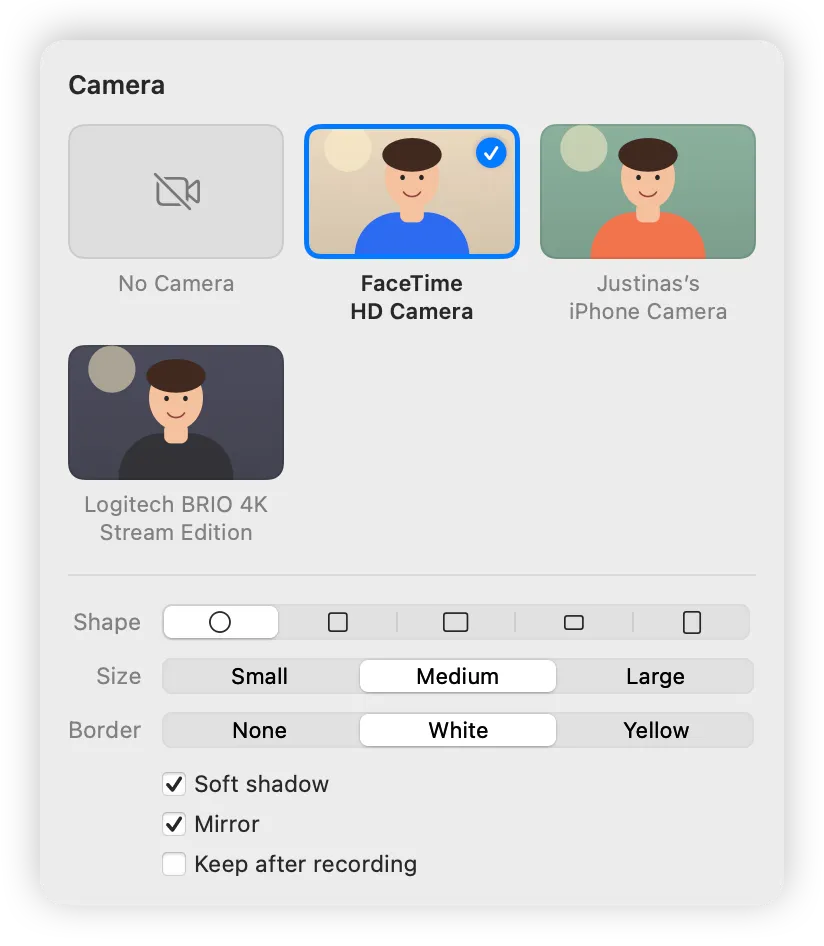
That gives you a square window, not a round bubble. For a real bubble you can shape and resize, use a recorder with a camera bubble, like Clacky’s on macOS 15 or later.
The free way, with QuickTime Player
This works on every Mac with a camera, built in or connected.
- Open QuickTime Player and choose File → New Movie Recording. Your camera appears in a window. Don’t press its record button.
- Choose View → Float on Top, so the camera stays above other windows.
- Make the window small and drag it to a corner, away from what you’ll show.
- Press Shift-Command-5, pick the whole screen or a part, choose your microphone under Options, and click Record.
- Stop with the Stop button in the menu bar or Command-Control-Esc. The camera window is in the video wherever it sat.
The limits of the QuickTime trick
- The camera is a rectangle with a title bar, not a circle.
- If you click on it by mistake, it can come to the front of your work.
- Record the whole screen or an area. A single-window recording leaves the camera window out.
- Your face and your screen are one picture, so you can’t move or hide the camera afterwards.
With Clacky’s camera bubble
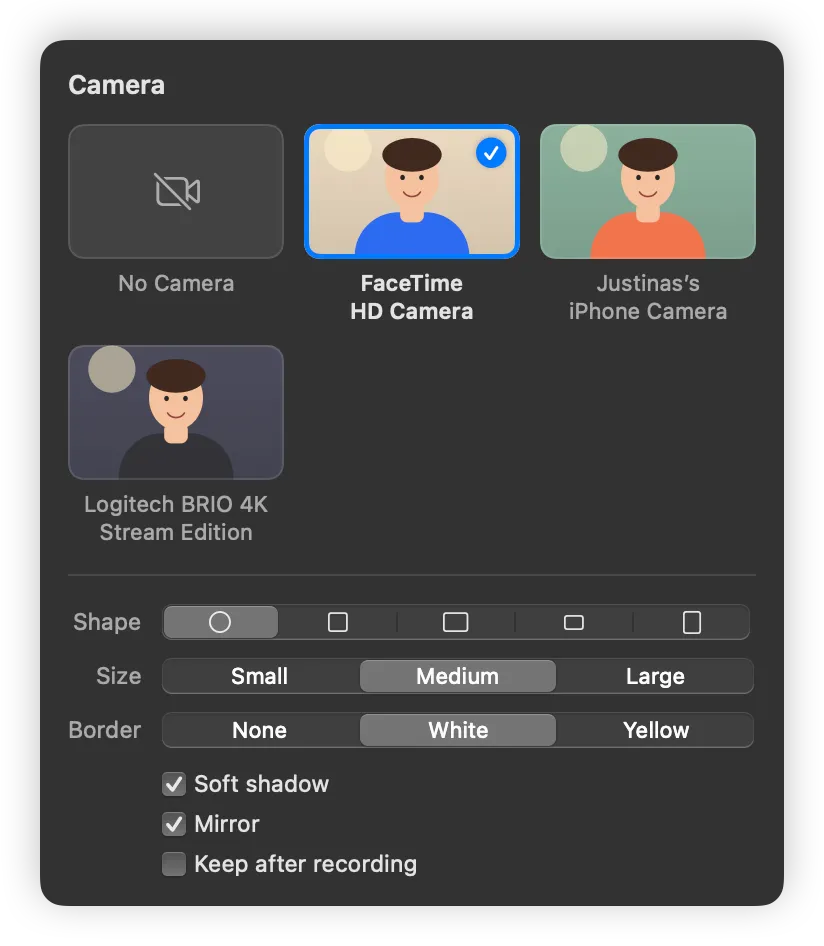
Clacky’s Screen Recorder (macOS 15 or later) has a Camera button in its bar. Pick the built-in camera, your iPhone through Continuity Camera, or an external camera, then choose a shape (circle, rounded square, 16:9, 4:3 or 9:16), a size, a border and Mirror. The bubble is part of the recording, and the controls around it never are.
Start it from Clacky’s menu-bar menu with Record Screen…, pick Full Screen, Window or Area, and click Record. The camera runs only while the bubble is on screen, so the green light goes off when you’re done. The recording is saved to Movies › Clacky.
Tips for a better face bubble
- Put the bubble in a bottom corner, where apps rarely show buttons.
- Light your face from the front, a window or a lamp behind the screen.
- For tall videos for Shorts or Reels, keep the bubble small so it doesn’t cover the app. Clacky’s Studio can turn the take into 9:16 later, see vertical video from a screen recording.
Where these facts come from
Checked on 5 November 2026.
Questions
Can I use my iPhone as the camera?
Does the camera bubble show in a one-window recording?
Can I hide my face for part of the video?
Facts checked on 5 November 2026.
Related
- Camera bubbleYour camera in a bubble over the recording: built-in, Continuity Camera or external, with shape, size, border and mirror.
- Screen RecorderRecord the full screen, one window or an area, with your clicks heard and their ripples seen. Saved to Movies › Clacky.
- Product demo video on MacRecord a product demo with clicks heard and seen, let Studio cut the pauses and zoom on clicks, add captions, and export for X, YouTube or a launch.
- Vertical video from a screen recordingMake a 9:16 clip for TikTok, Reels and Shorts from a Mac screen recording, with the camera following your pointer. Also 4:5, 16:9 and 1:1.
- Pause a screen recording on a MacNot with the built-in tools: Shift-Command-5 and QuickTime only stop. Stop and join the clips, or use a recorder with Pause, like Clacky’s.
- Mac screen recording has no soundBefore macOS 27, Apple’s recorder only records a microphone, never the Mac’s own sound, and Microphone is often set to None. Here is how to fix both.
Make something on your Mac today.
3 days free, every feature. Then $4.99 once.