 MacPip
Answer
Is QuickTime enough for screen recording on a Mac?
For a quick screen recording with your voice, yes: QuickTime Player records the full screen or an area, adds your microphone, and can draw a black circle on every click. It falls short when you need your Mac’s own sound in the video before macOS 27, a pause button, a camera bubble, captions or zooms.
It’s free and already on your Mac, so start there. If you hit one of those limits, Clacky’s recorder (macOS 15 or later) records Mac sound, pauses into one file, adds a camera bubble, and edits on your Mac, as part of Clacky’s $4.99.
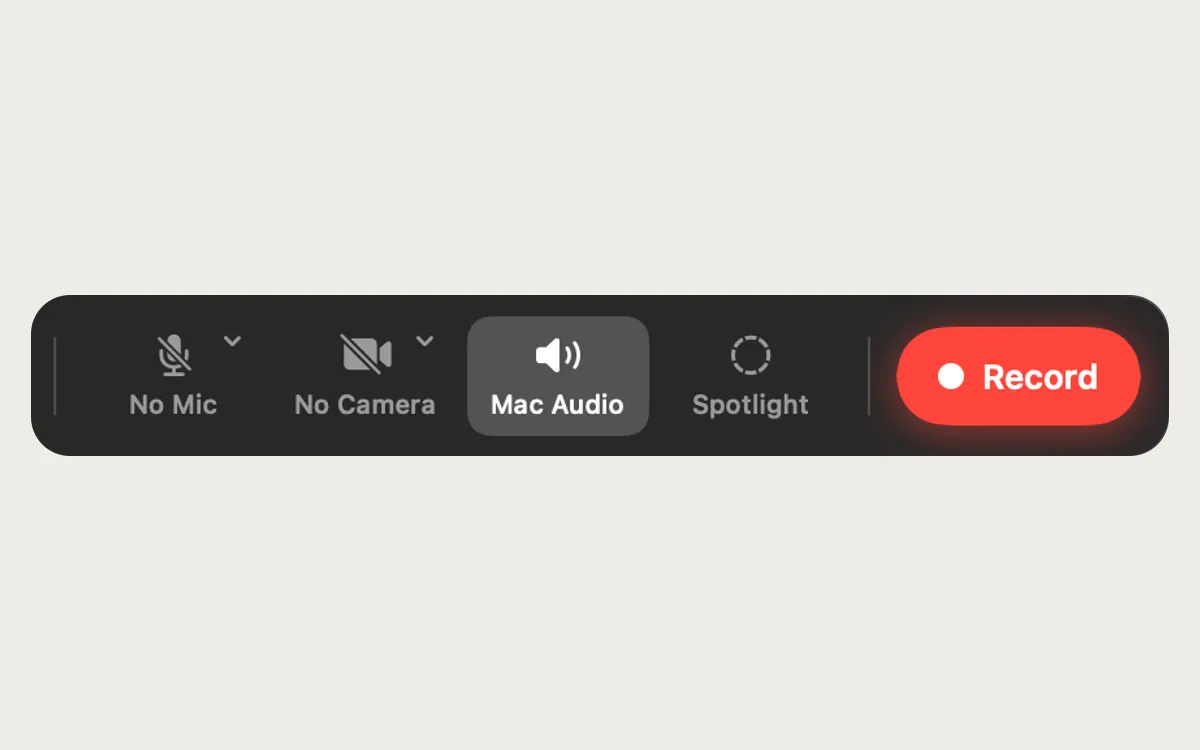
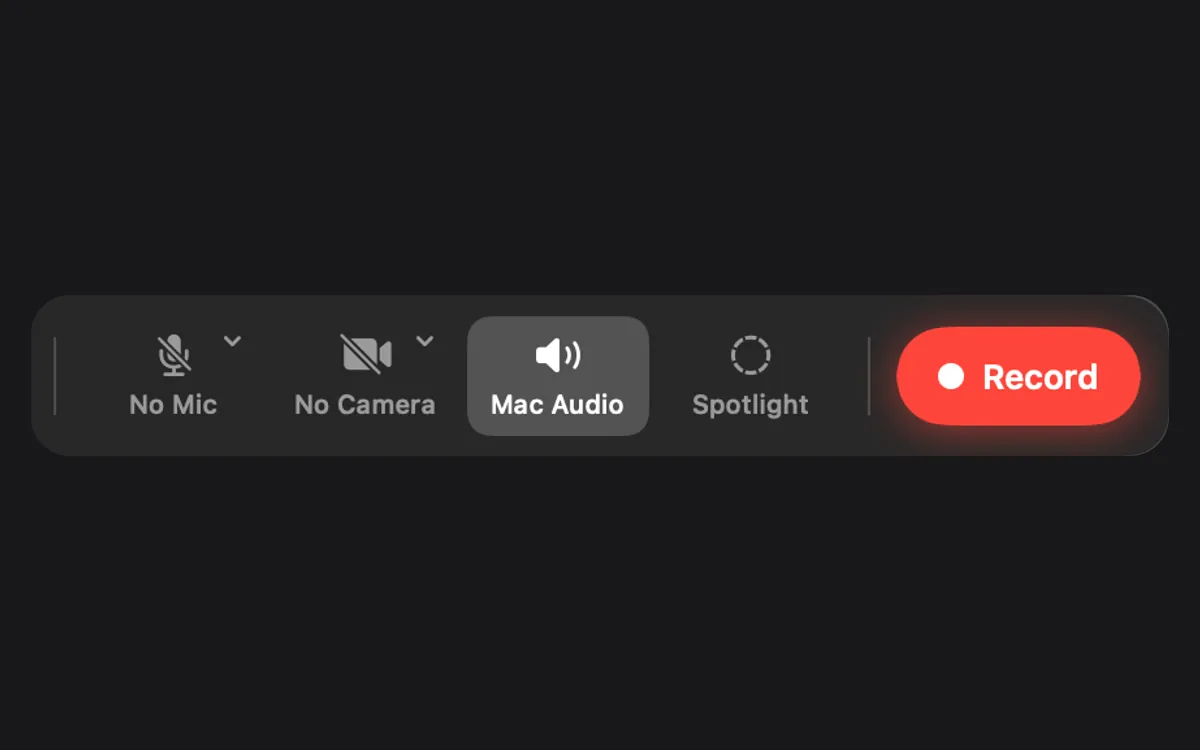
How to record your screen with QuickTime
Recordings are .mov files, saved to your desktop unless you picked another place.
- Open QuickTime Player and choose File → New Screen Recording (or press Control-Command-N). The Screenshot toolbar appears.
- Pick Record Entire Screen or Record Selected Portion in the toolbar (and drag the area’s edges if you chose a portion).
- Click Options to pick a microphone, turn on Show Mouse Clicks, set a timer and choose where to save. Then click Record.
- To stop, click the Stop button in the menu bar or press Command-Control-Esc. QuickTime opens the recording.
- To cut the start or end, choose Edit → Trim, drag the yellow handles, then click Trim and save.
QuickTime and Clacky’s recorder side by side
What each one does, from Apple’s guides and Clacky’s own pages.
| What you need | QuickTime and Shift-Command-5 | Clacky’s recorder |
|---|---|---|
| Price | Free, built in | Part of Clacky, $4.99 once |
| macOS | Built into every version | 15 Sequoia or later |
| Screen, area or one window | Yes (one window from macOS 26 Tahoe) | Yes |
| Microphone | Yes | Yes |
| Your Mac’s own sound | Only from macOS 27 Golden Gate (Include System Audio) | Yes |
| Clicks shown | A black circle | A coloured ripple, and the click sounds |
| Pause and resume | Not in Apple’s steps | Yes, one file at the end |
| Camera bubble | No | Yes, built-in, Continuity or external camera |
| Editing | Trim | Auto edit, captions, crop, 9:16, redact, music |
When QuickTime is enough
QuickTime is the right tool more often than you might think. To show your face, QuickTime’s File → New Movie Recording opens your camera in a window, and View → Float on Top keeps it above your other windows while you record the screen.
- A short recording to show a bug or a setting to a friend or a colleague.
- You talk over it with the microphone and don’t need the Mac’s sound.
- You’re on macOS 27 Golden Gate or later, where Include System Audio adds the Mac’s sound.
- You only need to trim the start and end.
When you’ll want more
For tutorials, product demos and Shorts, the gaps add up. Clacky’s recorder captures full screen, one window or an area, with Mac audio and your mic in one video, so the click sounds are in it. A 3-2-1 countdown starts it, Pause and Stop sit in the notch, and Clacky’s own bar and pill stay out of the video. Recordings go to Movies › Clacky.
Then Studio cuts the quiet between sentences, zooms in on bursts of clicks, writes captions on your Mac and exports 9:16 for Shorts. Nothing is uploaded. If you want the Mac sound with QuickTime on an older macOS, see how to record your Mac screen with internal audio.
Where these facts come from
Checked on 5 November 2026. Apple’s menus can change between macOS versions.
- Apple: Record the screen on your Mac
- Apple: QuickTime Player User Guide, record your screen
- Clacky: screen recorder and features
Questions
Can QuickTime record internal audio?
Can I pause a QuickTime screen recording?
Where does QuickTime save screen recordings?
Does QuickTime show mouse clicks?
Facts checked on 5 November 2026.
Related
- Free screen recorder for Mac that shows clicksYes. The Mac’s own recorder is free and can circle every click. OBS, Cap and Loom’s free plan are free too, but each shows clicks differently.
- Mac screen recording has no soundBefore macOS 27, Apple’s recorder only records a microphone, never the Mac’s own sound, and Microphone is often set to None. Here is how to fix both.
- Pause a screen recording on a MacNot with the built-in tools: Shift-Command-5 and QuickTime only stop. Stop and join the clips, or use a recorder with Pause, like Clacky’s.
- Screen RecorderRecord the full screen, one window or an area, with your clicks heard and their ripples seen. Saved to Movies › Clacky.
- How to record your Mac screen with internal audioWhy Mac screen recordings come out silent, and four ways to record the Mac’s own sound with the picture: the Screenshot toolbar, OBS, BlackHole and Clacky.
- OBS or Clacky for tutorials?OBS is free, open source and built for scenes and streaming. Clacky records with click sounds and ripples, then cuts, captions and exports on your Mac.
Make something on your Mac today.
3 days free, every feature. Then $4.99 once.